
how to fix corrupted files on windows pc usually comes down to two things, repairing Windows system files and checking the drive where those files live, both can be done with free built-in tools if you know the order to run them.
If you’re here because a document won’t open, an app keeps crashing, or Windows throws odd errors after an update, you’re not alone, corruption can come from sudden power loss, failing storage, buggy updates, or security software conflicts, and it’s easy to waste time trying random “fixes” that don’t match your situation.

This guide walks you through a practical sequence, quick checks first, then deeper repairs, then recovery options, plus a few “don’t do this” traps that often make things worse, especially when people start deleting system folders or running sketchy repair utilities.
What “corrupted files” usually means on Windows
Windows uses “corruption” as a catch-all, so it helps to label what’s actually broken, because the fix differs.
- Single file corruption, one PDF, photo, or project file won’t open, but Windows seems fine.
- System file corruption, Windows features act weird, updates fail, random apps crash, built-in tools error out.
- Disk or file system issues, you see slowdowns, clicking drives, frequent “repairing drive” screens, or Event Viewer disk errors.
- Profile or app-level corruption, one Windows user account breaks, or one application’s data files get damaged.
According to Microsoft Support, tools like System File Checker and Deployment Image Servicing and Management can repair corrupted Windows system files, which is often the correct starting point when Windows itself feels unstable.
Quick self-check: identify your most likely scenario
Before running commands, take 2 minutes and decide which lane you’re in, it saves a lot of circling.
- Only one file fails to open → focus on that file and backups, not Windows repair first.
- Multiple apps crash, Windows features fail → run SFC and DISM.
- Errors mention the drive, bad sectors, or NTFS → run CHKDSK and review SMART health.
- Problems started right after an update → try DISM, then Windows Update repair steps, then rollback if needed.
- You hear unusual drive noises or frequent freezes → prioritize data backup, then diagnostics.
The free Windows repair toolkit, what to run and when
Here’s the sequence that tends to work best in real life, least risky to more invasive.
| Tool | Best for | How long | What it changes |
|---|---|---|---|
| SFC (System File Checker) | Corrupted or missing Windows system files | 5–20 min | Replaces protected system files |
| DISM | Fixing the Windows component store used by updates/SFC | 10–45 min | Repairs Windows image sources |
| CHKDSK | File system errors, bad sectors, drive issues | 10 min–hours | Checks NTFS structure, may mark bad sectors |
| System Restore | Recent instability after installs/updates | 10–30 min | Reverts system changes, keeps personal files |
| Reset this PC | Windows too broken to trust | 30–120 min | Reinstalls Windows, options vary |
Step-by-step: repair Windows system files with SFC and DISM (free)
If your goal is how to fix corrupted files on windows pc without paying for utilities, start here, because these commands are safe and built-in, and they target the system layer that causes lots of “mystery” problems.
1) Run SFC
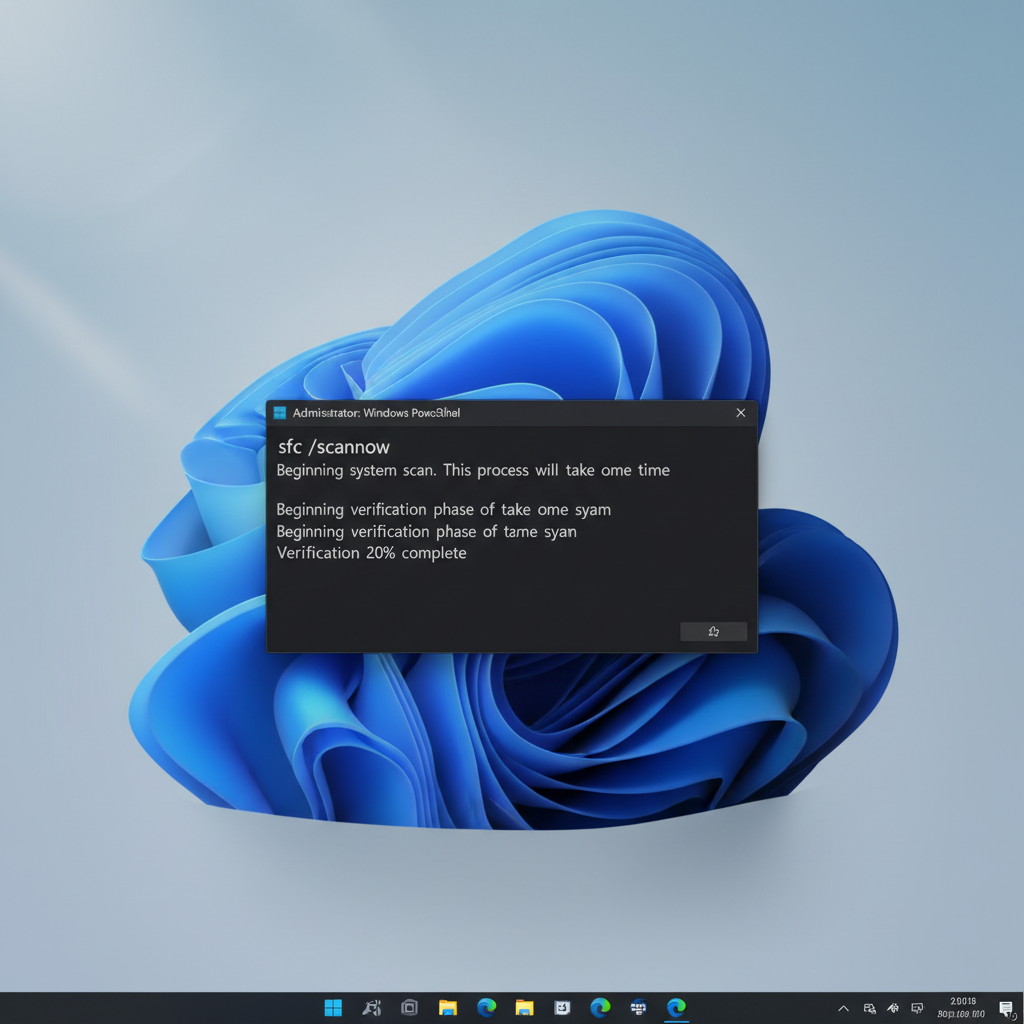
Open Windows Terminal (Admin) or Command Prompt (Admin), then run:
- sfc /scannow
Let it finish, if it says it repaired files, reboot and test the issue again, if it says it found corruption but couldn’t fix some files, move to DISM.
2) Run DISM to repair the component store
In the same admin terminal, run these in order:
- DISM /Online /Cleanup-Image /CheckHealth
- DISM /Online /Cleanup-Image /ScanHealth
- DISM /Online /Cleanup-Image /RestoreHealth
DISM may appear “stuck” at certain percentages, that can be normal, especially on slower PCs, keep it running unless it errors out.
After DISM completes, run sfc /scannow again, then reboot, this pairing is what fixes a lot of update-related breakage.
Step-by-step: check the disk with CHKDSK (and when to be careful)
If corruption keeps coming back, or Windows reports drive errors, you’re often dealing with file system damage or early disk failure, CHKDSK helps, but timing matters.
Run a safe read-only scan first
In an admin terminal, run:
- chkdsk C:
This checks and reports, it won’t force fixes that require a reboot.
Run a repair scan (may require restart)
If CHKDSK reports problems, run:
- chkdsk C: /f (fixes file system errors)
You may be prompted to schedule it at next restart, accept, then reboot.
When to consider /r
chkdsk C: /r scans for bad sectors and attempts readable data recovery, it can take a long time, and on a drive that’s physically failing, long scans can sometimes accelerate failure, many technicians will say “backup first, scan second” for that reason.
According to Microsoft Support, CHKDSK can locate bad sectors and recover readable information, but it’s not a substitute for replacing a failing drive.
If it’s just one file: practical recovery options that cost $0
When Windows is stable and only one file is corrupted, repairing the OS may not help, you want to recover a clean copy or extract content.
- Try a different app to open it, for example, a different PDF reader, photo viewer, or office suite.
- Check cloud and sync history, OneDrive and Google Drive often keep version history, which is the cleanest “undo” if available.
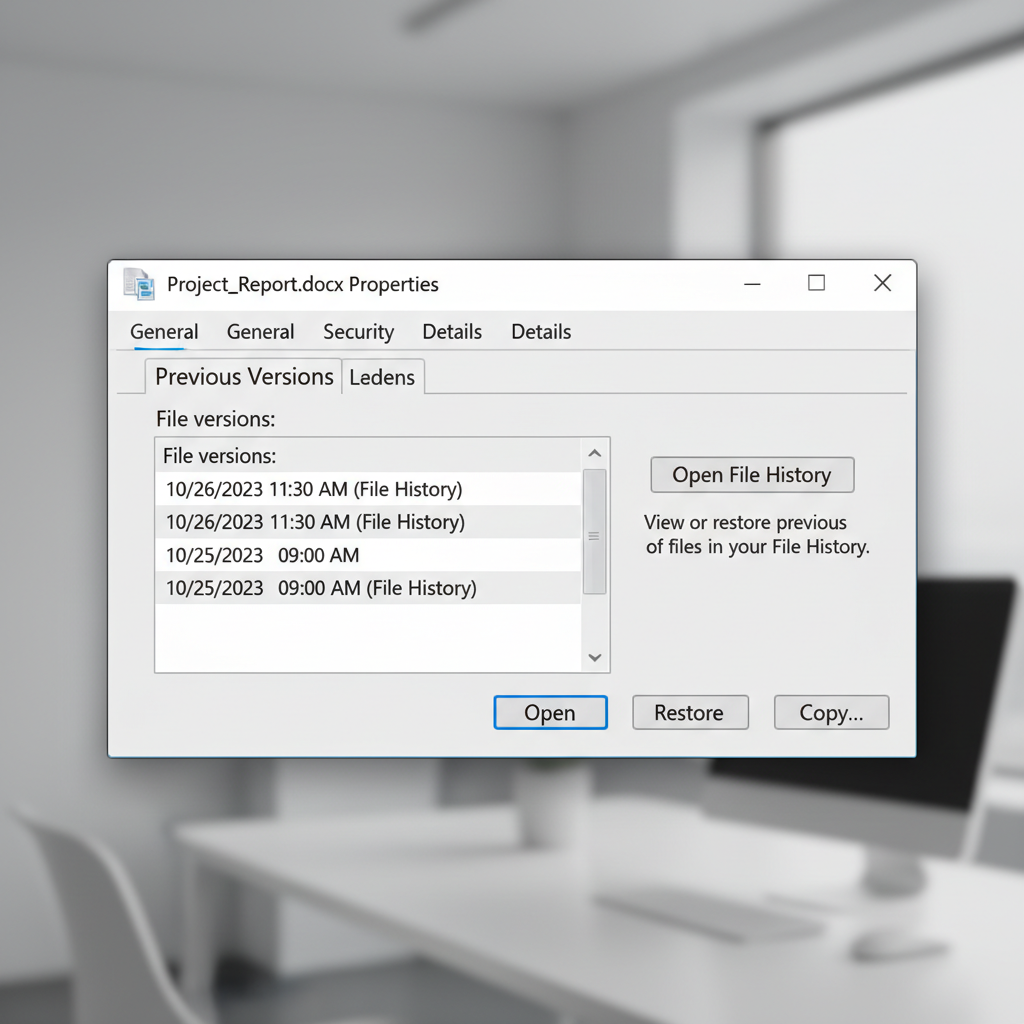
- Restore from Windows File History if you enabled it, search “File History” in Settings/Control Panel and look for an older version.
- Use Previous Versions, right-click file or folder → Properties → Previous Versions, this depends on restore points or file history being enabled.
- Re-download the source, installers and downloads get corrupted more than people expect, especially from interrupted connections.
Key point: if the file is business-critical, make a copy of the corrupted file before experimenting, so you always have the original state to hand to a specialist tool later if needed.
Common mistakes that waste time (or make things worse)
- Running random “PC repair” downloads from search results, many are adware-heavy, some cause more instability than the original issue.
- Deleting files in System32 or WinSxS to “clean corruption”, those folders are not meant for manual cleanup.
- Assuming SFC fixes personal documents, it repairs protected Windows system files, not your Excel file or a game save.
- Ignoring drive health signals, if CHKDSK keeps finding new errors, stop treating it as a software-only problem.
- Skipping reboot/testing steps, many fixes only apply after restart, and testing after each step prevents confusion.
When it’s time to escalate: restore, reset, or get professional help
Sometimes the right answer to how to fix corrupted files on windows pc is admitting the machine needs a bigger reset, especially when core services keep breaking.
- Use System Restore if problems started recently and you have restore points, search “Create a restore point” → System Restore.
- Consider an in-place repair install using Microsoft’s official Windows installation media, this can refresh Windows without wiping personal files, but it still deserves a full backup.
- Use Reset this PC when Windows won’t stay stable, choose “Keep my files” if appropriate, then reinstall apps after.
- Get professional help if you suspect hardware failure, you see repeated blue screens, encryption issues, or you need forensic-grade recovery, a reputable local shop or your IT team can assess without guesswork.
According to CISA (Cybersecurity and Infrastructure Security Agency), keeping systems updated and using trusted sources for software reduces risk from malware and tampered downloads, which also lowers the odds of “mystery corruption” that is actually security-related.
Conclusion: a reliable free workflow you can reuse
If you want a clean, repeatable approach, run SFC, then DISM, then confirm disk integrity with CHKDSK, and only after that chase file-level recovery or bigger Windows recovery options, it’s boring, but it’s the sequence that avoids a lot of false starts.
If you do one thing today, make it this: back up important folders before deeper disk scans or resets, then test after each step so you know what actually fixed the corruption.
FAQ
How do I know if Windows system files are corrupted?
Common signs include Windows Update errors, built-in apps failing, missing system features, or repeated prompts to repair components, SFC and DISM results are usually the quickest confirmation.
Does SFC fix corrupted personal files like documents and photos?
Not typically, SFC targets protected Windows system files, for personal files you’ll usually need version history, backups, app repair features, or recovery tools.
What should I run first, DISM or SFC?
Many people start with SFC because it’s quick, but if SFC can’t repair everything, DISM is the next step because it repairs the component store SFC relies on, then you rerun SFC.
Is CHKDSK safe on an SSD?
In many cases yes, especially read-only checks and /f repairs, but if you suspect hardware failure, it’s smart to back up first and avoid marathon scans until your data is safe.
Why do corrupted files keep coming back after I “fix” them?
Recurring corruption often points to underlying issues like an unstable drive, bad RAM, power interruptions, or abrupt shutdowns, repairing Windows helps symptoms, but hardware checks and backups matter.
Can malware cause file corruption on Windows?
Yes, some malware alters or encrypts files and can damage system components, if you suspect this, use Microsoft Defender or another reputable security tool, and consider help from an IT professional for containment.
What if DISM fails with a source error?
This can happen when DISM can’t find healthy components online, using official Windows installation media as a repair source is a common next step, if you’re not comfortable with that, asking a technician is reasonable.
If you’re trying to fix a Windows PC that keeps reporting corruption, and you’d rather not guess your way through commands and recovery options, a guided checklist and a cautious backup-first plan can save time, especially when the machine holds work or family data you can’t easily replace.