
how to recover deleted files from memory card is usually possible if you stop using the card immediately and choose the right recovery method for what actually happened, delete, format, or corruption.
If you keep shooting photos or saving new files, you risk overwriting the “space” where the deleted data still sits, and that is the one mistake that turns a recoverable situation into a permanent one.
This guide walks you through quick triage, realistic success factors, and step-by-step options for Windows and macOS, including when software is enough and when a repair lab makes more sense.

What happens when files are “deleted” on a memory card
On most SD and microSD cards, deletion typically removes the file entry from the file system directory, but the underlying data often remains until new data overwrites it. That’s why “stop using the card” is not just generic advice, it directly protects your chances.
Formatting is similar, many quick formats rebuild the file table but leave chunks of data behind. A full format or secure erase is a different story, and recovery may be limited or impractical.
- Deleted by mistake: Often good recovery odds if you stop immediately.
- Quick formatted: Often recoverable, but filenames/folders may be lost.
- Corrupted or unreadable: Recovery depends on whether the controller and memory are still accessible.
- Physically damaged: Consumer software usually cannot help, lab work might.
Fast triage: a 2-minute checklist before you try anything
Before you run tools, take a breath and do a quick classification. It saves time and reduces accidental damage.
- Stop writing to the card: no photos, no downloads, no “repair” prompts.
- Lock the SD card (if it has a switch): it helps prevent accidental writes.
- Use a card reader when possible: direct camera connections can be less stable.
- Note what changed: delete, format, camera error, “needs to be formatted,” etc.
- Check another port/reader: sometimes it’s the reader, not the card.
Key point: If the card makes unusual clicking (rare for flash), heats up, or disconnects repeatedly, skip DIY scanning and consider professional help to avoid worsening the condition.
Choose the right method (and what to expect)
People often mix up “recovery” and “repair.” Recovery focuses on copying out what can be read. Repair tries to make the card mount normally again, which can trigger writes and reduce recovery odds.
Here’s a practical comparison to help you pick a path.
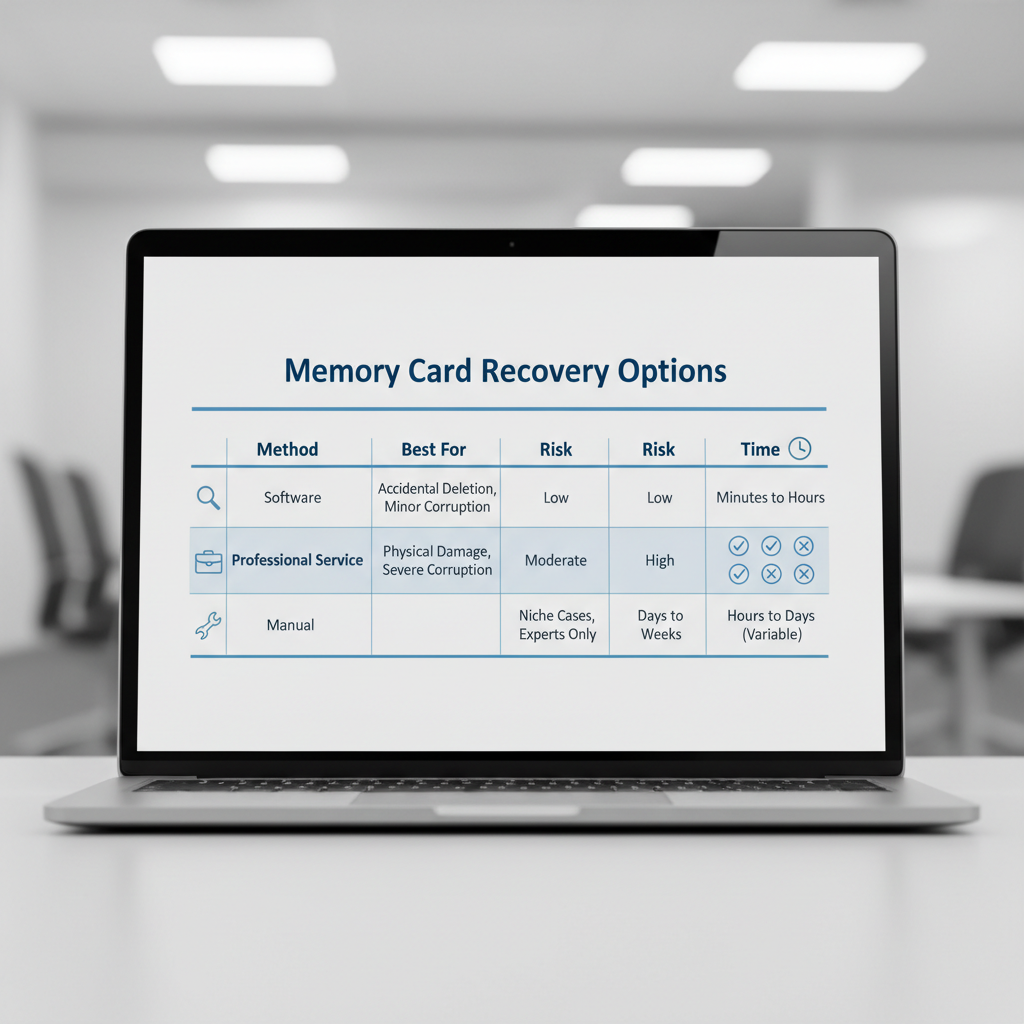
| Method | Best for | Risk level | What you usually get |
|---|---|---|---|
| Built-in restore (camera/app) | Rare cases where app has a trash/recently deleted | Low | Original structure, if available |
| Recovery software scan | Deleted or quick-formatted cards | Medium (if you save back to the card) | Many files, sometimes renamed |
| File system check/repair | Card mounts but folders look broken | Medium to high | Sometimes restores directory, sometimes worsens recovery |
| Professional data recovery | Unreadable, unstable, physically damaged cards | Lowest DIY risk | Best chance when hardware issues exist |
Step-by-step: recover deleted files using software (Windows & macOS)
If your card is recognized by the computer (even if it says “needs formatting”), this is the common workflow for how to recover deleted files from memory card without making things worse.
1) Connect safely
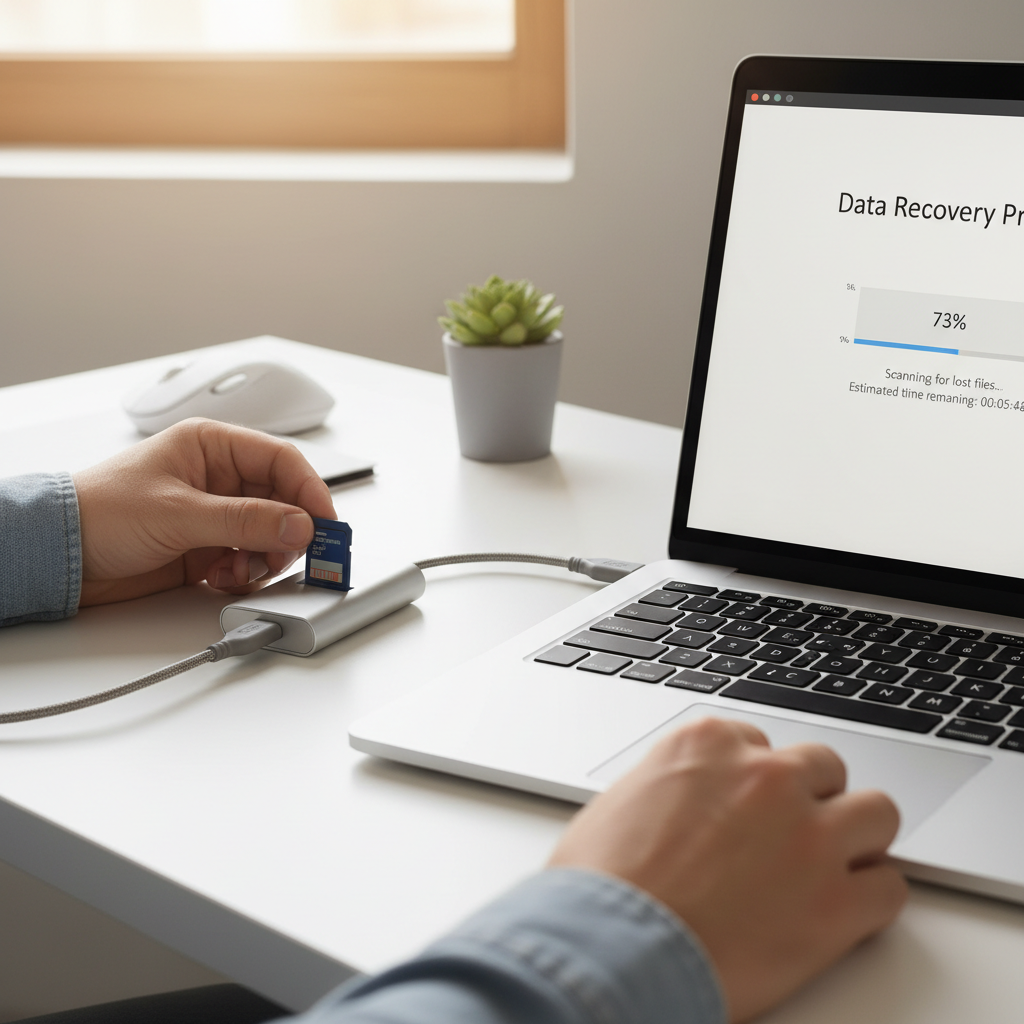
- Insert the card into a reliable USB card reader.
- On Windows, confirm it appears in Disk Management. On macOS, check Disk Utility.
- If the system asks to format or initialize, do not proceed.
2) Scan the card (not a folder)
- Choose a reputable recovery tool that supports SD/microSD and your file types.
- Run a scan against the whole device, not just “DCIM.”
- If offered: start with a quick scan, then deep scan if results look incomplete.
3) Preview and recover to a different drive
- Preview photos/videos/documents when possible, it reduces wasted restores.
- Recover to your computer drive or another external drive, never back to the same card.
- Create a dedicated folder per session, so you can sort duplicates later.
4) Validate files before you wipe anything
- Open a sample of recovered files, especially videos and RAW photos.
- If videos are unplayable, try recovering again with deep scan or a different tool, corruption can vary by algorithm.
According to Apple Support, Disk Utility can help check and repair some storage issues, but repair actions can change the disk structure. In many recovery scenarios, it’s safer to recover data first, then attempt repairs on a copy or after you have your files.
When the card says “needs to be formatted” or won’t open
This is where many people panic-click “Format” because it feels like the only way forward. If the files matter, treat that prompt as a warning sign, not an instruction.
- Try a different reader/port: unstable connections can mimic corruption.
- Check whether it shows capacity correctly: a 128GB card showing 0 bytes often points to deeper issues.
- Skip file system repair at first: prioritize read-only recovery scans.
According to Microsoft Support, CHKDSK can fix certain file system errors, but it may also remove entries it considers invalid. In practice, CHKDSK is a tool you use when you accept the risk, or after you’ve copied out what you can.
Practical tips that improve success (and common traps)
Most failed recoveries come from small, totally understandable choices. Here are the ones worth calling out.
- Don’t “test” the card in your camera: cameras may create new folders, caches, or thumbnails.
- Avoid copying anything onto the card: even one small file can overwrite critical fragments.
- Be careful with “repair” pop-ups: Windows and macOS may offer fixes that modify file tables.
- Expect messy filenames after a deep scan: that’s normal, use date, size, and previews to sort.
- Large videos may recover partially: if the file is fragmented, missing blocks can break playback.
If you’re trying how to recover deleted files from memory card and your recovered photos look gray, half-loaded, or glitchy, it often means partial overwrite. At that point, additional scans may find better copies, but no tool can recreate overwritten data reliably.
When it’s smarter to seek professional data recovery
Software recovery works when the storage is readable. If the card drops connection, fails to show correct size, or never mounts anywhere, a lab may be the safer option. This is especially true for physically stressed microSD cards, where the failure might be the controller or solder joints, not just “corruption.”
- The card is not detected on multiple computers/readers.
- The card shows the wrong capacity or 0 bytes.
- Read attempts cause repeated disconnects.
- Critical, time-sensitive data is on the card, wedding shoots, legal evidence, client deliverables.
Most reputable services will explain whether they can attempt chip-off recovery (extracting data directly from memory). Costs and outcomes vary by damage type, and it’s reasonable to ask what risks exist before authorizing work.
After recovery: prevent the same loss next time
Once you get your files back, the next move is boring but worth it: make future recovery less necessary.
- Adopt a simple 3-2-1 backup habit: three copies, two devices, one offsite or cloud.
- Format in-camera after you confirm backups: it usually keeps the file system consistent.
- Replace aging cards: flash memory wears out, heavy video workloads accelerate that.
- Buy from reputable sellers: counterfeit cards remain a real risk in marketplaces.
If you do regular shoots, consider rotating cards and labeling them, so a single mistake doesn’t take out an entire month of work.
Conclusion
how to recover deleted files from memory card comes down to one core rule, stop using the card, then recover to a different drive using a scan-based method that matches what happened. Deletions and quick formats are often recoverable, while unstable or physically damaged cards deserve a more cautious approach.
If you want a simple action plan, lock the card, connect via a reader, run a recovery scan, restore files to your computer, then verify what matters most before you attempt any “repairs” or reformatting.