
How to free up storage on iPhone without deleting photos usually comes down to a few quiet “space leaks”, app caches, message attachments, offline downloads, and duplicate media that piles up without you noticing.
If you’ve hit the “iPhone Storage Almost Full” alert, the annoying part is you can’t always tell what’s actually eating space, and Apple’s suggestions can feel vague. The good news, many fixes are reversible, and you can often recover a meaningful chunk of storage in under an hour.
This guide focuses on clearing space without deleting photos, while still being honest about tradeoffs. You’ll also get a quick “what to check first” table, a checklist to diagnose your situation, and a few options for when built-in tools stop being enough.
Start with a 3-minute storage audit (so you don’t guess)
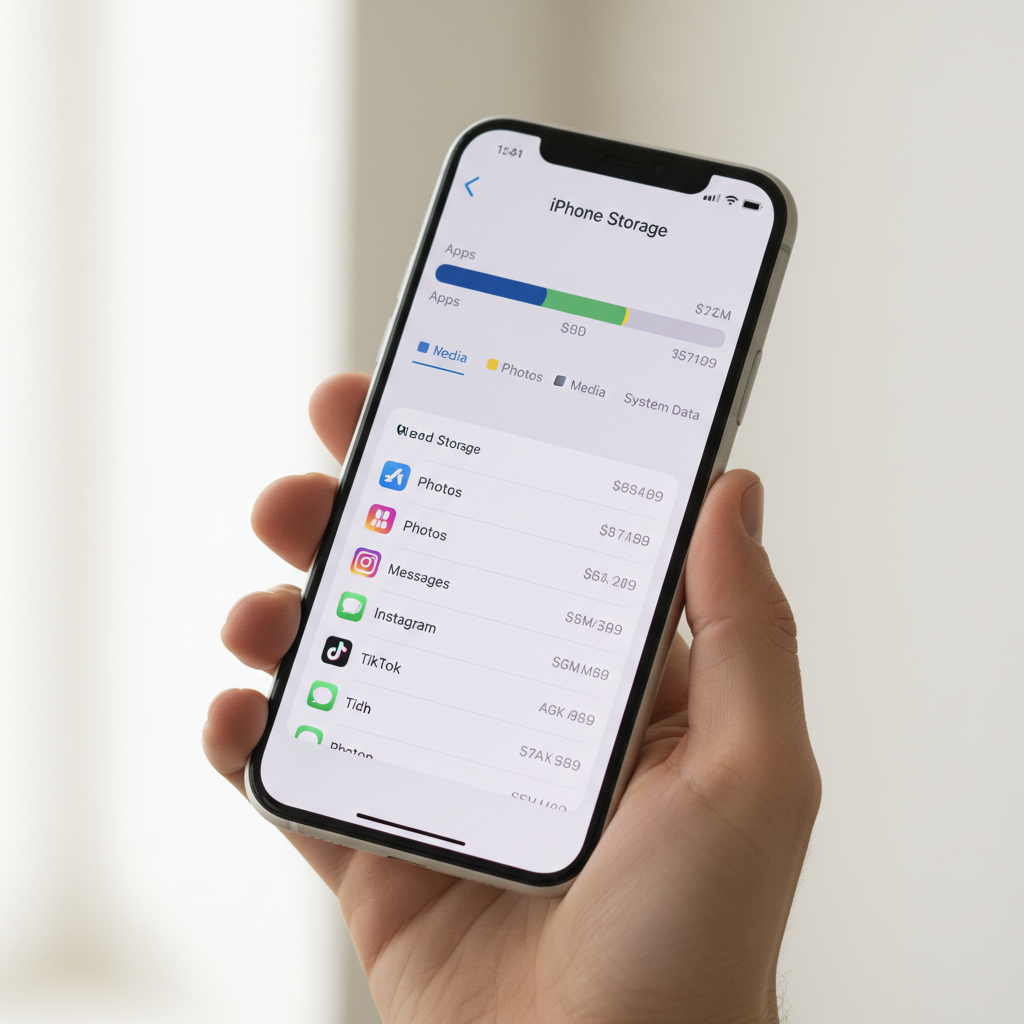
Before you touch anything, look at what iOS thinks is happening. Open Settings → General → iPhone Storage and wait for the list to load, it can take a minute.
According to Apple Support, iOS may show Recommendations (like offloading unused apps) plus a breakdown by app category. That screen is your map, without it, people often delete the wrong stuff and keep the real storage hogs.
Quick interpretation tips
- Apps can be huge, but Documents & Data is the usual culprit (cached video, downloads, offline maps).
- Messages can quietly grow from attachments, especially group chats.
- System Data fluctuates; it can spike after updates or heavy streaming, but it’s not always “stuck”.
What to try first (fast wins vs. deeper wins)
| What’s taking space | Typical sign | What frees storage (no photo deletion) | Effort |
|---|---|---|---|
| App cache / Documents & Data | Apps show “Documents & Data” bigger than the app | Clear in-app cache, delete downloads, reinstall app if needed | Low–Medium |
| Messages attachments | Messages is several GB | Review large attachments, shorten message history | Low |
| Offline media (streaming) | Netflix/Spotify/YouTube Music large | Remove downloaded episodes/playlists | Low |
| iCloud Photos set to “Download and Keep Originals” | Photos storage huge, but you don’t want to delete | Switch to “Optimize iPhone Storage” | Low |
| System Data | System Data unusually large | Update iOS, restart, reduce offline content, last resort backup/restore | Medium–High |
Turn on the photo-friendly settings that save space
If you want more room without deleting photos, the most reliable lever is how your iPhone stores your photo library locally. This is where “I didn’t delete anything, but I gained space” usually happens.
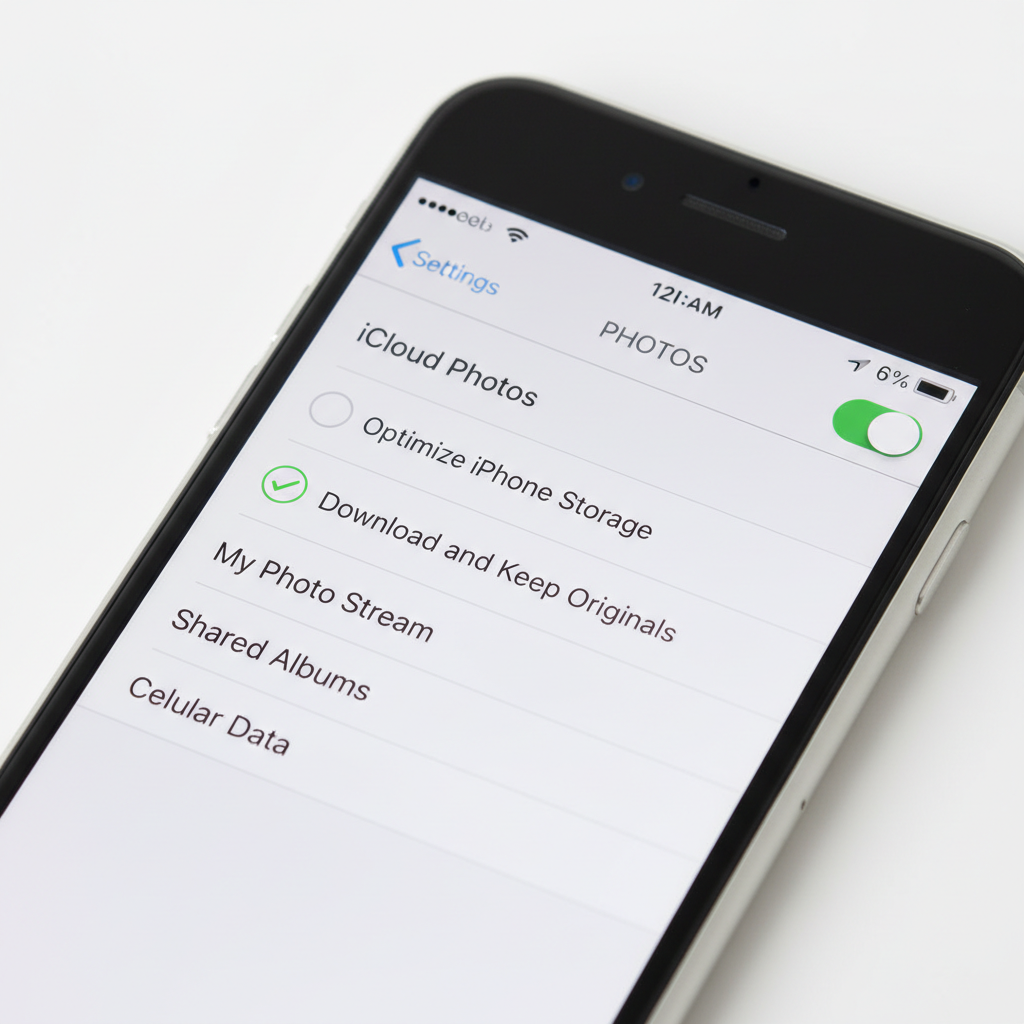
Use “Optimize iPhone Storage” (keeps photos, reduces local footprint)
- Go to Settings → Apps (or Photos) → Photos → iCloud Photos.
- Turn on iCloud Photos (if you use it).
- Select Optimize iPhone Storage, not “Download and Keep Originals”.
According to Apple Support, Optimize iPhone Storage stores smaller, device-sized versions on your iPhone while originals remain in iCloud, the full-resolution file downloads when needed. In practice, the reclaim depends on your library size and how much has already synced.
Check “Shared Albums” and “Live Photos” expectations
Shared Albums are usually not the biggest space hog, but Live Photos can add overhead. You don’t need to delete them, just be aware that bursts, Live Photos, and duplicates inflate the library footprint, which makes optimization even more valuable.
Offload apps (keep data) vs. delete apps (clear data)
This is the part many people mix up: Offload App removes the app binary but keeps documents and settings, while Delete App removes both. If your goal is storage relief without losing anything important, offloading is a safe default, but it won’t fix massive caches in every case.
How to offload unused apps safely
- Go to Settings → General → iPhone Storage.
- Tap an app you rarely use.
- Choose Offload App.
You can also enable Offload Unused Apps in the iPhone Storage recommendations. When you reinstall later, the icon returns and your data usually comes back, assuming the app still exists in the App Store and the app’s account system is intact.
When reinstalling is the only realistic cache reset
Some apps don’t offer a true “clear cache” button, and their Documents & Data can balloon. In those cases, deleting and reinstalling may free more space than offloading, but it can remove offline files or local drafts, so it’s worth checking inside the app first for anything unsynced.
Clear the hidden giants: downloads, podcasts, and streaming offline files
If you’re wondering how to free up storage on iPhone quickly, this category is often the easiest win because it’s designed to be disposable. Offline media piles up because it’s convenient, until it isn’t.
What to check (common culprits)
- Netflix / Hulu / Prime Video: downloaded episodes and movies.
- Spotify / Apple Music / YouTube Music: offline playlists set to “download over Wi‑Fi”.
- Podcasts: old episodes kept automatically.
- Maps: offline areas and navigation voice packs in some apps.
Practical cleanup steps
- Open each app → find Downloads → remove what you finished.
- In Podcasts, consider limiting automatic downloads and setting episode retention.
- Re-check iPhone Storage after each major app, so you see what actually moved.
Messages storage: remove big attachments without nuking chats
Messages is sneaky because you feel like you’re “just texting”, but photos, videos, voice notes, and GIFs count. You can reduce its footprint without deleting your photo library, and without deleting entire threads if you don’t want to.
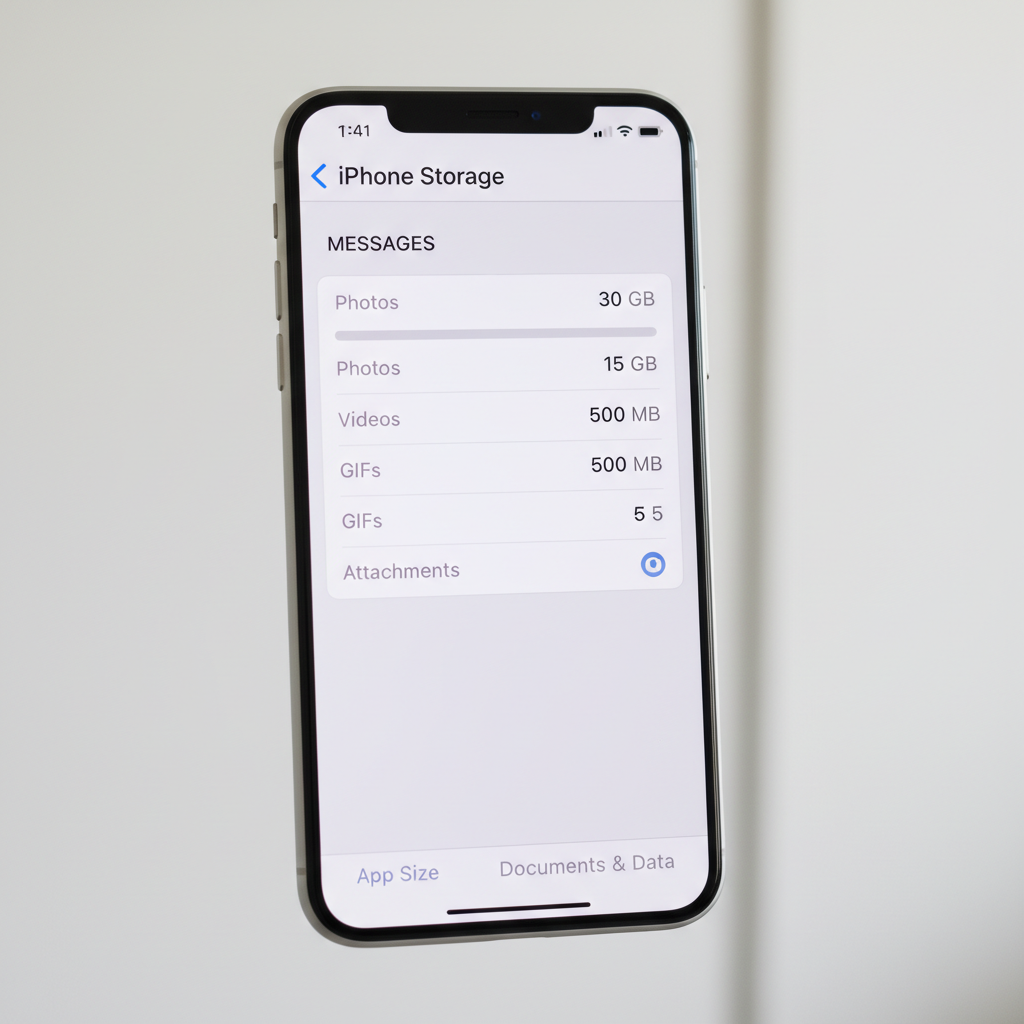
Review large attachments
- Go to Settings → General → iPhone Storage → Messages.
- Review categories like Top Conversations, Photos, Videos.
- Delete only the largest items you don’t need on-device.
Adjust message history going forward
- Go to Settings → Apps (or Messages) → Messages.
- Set Keep Messages to 1 Year or 30 Days if that fits your needs.
This change can feel emotionally uncomfortable because it’s “history”, but in real life it prevents your phone from becoming a permanent archive of every video ever sent in a group chat.
Safari and app caches: clear what’s safe, leave what you need
Cache is meant to speed things up, but it also grows. Clearing it can free space, though it may sign you out of websites or remove saved site data. Do it intentionally, not as a reflex.
Safari website data cleanup
- Go to Settings → Apps (or Safari) → Safari.
- Tap Clear History and Website Data.
If you’d rather be selective, use Advanced → Website Data (availability can vary by iOS version) and remove specific domains.
In-app cache controls (varies by app)
Many social and video apps have a “Clear Cache” or “Storage” menu. Look for it in Settings inside the app. If it doesn’t exist, the realistic options are removing downloads, offloading, or reinstalling.
Self-check list: which situation are you in?
This is the quickest way to stop doing random “cleanup” and start doing the 1–2 actions that actually matter.
- Photos is huge but you refuse to delete: turn on iCloud Photos + Optimize iPhone Storage, then give it time on Wi‑Fi and power.
- One app dominates storage: open that app’s downloads and cache settings; if needed, reinstall after confirming drafts are synced.
- Messages is multi‑GB: review large attachments, then adjust Keep Messages.
- Streaming apps are big: remove offline downloads, and disable auto-download habits.
- System Data is massive: update iOS, restart, reduce offline media; if it stays extreme, consider a backup/restore plan.
Common mistakes that waste time (or create new problems)
- Clearing everything blindly: you may lose logins and offline access, while the real storage hog stays untouched.
- Offloading when you really need a reinstall: offloading can keep Documents & Data, which means the “bloat” might remain.
- Ignoring “Downloads” sections: many apps store files outside Photos, and you never see them in your camera roll.
- Expecting instant results from Optimize Storage: the space recovery can take time, and it works best on Wi‑Fi while charging.
When it’s time to get more help (or take a bigger step)
If you’ve done the normal steps and still can’t create breathing room, you’re probably dealing with either unusually large System Data, a corrupted cache, or a workflow that genuinely needs more capacity.
- Apple Support: good option if System Data seems stuck or storage behaves strangely after updates.
- Backup and restore: can reduce some “other” storage in certain cases, but it’s time-consuming and worth doing only if you’re comfortable managing backups.
- iCloud storage plan review: if you rely on iCloud Photos and device optimization, insufficient iCloud space can block sync, which limits the benefit. Choose based on your actual library size, not guesswork.
If your iPhone is managed by work or school, policies can also affect storage behavior, in that case it’s usually smarter to ask IT before doing major resets.
Conclusion: keep your photos, reclaim your storage, and stay out of the loop
If your main goal is keeping memories intact, the most reliable path is enabling photo optimization, then cleaning the “quiet” storage hogs like app downloads, message attachments, and oversized caches. Do the audit first, make one change, re-check, and you’ll avoid the frustrating cycle of deleting things that didn’t matter.
If you want a simple next step today, open iPhone Storage, pick the top two apps by size, and clear downloads inside each. Then switch Photos to Optimize iPhone Storage if you use iCloud, that combination usually creates space without forcing hard choices.
Key takeaways
- Optimize iPhone Storage is the most photo-friendly space saver.
- Downloads and attachments are often faster wins than “system cleanup”.
- Offload keeps data, reinstall can clear stubborn caches when needed.
FAQ
- How to free up storage on iPhone without deleting photos or apps?
Focus on Messages attachments, offline downloads in streaming apps, and Safari website data. You can also offload unused apps to keep data while removing the app itself. - Why is System Data so large on my iPhone?
System Data can include caches, logs, and temporary files, and it often changes after updates or heavy streaming. If it stays unusually high for days, updating iOS and restarting may help; persistent issues may justify contacting Apple Support. - Will “Optimize iPhone Storage” delete my photos?
It shouldn’t delete your photos; it stores smaller versions on the phone while originals remain in iCloud. The catch is you need enough iCloud storage and a stable sync for it to work smoothly. - Does offloading an app remove my login or settings?
Usually it keeps app data locally, but some apps rely on server-side accounts and may still require sign-in after reinstall. If an app stores drafts only on-device, double-check before you offload or delete. - How do I clear iPhone cache without a “clear cache” button?
For many apps, removing downloads is the safest start. If Documents & Data remains huge, deleting and reinstalling often clears it, but confirm anything important is synced first. - Do I need a cleaning app to manage iPhone storage?
Most of the time, no. iOS storage tools plus in-app download controls cover the biggest wins; third-party cleaners can be limited on iOS and may introduce privacy concerns, so evaluate carefully. - My iPhone storage is full and I can’t update iOS, what can I do?
Remove offline downloads, clear large message attachments, and offload a few big apps temporarily to create update space. If you still can’t, updating via a computer may be an option, depending on your setup.
If you’re trying to keep your photo library untouched but still need room for updates, apps, and daily use, it may help to treat storage like a routine check, quick audit, remove downloads, and keep photo optimization enabled so you’re not fighting the same warning every month.