
Budget mechanical keypads make a lot of sense in 2026, but shopping for one can get weirdly frustrating fast: listings blur “macro pad” and “numpad,” switch names get reused, and half the photos hide the one thing you care about, the layout.
This guide is here to save you from the common regret buys, the ones that feel fine for a week and then start misfiring, wobbling, or just not fitting your workflow. I’m keeping it practical: what to look for, what to avoid, and which type of keypad fits which kind of person.
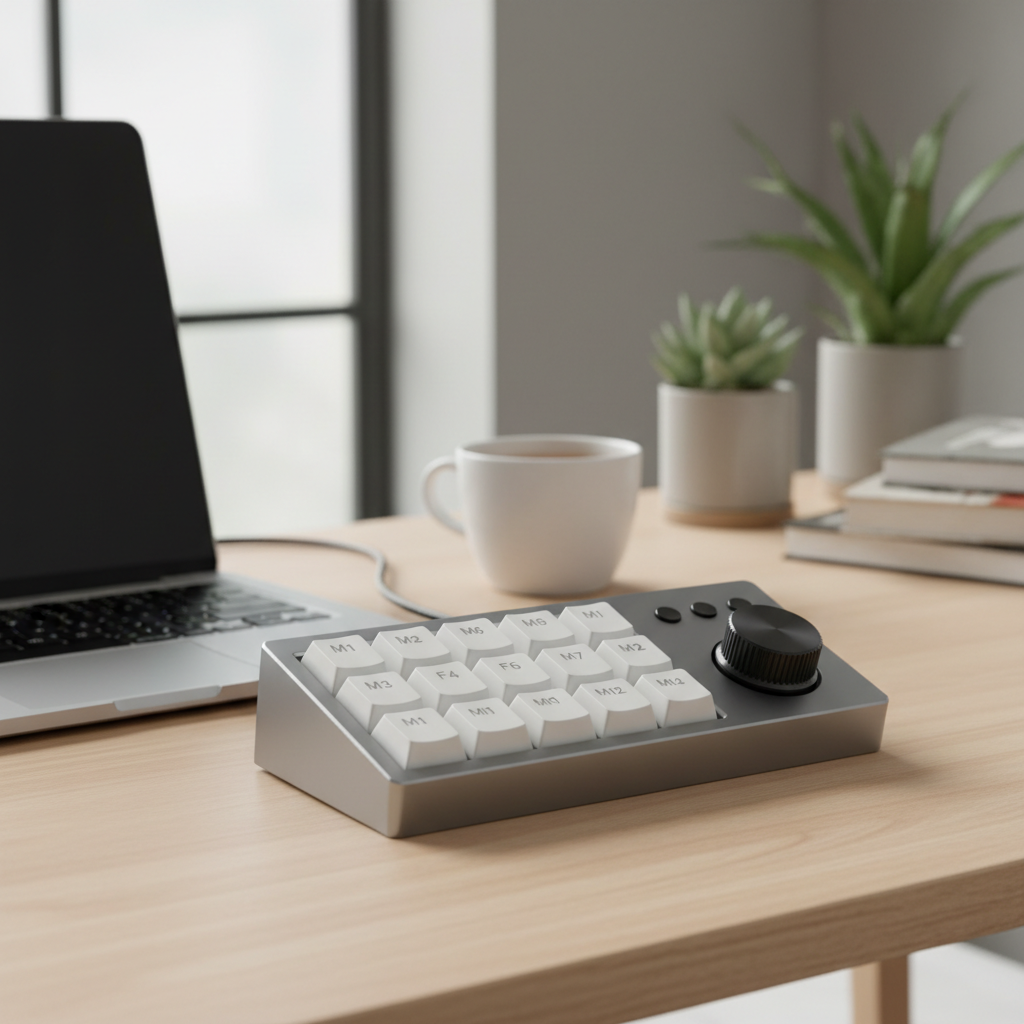
One quick clarification up front, because it impacts everything: a “mechanical keypad” could mean a true mechanical numpad for data entry, or a macro pad for shortcuts, or a hybrid. If you buy the wrong category, no amount of switch swapping fixes it.
What “budget” really means for mechanical keypads in 2026
In the U.S. market, “budget” usually means you’re prioritizing value over boutique build details. That’s not a bad thing, it just changes what you should optimize for.
- Reliability over luxury: stable sockets, decent controller, consistent firmware support matter more than brass weights.
- Basic mod potential: hot-swap sockets, standard keycap sizes, and a case you can open without stripping screws.
- Transparent specs: clear layout diagrams, switch type, connection method, and OS compatibility.
Also, pricing swings a lot around sales. A keypad that “isn’t budget” at MSRP can become a smart buy during typical seasonal promotions, so it helps to decide on features first, not price first.
Common reasons people regret a cheap keypad
Most complaints aren’t about typing feel, they’re about mismatched expectations. These are the pitfalls that show up again and again.
Layout surprises (and the “why is Enter missing?” moment)
Macro pads often use 3x4, 4x4, or 5x4 grids with no numpad-style plus/enter keys. If you want Excel speed, you probably want a real numpad layout, not a grid.
Firmware limitations
Some units advertise programmability but only support a basic Windows app, or they can’t store profiles on-device. If you switch computers, your mappings vanish.
Wobbly plates and cheap stabilizers
On budget builds, bigger keys can rattle, especially 2u and wider. It’s fixable, but only if the plate, stabilizers, and case allow easy access.
Wireless that’s “technically wireless”
Bluetooth can be fine for light macro work, but if you rely on rapid repeated inputs, 2.4GHz dongles often feel more consistent. For some setups, wired remains simplest.
A quick self-check: which keypad type should you buy?
If you’re stuck between a numpad and a macro pad, use this. It takes 30 seconds and usually clears the confusion.
- You should pick a mechanical numpad if you enter numbers daily, use Alt codes, or want muscle-memory matching a full-size keyboard.
- You should pick a macro pad if you want app shortcuts, streaming controls, photo/video edits, push-to-talk, or per-program layers.
- You should pick a hybrid if you want numbers and dedicated macros, and you’re OK learning a slightly different layout.
One more filter that matters: if you plan to remap heavily, prioritize QMK/VIA support. It’s not the only good option, but it tends to age better than vendor-only tools.
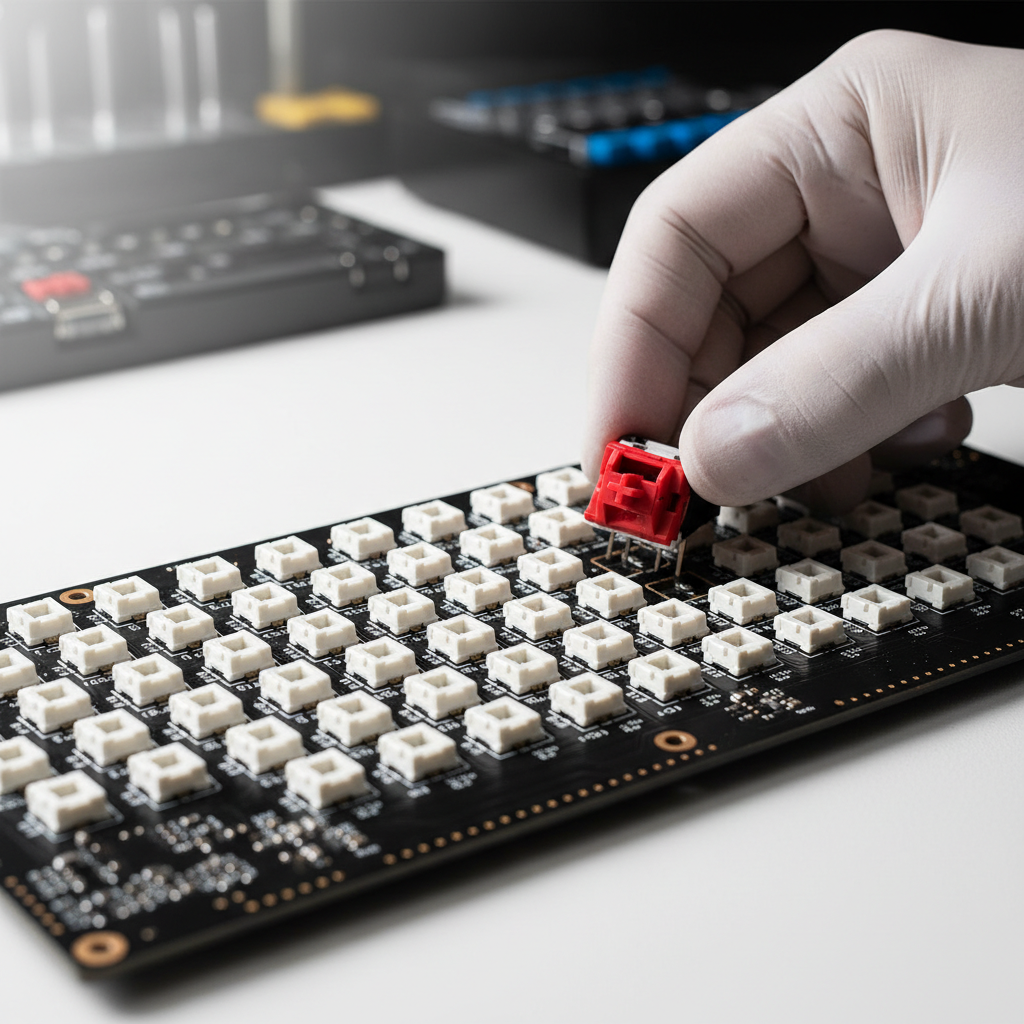
Comparison table: what to prioritize (and what to ignore)
You’ll see a lot of spec padding in listings. This table is the “signal vs noise” version that helps when you’re comparing options quickly.
| What you’re evaluating | Good sign in budget models | Watch out for |
|---|---|---|
| Firmware & remapping | VIA/QMK support or clear onboard profiles | “Programmable” with no details, cloud-only apps |
| Switches | Hot-swap + standard MX-compatible | Proprietary sockets, unclear pin support |
| Stabilizers | Accessible, standard parts, not glued shut | Rattle on larger keys, hard-to-service cases |
| Connection | Wired USB-C, or solid 2.4GHz option | Bluetooth-only if you need low-latency repeats |
| Keycaps | Standard sizes, easy replacements | Odd sizes that limit aftermarket choices |
| Knobs/extra controls | Nice-to-have if mapped well | Overpaying for gimmicks you won’t use |
Key takeaway: for most people, firmware support and layout clarity beat “premium materials” at this price tier.
Best Budget Mechanical Keypads 2026: picks by use case (not hype)
I’m not going to pretend there’s one perfect list for everyone, because the right choice depends on how you work. Here are the buckets that tend to match real buying intent when people search for budget mechanical keypads.
1) For spreadsheets and data entry: a true mechanical numpad
- Prioritize standard numpad layout, strong legends, and stable big keys.
- Look for remapping that can do small quality-of-life tweaks, like changing Num Lock behavior or making “00” a dedicated key if your workflow needs it.
- If you use a Mac, verify macOS compatibility and how the keypad reports its keycodes.
2) For creators and productivity: macro pad with layers
- Prioritize VIA/QMK (or truly equivalent) if you want per-app layers and easy changes.
- A knob can be great for volume, timeline scrubbing, brush size, or zoom, but only if the software makes it painless.
- If you use Adobe apps, OBS, or DaVinci, plan your bindings first, then buy the layout that fits those actions.
3) For small desks and travel: compact, sturdy, simple
- Go wired if you want fewer variables, especially if you move between machines.
- Choose a case that won’t flex in a bag, and keycaps that won’t pop off easily.
- Consider low-profile only if you already like that feel, it’s not automatically “better.”
4) For gaming side-keys: fast access, minimal fuss
- Focus on comfortable spacing and consistent actuation, not RGB intensity.
- Make sure the keypad can store profiles onboard if you play on different PCs.
- If you’re mapping rapid repeats, wired or 2.4GHz often behaves more predictably.
According to the USB Implementers Forum (USB-IF), USB standards are designed to support interoperability across compliant devices, which is a fancy way of saying: a well-built wired keypad tends to be the least surprising option when you just need it to work.
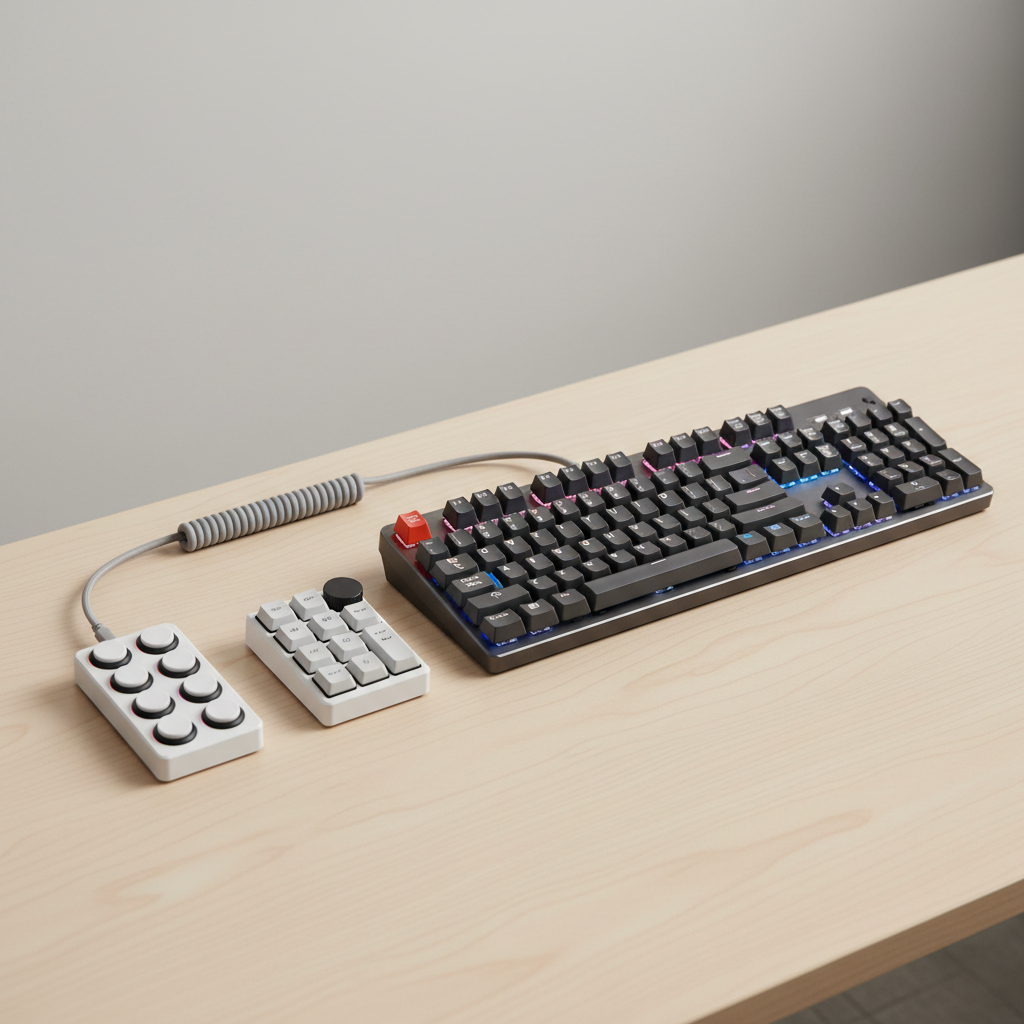
Practical setup steps: make a budget keypad feel “not cheap”
You don’t need a full modding hobby to improve a keypad. A few targeted moves usually get you most of the way.
Step 1: Map your top 10 actions before you remap anything
Write down the actions you trigger constantly. If you can’t name them, you’ll end up with random macros you never touch.
Step 2: Start with layers, not complicated macros
Many people jump into multi-step macros and then blame the keypad when it’s actually the workflow. Layers are simpler, and they scale.
Step 3: Fix the rattle first
- If larger keys rattle, consider a light stabilizer tune, many budget builds respond well.
- If the case sounds hollow, a thin foam layer can help, but only if you can reopen the case without damage.
Step 4: Choose switches that match the job
- Linear often feels smooth for rapid repeats.
- Tactile can reduce mis-presses in shortcut-heavy work.
- Clicky is divisive, great feedback for some, too loud for others, especially shared spaces.
If you’re unsure, hot-swap matters more than picking the “right” switch on day one.
Mistakes to avoid when shopping (and returning)
- Buying on photos alone: insist on a layout diagram and a clear key count.
- Assuming “supports Mac” equals good Mac experience: check if key legends, modifiers, and software actually behave on macOS.
- Overvaluing RGB: it’s nice, but a keypad with flaky remapping will annoy you more than dim lighting ever will.
- Ignoring keycap compatibility: unusual bottom rows or nonstandard sizes limit replacements.
- Not checking return terms: especially with niche brands and marketplace sellers.
And a small reality check: some budget units ship with minor QC variation. If a key double-types or misses presses out of the box, don’t “wait and see” too long, test immediately and use the return window if needed.
Conclusion: what to buy next, based on your real goal
If you want faster number entry, pick a straightforward mechanical numpad with a standard layout and stable large keys, you’ll feel the benefit on day one. If you want shortcuts and workflow speed, a macro pad with solid remapping support is usually the better value, even if it has fewer “premium” touches.
Your next move is simple: decide whether you’re buying for numbers, macros, or both, then shortlist three models that clearly state firmware support, layout, and connection type. That’s the path to a budget keypad you keep using past the honeymoon week.
FAQ
What should I look for in budget mechanical keypads if I use Excel all day?
Start with a true numpad layout and stable larger keys, then confirm remapping options if you want workflow tweaks. Fancy knobs matter less than consistency here.
Are hot-swap sockets worth it on a cheaper keypad?
Usually yes, because it lets you change switch feel later without soldering. It also helps if you buy a keypad with “okay” switches and want to upgrade gradually.
Is Bluetooth good enough for a mechanical macro pad?
For many people doing light shortcut work, it can be fine. If you notice lag or missed repeats, 2.4GHz or wired tends to feel steadier, especially on busy wireless setups.
How do I know if a keypad supports VIA or QMK?
Look for explicit mentions in the product page or documentation, not just “programmable.” If the seller can’t name the firmware or provide a link, assume it’s vendor software only.
Do I need a knob on a budget mechanical keypad?
Only if you already have a use for it, volume, zoom, timeline scrubbing. A knob that’s hard to map becomes dead weight, even if it looks great in photos.
Can a mechanical keypad replace a Stream Deck?
Sometimes, especially if you want physical switches and custom layers. If you need rich app integrations and icons, you may still prefer a dedicated control pad, it depends on your workflow.
What’s the quickest way to improve sound and feel without heavy modding?
Address rattle on larger keys and consider a simple internal foam layer if the case supports it. Past that, switch choice has the biggest “feel” impact.
If you’re trying to choose among budget mechanical keypads and want a short list based on your exact use case, spreadsheet work, creator shortcuts, gaming binds, or travel, it’s often faster to share your layout preference and connection needs, then narrow the field to a couple of models that won’t fight you later.