
how to fix snapchat not sending pictures usually comes down to one of four things: your connection, Snapchat’s permission to access photos/camera, a stuck upload queue, or an app/account hiccup.
If you’re staring at “Sending…” that never finishes, snaps failing only on Wi‑Fi, or pictures that refuse to upload from Memories, you’re not alone, and you don’t need to randomly toggle settings for an hour. A few targeted checks can narrow the cause quickly.

One quick heads-up: sometimes the problem is on Snapchat’s side, not yours, so the goal is to tell “local issue” from “service outage” before you start deleting things you’ll regret. This guide walks you through the fastest fixes first, then the deeper ones if you’re still stuck.
Quick triage: what “not sending pictures” really means
People describe this issue in a few different ways, and each points to a different fix. Before you change anything, match your symptom to the likely bucket.
- Stuck on “Sending…”: commonly network instability, background data limits, VPN issues, or a queued upload.
- “Failed to send” immediately: often permissions, corrupted cache, or Snapchat temporarily blocking a feature.
- Camera snap sends, but photo from Camera Roll won’t: usually Photos permission, storage, or file format/size edge cases.
- Only fails to one person: chat-specific issue, blocked status, or that conversation thread glitching.
- Works on cellular but not Wi‑Fi (or vice versa): DNS/router problems, captive portals, or data restrictions.
If you can identify your pattern, you’ll skip half the steps below.
Fix your connection first (Wi‑Fi, cellular, VPN, and “hidden” blockers)
For most users, this is the real answer, especially when Snapchat messages send but pictures hang. Snaps are larger uploads than plain text, so weak upstream speeds show up fast.
Do the fast checks (2 minutes)
- Toggle Airplane Mode on for 10 seconds, then off.
- Switch networks: Wi‑Fi → cellular, or cellular → Wi‑Fi, then retry sending one picture.
- Turn off VPN or “private relay” type features temporarily, then test again.
- If you’re on public Wi‑Fi, open a browser and confirm there’s no captive portal login page.
According to Apple Support, network settings and connectivity can prevent apps from reaching servers reliably, and resetting network-related configuration is a standard troubleshooting step when an app can’t connect as expected.
If it fails only on Wi‑Fi
- Restart your router if you control it, then try again.
- Try a different DNS (advanced): some home networks block or misroute traffic. If you’re not comfortable changing DNS, skip this and move on.
- Check if your network has content filters, “family safety,” or workplace controls that may block social apps.
If pictures send fine on cellular, you’ve basically proven Snapchat itself is okay, the Wi‑Fi path is the bottleneck.
Check Snapchat permissions (Photos, Camera, Cellular Data)
When people ask how to fix snapchat not sending pictures from their camera roll, permission settings are a frequent culprit, especially after an iOS/Android update.
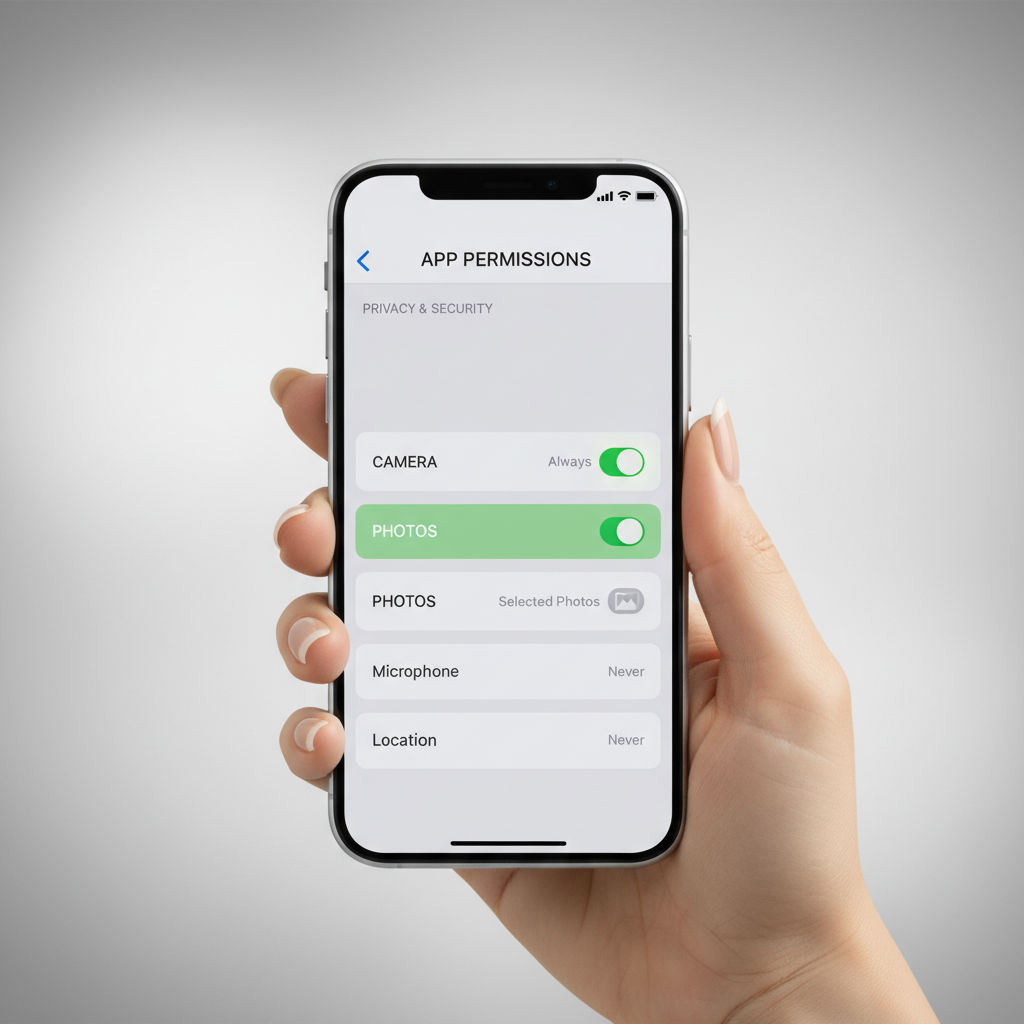
iPhone (iOS) permission checks
- Settings → Snapchat → enable Photos (choose All Photos if you want to send older images).
- Settings → Snapchat → enable Camera.
- Settings → Cellular → Snapchat → make sure Cellular Data is on (if you’re testing on cellular).
Android permission checks
- Settings → Apps → Snapchat → Permissions → allow Camera and Photos/Files and media (wording varies by device).
- Settings → Network & Internet → Data Saver: allow Snapchat to use data in the background if you rely on queued uploads.
According to Google’s Android documentation, apps need user-granted runtime permissions for sensitive access like camera and media, and features can fail if permissions are denied or limited.
Clear the queue: restart, update, and clear cache safely
If Snapchat is “alive” but pictures won’t go out, you may be dealing with a stuck upload job. Clearing cache is one of the few low-risk steps that helps without wiping your account.
Step-by-step (in order)
- Force close Snapchat, reopen, try sending one new snap.
- Check your app store and update Snapchat.
- Inside Snapchat: Settings → Clear Cache (this does not usually delete Memories, but it can log you out in some cases).
- Restart your phone, then try again.
On Android, you can also clear cache from system settings, but avoid “Clear storage/data” unless you’re prepared to sign in again and potentially lose local-only items.
Account and recipient issues: when it fails only with certain people
This part gets overlooked because it feels personal, but it’s often just thread-level weirdness.
- Try sending to a different friend. If that works, your network and app are probably fine.
- Open the chat, scroll up a bit, then send a brand-new snap instead of re-sending the failed one.
- Ask the recipient to confirm they haven’t blocked you and that their app can receive snaps from others.
- Log out and log back in if the issue is isolated to one chat and persists after a restart.
If you see warning banners about “suspicious activity” or temporary restrictions, don’t brute-force retries. Give it time, then try later, repeated failed attempts can keep you in a bad loop.
Storage, file formats, and “camera roll” edge cases
If Snapchat won’t send pictures saved on your phone but fresh camera snaps work, the file itself may be the problem, not the app.
Common real-world triggers
- Low storage: uploads and processing need working space, even if the photo already exists.
- Very large images or edited exports: some exports from third-party editors can behave oddly.
- Live Photos / Motion Photos: sometimes the “moving” variant causes inconsistencies when shared.
- iCloud/Google Photos not fully downloaded: the image is a placeholder until it finishes downloading.
What to try
- Free up storage, then reboot (yes, reboot matters here).
- Open the photo in your gallery and take a screenshot, then try sending the screenshot.
- If it’s in cloud storage, download it fully to the device first.

What to do when Snapchat is down (and how to confirm without guessing)
Sometimes you do everything right and it still fails, because Snapchat has a service disruption. In that case, local troubleshooting only burns time.
- Check Snapchat’s official channels in-app or on their official social accounts for outage notes.
- Ask a friend on a different carrier/network to send a picture and confirm whether it fails too.
According to Cloudflare, internet services can experience outages due to upstream network failures, misconfigurations, or traffic spikes, and symptoms often look like timeouts or requests that never complete.
Cheat sheet: symptoms → likely cause → best fix
| What you see | Most likely cause | Best first fix |
|---|---|---|
| “Sending…” forever | Weak upload / VPN / queued job | Switch Wi‑Fi/cellular, disable VPN, force close |
| “Failed to send” instantly | Cache/app glitch | Update Snapchat, clear cache, restart phone |
| Camera Roll photos won’t send | Photos permission / cloud placeholder | Allow Photos access, download photo locally |
| Only one friend can’t receive | Thread/account-specific issue | Send to someone else, re-login, check block status |
| Works on cellular, not Wi‑Fi | Router/DNS/filtering | Restart router, try different network |
Key takeaways (save yourself the back-and-forth)
- Prove whether it’s your network by switching Wi‑Fi vs cellular before anything else.
- Permissions matter when sending from Camera Roll or Memories, especially after OS updates.
- Clear cache is the “safe reset” that fixes many stuck picture uploads without deleting your account.
- If it fails for everyone, consider a Snapchat outage and try again later.
Practical escalation: if nothing works
If you’ve gone through network checks, permissions, updates, and cache, and you still can’t send pictures, these are the steps that tend to make sense next.
- Log out, then log back in (make sure you know your login method and have access to your email/phone).
- Reinstall Snapchat: helpful if the app package is corrupted, but you’ll need to sign in again.
- Check for OS updates (iOS/Android), because some networking and permission bugs get patched at the system level.
- If your account shows warnings, use Snapchat’s in-app support flow to review restrictions and appeal if relevant.
If you suspect your phone has broader connectivity issues beyond Snapchat, it may be worth contacting your carrier or device manufacturer support, especially when multiple apps can’t upload media reliably.
Conclusion: get snaps sending again with the least drama
When you’re trying to figure out how to fix snapchat not sending pictures, the winning move is avoiding random tinkering and running a simple order of operations: verify the connection, confirm permissions, clear stuck jobs, then escalate to logout/reinstall only if needed.
Try one change at a time and test with a single new snap, you’ll spot the real cause faster. If the issue tracks an outage or server-side disruption, your best “fix” is waiting and retrying later instead of tearing apart settings.