
how to block websites on windows 11 is usually less about “techy tricks” and more about picking the right tool for your situation: one PC vs. the whole home, one browser vs. all apps, kids vs. coworkers vs. yourself.
If you’ve tried a browser extension and it didn’t stick, you’re not alone, extensions can be bypassed, profiles can be reset, and sometimes the site still loads inside another app. Windows 11 gives you a few stronger options, but each has trade-offs.
This guide walks through practical methods people actually use: quick blocks, harder-to-bypass blocks, and network-level blocks. You’ll also get a short checklist to choose the right approach, plus a table comparing what works best.
Pick the right blocking method (quick decision checklist)
Before you change settings, get clear on what “block” means for you, because the best solution depends on who uses the device and how determined they are to bypass the restriction.
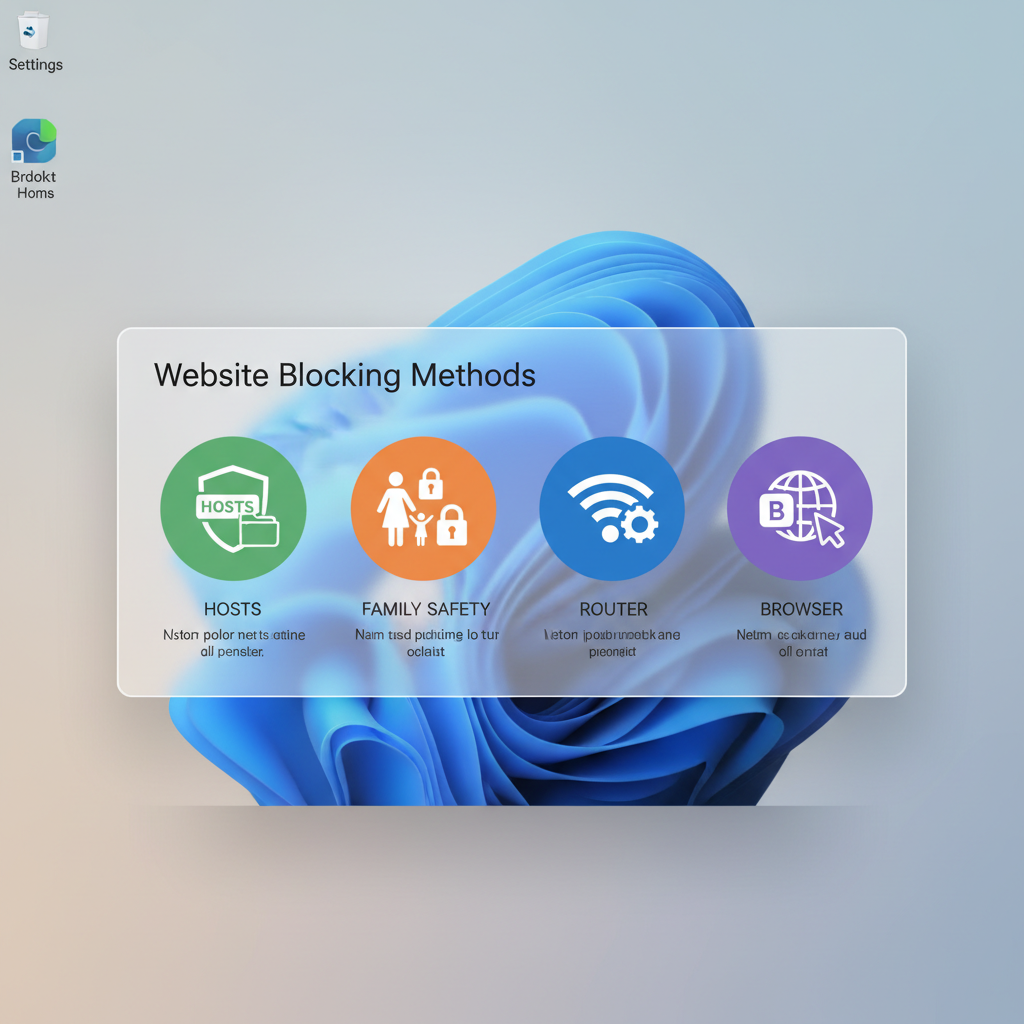
Use this checklist to decide:
- Is this for a child account? Microsoft Family Safety tends to be the cleanest path.
- Do you need to block the site in every browser and app? Use a Windows-level method (hosts file) or network-level method (router/DNS).
- Do you need the block to apply to multiple devices? Router or DNS filtering is the better fit.
- Is bypass resistance important? Router/DNS plus locked admin access usually holds up better than browser add-ons.
- Do you only need “focus mode” for yourself? A reputable blocker app or browser profile rules might be enough.
Method comparison table (what each option really does)
There’s no single “best” way, so here’s a practical comparison you can skim, then jump to the method that fits.
| Method | Blocks where? | Best for | Weak spot |
|---|---|---|---|
| Hosts file (Windows) | Most apps and browsers | Single PC, simple domains | Easy to undo with admin access |
| Microsoft Family Safety | Microsoft Edge (and supervised setup) | Kids/family devices | Coverage varies by browser/app |
| Router website blocking | All devices on home Wi‑Fi | Household-wide rules | Doesn’t apply on cellular/other Wi‑Fi |
| DNS filtering (provider or service) | All devices using that DNS | Simple, scalable filtering | Can be bypassed by changing DNS (unless locked) |
| Browser extension | One browser profile | Personal productivity | Often easiest to bypass |
Block websites using the Windows hosts file (strong on one PC)
If you want a Windows-level block without extra software, the hosts file method is a classic. It works by redirecting a domain name to a non-working address, so the site fails to load.
Important reality check: this works best for plain domains like example.com. It won’t reliably block every subdomain pattern, and it can be undone by anyone with admin rights.
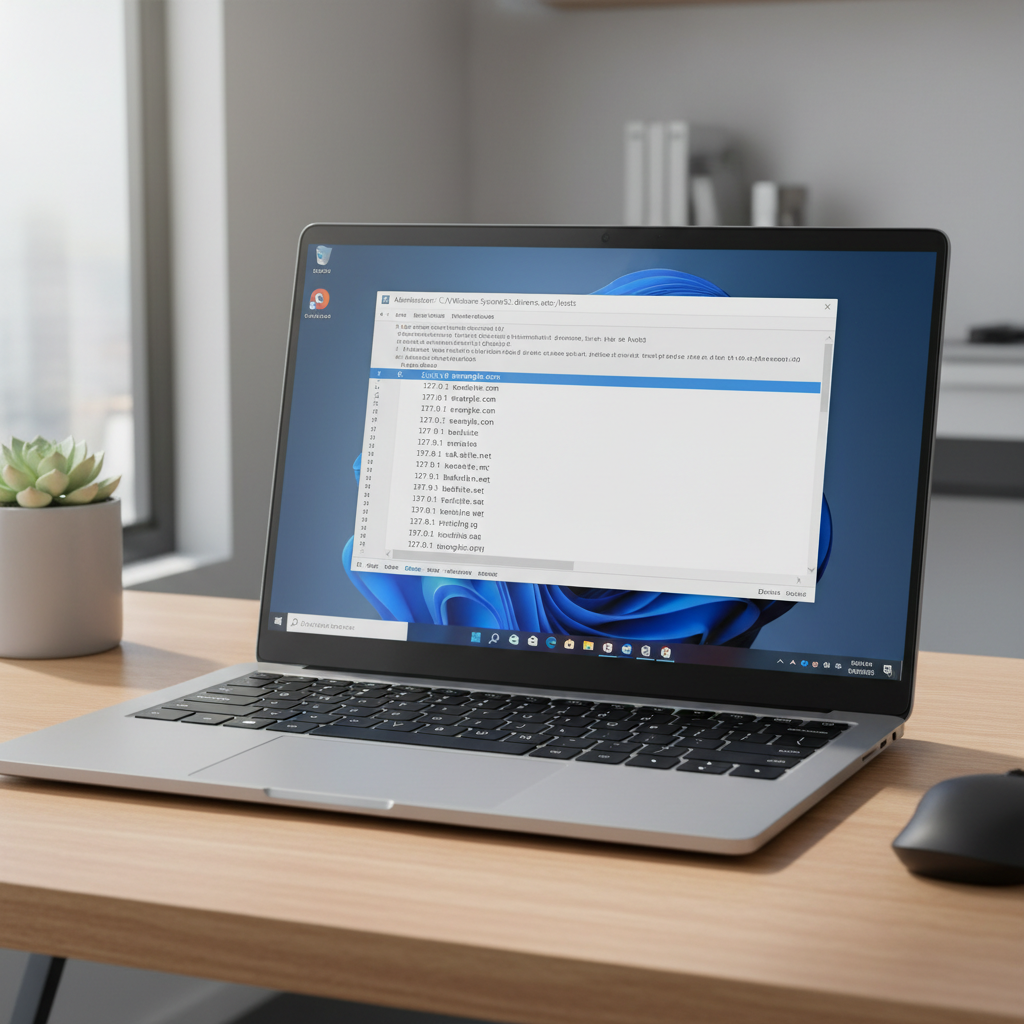
Step-by-step (Windows 11)
- Open Notepad, right-click it, choose Run as administrator.
- In Notepad, go to File > Open, then navigate to:
C:\Windows\System32\drivers\etc - Change the file type dropdown to All Files, then open hosts.
- Add lines like these at the bottom:
127.0.0.1 example.com
127.0.0.1 www.example.com - Save the file.
- Optional: open Command Prompt and run ipconfig /flushdns to clear cached lookups.
Tips that prevent “it still loads” moments
- Block both example.com and www.example.com, many sites use both.
- If the site uses many subdomains (like app., m., cdn.), you may need multiple entries.
- If you use a VPN or secure DNS inside a browser, behavior can vary, test in the apps you care about.
Use Microsoft Family Safety (best fit for kids and households)
If the goal is age-appropriate browsing or consistent rules for a child account, Microsoft Family Safety is usually smoother than hacking around Windows settings.
According to Microsoft Support, Family Safety can help parents set content filters and manage screen time across supported devices and services. In practice, it works best when the child uses a managed Microsoft account and the family group is set up correctly.
What to do
- Create or use an existing child Microsoft account.
- Add the child account to your family group in Microsoft Family Safety.
- Turn on web and search filters, then add specific sites to the block list.
- On the child device, make sure Edge is the primary browser, many setups enforce filters more reliably there.
Key point: if you need the rule to apply across Chrome, Firefox, and random apps, you’ll often end up pairing Family Safety with a network-level block, otherwise gaps show up.
Block websites at the router level (covers every device on Wi‑Fi)
If you want fewer loopholes, router-level blocking is often the most useful “family/home” move. Once the router blocks a domain, phones, tablets, smart TVs, and PCs on that Wi‑Fi feel it.
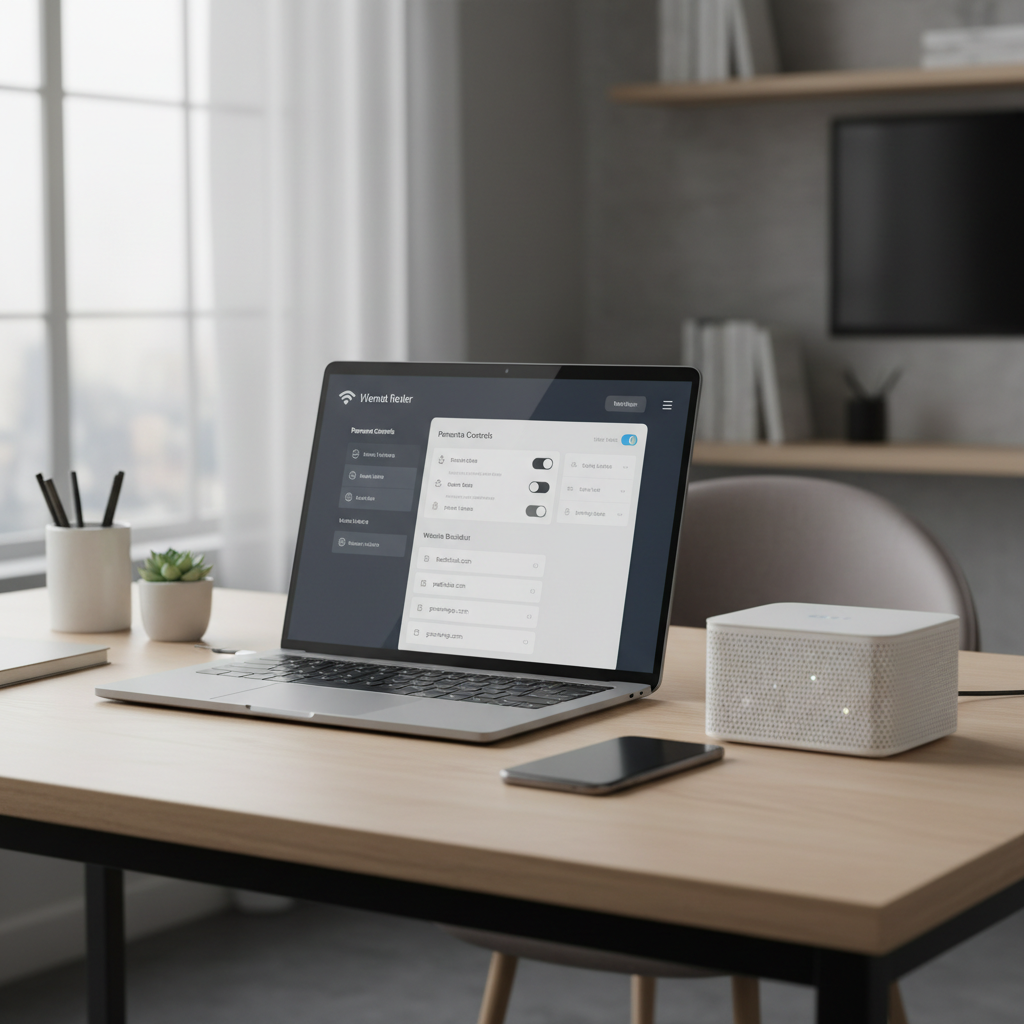
Router menus vary a lot, but you’re typically looking for labels like Parental Controls, Access Control, URL Filtering, or Website Blocking.
General steps (most home routers)
- Sign in to the router admin page (often your gateway IP in a browser).
- Find Parental Controls or Access Restrictions.
- Add the domains you want to block, then apply the rule to specific devices or the whole network.
- Set a router admin password you do not share casually.
What router blocking is good at (and what it isn’t)
- Good at: broad “don’t allow these sites at home” rules.
- Not great at: blocking a site when the device switches to cellular data or another Wi‑Fi network.
- Sometimes tricky: modern encrypted traffic means some routers only block via DNS, not full URL paths.
Use DNS filtering (simple, scalable, often overlooked)
DNS filtering blocks access by preventing devices from resolving a domain name. This can be done via your router DNS settings, a managed DNS service, or sometimes directly on Windows 11 network settings.
If your goal is how to block websites on windows 11 across multiple browsers without constantly chasing settings, DNS can be a clean middle ground, especially when set on the router so every device inherits it.
Where DNS filtering usually makes sense
- Households that want a single place to manage blocks
- Small offices that need lightweight policy without full enterprise tooling
- People who want category filtering, not just a short list of domains, depending on provider
Common pitfall: if users can change DNS settings on their device, they may bypass the filter. Locking down admin access and using router enforcement reduces that risk.
Practical hardening: make blocks harder to bypass on a shared PC
Most blocks fail for boring reasons: someone has admin access, browser profiles are wide open, or the rule exists in one place while traffic flows through another.
Small moves that help a lot
- Use a standard user account for day-to-day browsing, keep admin credentials private.
- Protect router access with a strong password, and disable remote admin if you don’t need it.
- Limit “alternate browsers” if the environment allows, since a block in one browser often means nothing elsewhere.
- Test with multiple apps: Edge, Chrome, in-app browsers, and any chat apps that open links.
If you’re implementing how to block websites on windows 11 for a child or a shared family machine, the combination that tends to hold is Family Safety + router/DNS controls + non-admin daily accounts.
Common mistakes and troubleshooting
When someone says “I blocked it but it still opens,” it’s usually one of these.
- Cached DNS: flush DNS or reboot, especially after hosts file edits.
- Wrong domain: you blocked one hostname, but the site loads from another, check for www and common subdomains.
- HTTPS and apps: some apps resolve endpoints differently than browsers, so validate in the actual app.
- VPN or secure DNS: a VPN client or browser secure DNS can route around local assumptions.
- Multiple user profiles: rules applied to one Windows account won’t always apply to another.
According to Microsoft Support, the hosts file location and required admin permissions are fixed by Windows security design, so if saving fails, it’s typically a permissions issue rather than a “broken” file.
When to consider professional help (IT or parental control specialists)
If the stakes are higher than “reduce distractions,” it’s worth treating blocking as part of a broader safety setup. For example, a family dealing with persistent unsafe content exposure, harassment, or risky downloads may benefit from advice that fits their devices and home network.
In workplace environments, ask internal IT before you implement ad-hoc blocking on managed devices, policies and compliance requirements vary, and the “right” solution might be centralized web filtering or endpoint management.
Conclusion: a simple plan that works for most people
If you want how to block websites on windows 11 to actually stick, start by deciding where the rule must apply, then choose the lowest-effort option that still matches your risk level. Hosts file edits are fast for one PC, Family Safety fits kid accounts, and router or DNS filtering scales across the whole home.
Action steps: pick one primary method today, test it in two browsers and one non-browser app, then lock down admin access so the block doesn’t vanish the next time someone gets curious.
FAQ
How do I block a website on Windows 11 without installing software?
The hosts file method is the usual answer. It’s built into Windows, works system-wide in many cases, and only requires admin access to edit the file.
How do I block websites on Windows 11 for a child account?
Microsoft Family Safety is generally easier to manage than manual blocks. It lets you add allowed/blocked sites and manage browsing rules, especially when Edge is used.
Why does a blocked site still open in Chrome but not in Edge?
If you used a browser-specific tool (like an extension or Family Safety behavior tied to Edge), other browsers can slip through. A router/DNS block or hosts-based block is more consistent across browsers.
Will blocking in the hosts file stop the website on every browser?
Often it does, because it affects name resolution at the OS level. But VPNs, secure DNS features, or unusual app behavior can change results, so it’s smart to test.
How can I block websites on my whole home network, not just one PC?
Use router-level website blocking or set up DNS filtering in the router. This typically covers any device connected to that Wi‑Fi.
Can someone bypass website blocks on Windows 11?
Yes, in many setups. Admin access, changing DNS, using a VPN, or switching networks are common bypass paths, which is why layered controls matter for shared devices.
What’s the easiest way to temporarily block distracting sites for focus?
A reputable browser extension or focus app can be enough if you mainly want friction, not strict enforcement. If you keep removing it, a router/DNS rule adds more resistance.
If you’re trying to block sites for a family, a shared PC, or a small team and you want fewer loopholes with less ongoing babysitting, it may help to map your devices and networks first, then choose a layered setup that matches how people actually browse day to day.