
how to delete cookies on iphone safari is one of those tasks you usually search for when Safari feels off, a site keeps logging you out, or ads follow you a little too closely.
The good news is you can clear cookies in a couple of taps, but the “right” option depends on what you want: a quick privacy reset, troubleshooting a broken website, or keeping logins while removing tracking.
This guide walks you through the practical paths, what each one actually removes, what changes you should expect afterward, and a few small checks that prevent the common “I cleared cookies but nothing changed” loop.
What cookies on iPhone Safari actually do (and why you might remove them)
Cookies are small pieces of site data saved by Safari. Some are helpful, some are more about tracking. Knowing which is which helps you pick the least disruptive cleanup.
- Login/session cookies: keep you signed in, remember your cart, store basic preferences.
- Analytics cookies: help sites understand traffic and performance, usually not essential for you.
- Advertising/third-party cookies: can enable cross-site tracking, depending on how the site is set up.
According to Apple Support, clearing history and website data removes browsing history, cookies, and other browsing data from Safari on your iPhone.
Quick method: Clear Safari history and website data (fastest reset)
If your goal is a clean slate and you do not mind being signed out of many sites, this is the simplest route. It’s also the one most people mean when they ask how to delete cookies on iphone safari.
Steps
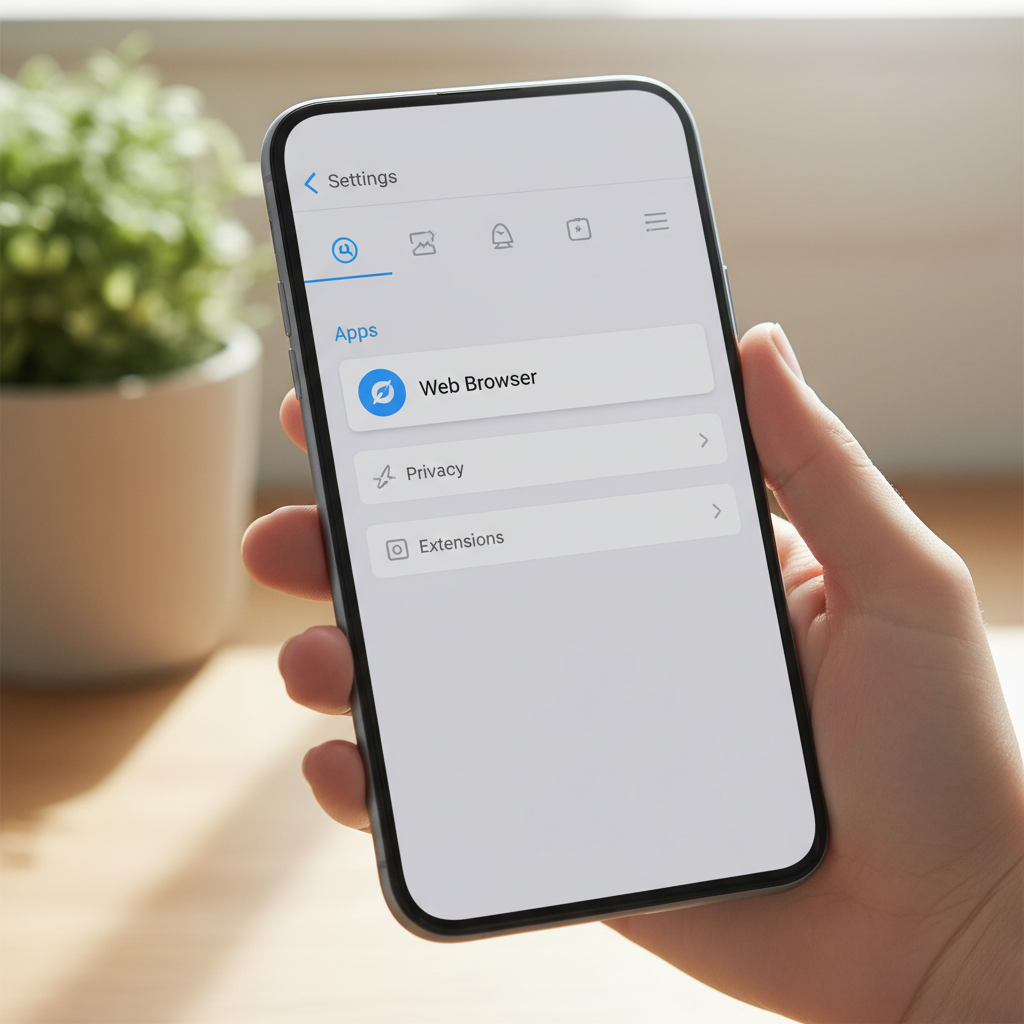
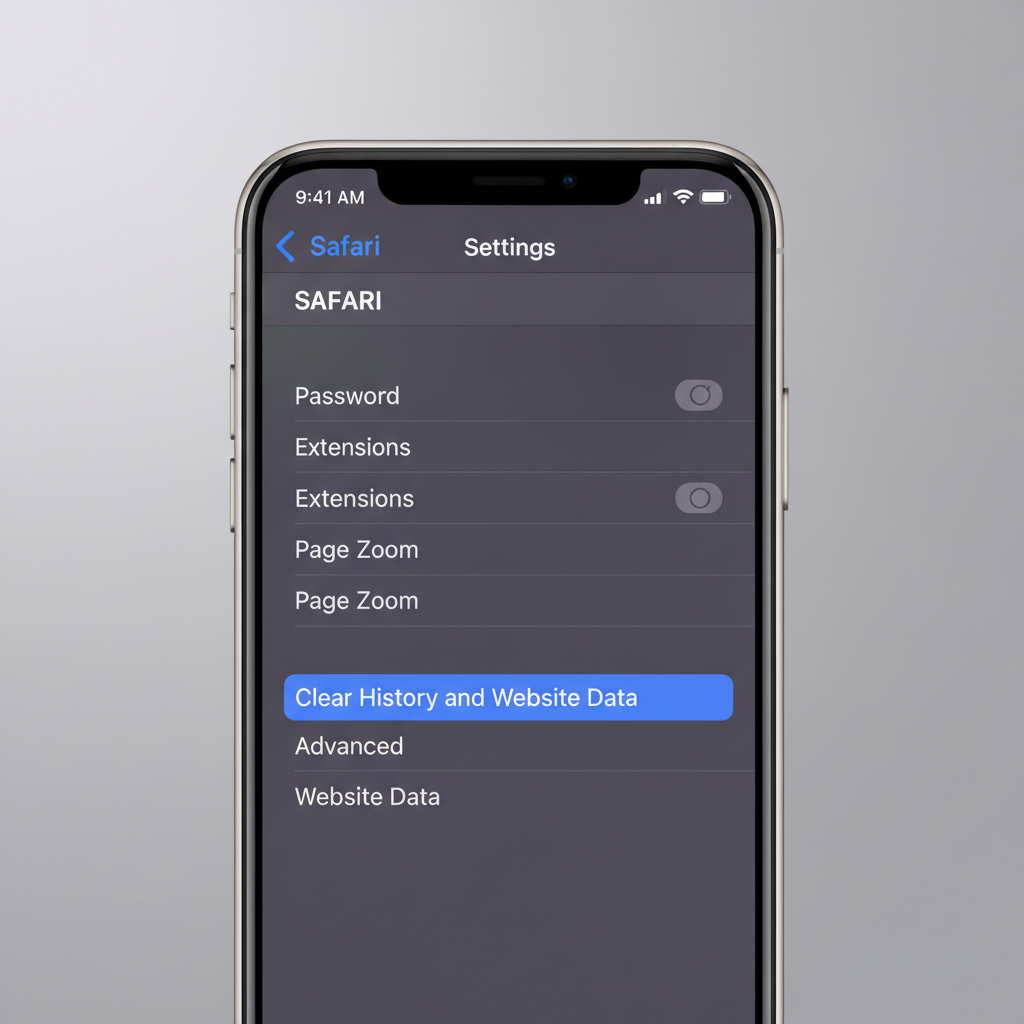
- Open Settings on your iPhone.
- Scroll down and tap Safari.
- Tap Clear History and Website Data.
- Confirm the prompt.
What to expect: sites may log you out, some preferences reset, and Safari might feel “fresh” again. If the button is gray, Screen Time restrictions or managed device policies can be the reason.
More targeted method: Delete cookies for one site (keep other logins)
If only one website misbehaves, targeted deletion is usually the better fix. You remove that site’s stored cookies and cache without wiping everything else.
Steps (site-specific)
- Go to Settings > Safari.
- Tap Advanced > Website Data.
- Use search to find the domain (example: example.com).
- Swipe left on the domain, then tap Delete, or tap Remove All Website Data if you want everything cleared.
This method is the sweet spot when you want to troubleshoot a single sign-in issue but keep other sessions intact.
Delete vs block cookies: which setting fits your goal?
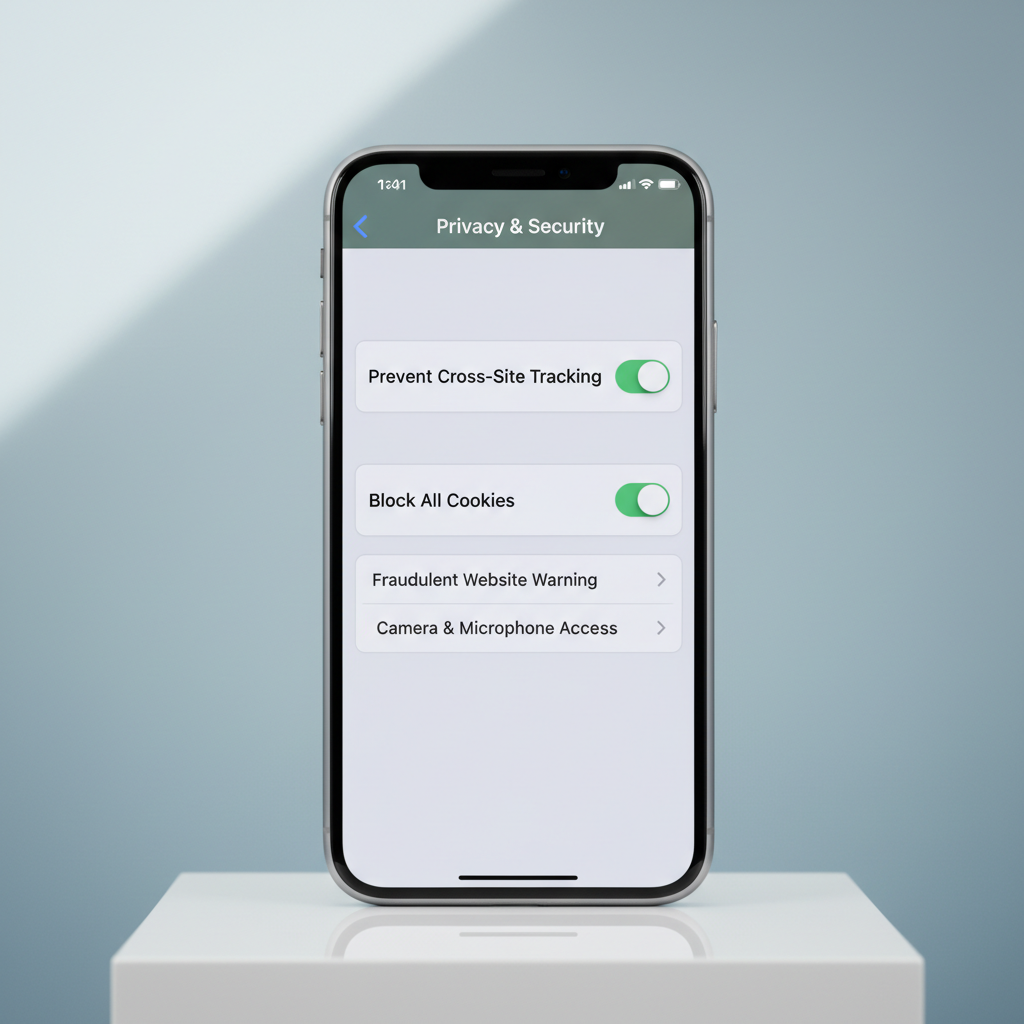
People often mix up “deleting cookies” with “blocking cookies.” Deleting is a one-time cleanup. Blocking changes how Safari behaves going forward, and it can break some sites.
| Action | What it does | What you might notice |
|---|---|---|
| Delete cookies | Removes saved website data now | Sign-outs, fewer “remembered” settings, fixes weird site behavior |
| Block all cookies | Prevents most cookie storage going forward | Some logins, payments, and embeds may fail |
| Prevent Cross-Site Tracking | Limits third-party tracking across sites | Usually minimal breakage, better privacy balance for many users |
If you’re primarily cleaning up for privacy, many people start with Prevent Cross-Site Tracking instead of the “block everything” switch.
Self-check: which cookie cleanup should you do?
Before you wipe anything, a quick decision check saves time and avoids losing sessions you actually want.
- One site keeps redirecting or won’t load correctly: delete cookies for that site via Website Data.
- You keep getting logged out everywhere (and you want to stop that): do not clear all data, look for content blockers, VPN/proxy behavior, or private browsing habits.
- Safari feels slow, storage is bloated: clear history and website data, or remove all website data.
- Privacy concern about tracking: enable Prevent Cross-Site Tracking, then selectively delete site data for the biggest offenders.
- You share the phone: clearing history and website data is the most straightforward reset.
Practical tips that make cookie deletion actually “stick”
When people say they tried how to delete cookies on iphone safari and nothing changed, it’s usually one of these.
- Close Safari tabs and reopen the site. Some sessions won’t fully reset until the tab reloads cleanly.
- Restart Safari by swiping it away in the app switcher, then open again.
- Check iCloud Safari syncing. If you use iCloud, history may sync across devices; behavior can feel inconsistent if you only clear on one device.
- Disable content blockers temporarily (if you use them). Some sites break and look like “cookie problems” but it’s the blocker.
- Try Private Browsing as a quick test. If the site works there, stored data in normal mode is a likely culprit.
Also, don’t be surprised if you need to sign back into banking, shopping, or email sites. That inconvenience is basically the tradeoff for wiping stored website state.
Common mistakes (and what to do instead)
A few patterns show up again and again, especially when troubleshooting shopping carts, streaming logins, or paywalls.
- Mistake: Blocking all cookies to fix a bug. In many cases, delete site data first; blocking can create new problems.
- Mistake: Clearing data, then opening the same broken tab. Open a new tab and type the address again, don’t rely on an old session.
- Mistake: Expecting cookie deletion to remove saved passwords. Passwords are typically stored in iCloud Keychain, not in Safari cookies.
- Mistake: Confusing “cache” with “cookies.” Website Data covers both for many sites, so the site-specific delete often solves more than you expect.
When you might need extra help (or a different fix)
If you cleared cookies and Safari still behaves strangely, the underlying issue might be network, device management, or the website itself.
- Work or school iPhone (MDM): some settings can be restricted by policy; your IT admin may need to adjust controls.
- Button is grayed out: check Settings > Screen Time > Content & Privacy Restrictions, or ask whoever manages the device.
- Site still broken after targeted deletion: try updating iOS, disabling extensions/content blockers, or testing another browser to isolate whether it’s Safari-specific.
- Security concerns: if you suspect account compromise, cookie deletion can help, but you may also want to change passwords and review account sessions, and it can be wise to consult the service’s support channel.
Key takeaways and what to do next
If you came here for how to delete cookies on iphone safari, the main decision is simple: clear everything for a full reset, or delete website data for one domain when you want minimal disruption.
Action plan: start with site-specific deletion when a single site misbehaves, and use Clear History and Website Data when you want a broader cleanup. If privacy is the main goal, enable Prevent Cross-Site Tracking and clean up the few sites you interact with most.
FAQ
- How do I delete cookies on iPhone Safari without deleting history?
Use Settings > Safari > Advanced > Website Data, then delete a specific site (or remove all website data). This is typically closer to “cookies only” than the History option. - Why is “Clear History and Website Data” gray on my iPhone?
Screen Time restrictions, managed device profiles, or sometimes no stored history/data can cause this. Check Screen Time settings or ask the device admin if it’s a work phone. - Will deleting cookies log me out of websites?
Often, yes. Cookies commonly store session info, so deleting them can sign you out and reset preferences. - Does deleting cookies remove saved passwords in Safari?
Usually not. Passwords are generally managed through iCloud Keychain or a password manager, not regular website cookies. - How often should I clear cookies on iPhone?
It depends. Many people only do it when troubleshooting, while others do periodic cleanups for privacy. If you hate re-logging in, targeted deletion tends to be less annoying. - What’s the difference between cookies and cache on iPhone Safari?
Cookies store site state like sessions and preferences, while cache stores files that help pages load faster. In iOS, “Website Data” often covers both for a site, which is why it fixes a lot of problems. - Is “Block All Cookies” a good idea on iPhone Safari?
It can improve privacy, but many sites rely on cookies to function. A more balanced setting for many users is Prevent Cross-Site Tracking, then delete site data when needed.
If you’re trying to clean up Safari because a specific site keeps failing, it’s usually faster to delete that site’s data first, and only do the full wipe if the problem keeps coming back, it saves time and keeps your other logins intact.