
how to fix mouse double click when single click usually comes down to one of two buckets: a software setting that makes clicks behave oddly, or a worn switch inside the mouse that now “bounces” and registers two clicks.
If you’re seeing folders open when you meant to select, dragging becomes impossible, or you keep accidentally closing tabs, the fastest path is to test which bucket you’re in before you buy anything.
This guide walks you through quick checks, practical fixes (Windows and macOS), and the point where replacing the mouse is the rational move, not defeat.
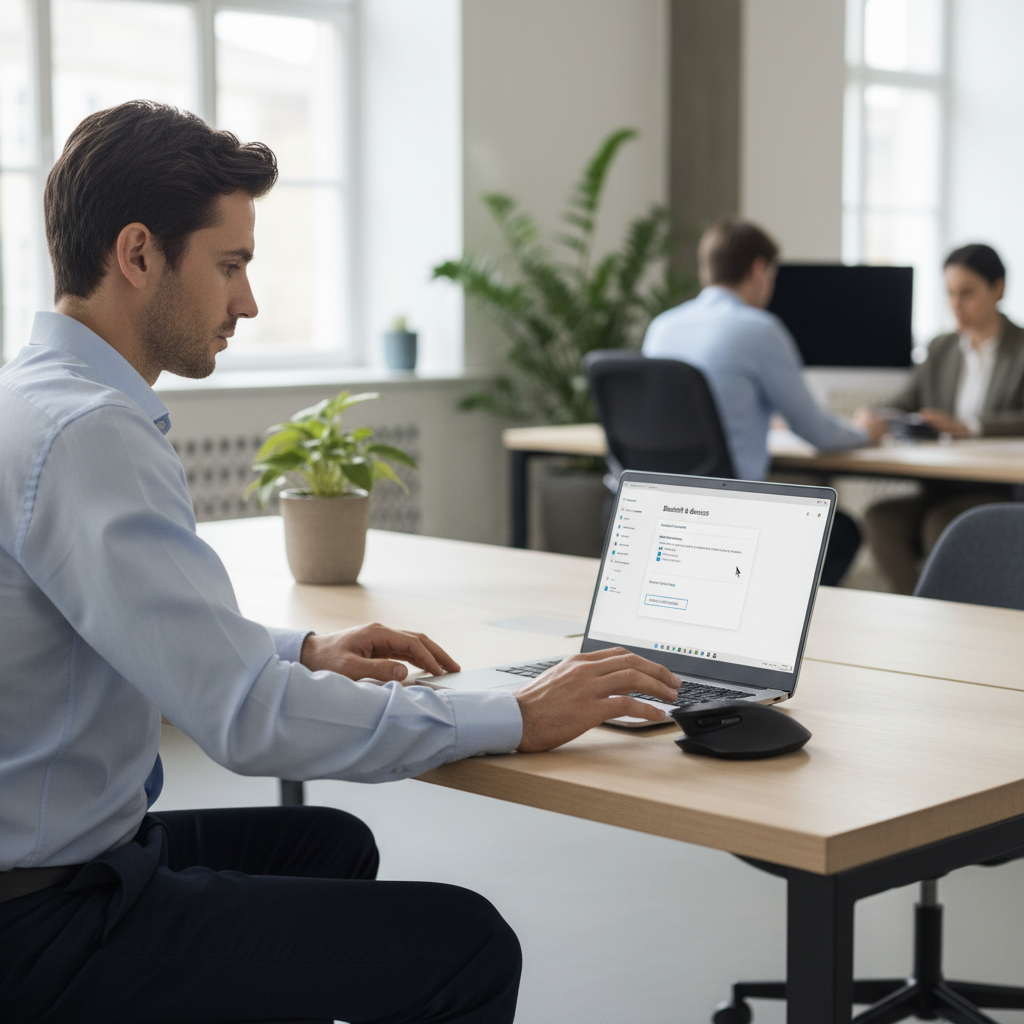
Why a single click turns into a double click
The frustrating part is that the symptom looks the same, but the cause often isn’t. Here are the real-world reasons this happens most.
- Mouse switch wear (hardware “bounce”): Mechanical switches can degrade. When you press once, the contact can chatter for a split second and the computer reads two clicks.
- Double-click speed set too low: If the system’s double-click threshold is too sensitive, normal clicking gets interpreted as a double-click.
- “Single-click to open” enabled: Some Windows settings make a single click behave like an open action, which people describe as “double-clicking.”
- Driver or firmware glitches: Less common, but mouse software, Bluetooth stacks, or USB drivers can misbehave after updates.
- Debris and sticky buttons: Crumbs, dust, or spilled drink residue can physically interfere with the click mechanism.
According to Microsoft Support, adjusting mouse settings like double-click speed and click behavior is a standard first step when click actions don’t feel right.
Quick self-test: is it settings or hardware?
Before changing a dozen options, do two quick checks. They usually tell you whether you’re dealing with the system or the mouse itself.
Test A: try a different device or port
- Plug the mouse into a different USB port (avoid unpowered hubs during testing).
- If it’s Bluetooth, unpair then pair again, or test with the USB receiver if you have one.
- If possible, try the mouse on another computer for 2 minutes.
What to look for: if the problem follows the mouse to another computer, it’s probably hardware. If it disappears, it’s likely a setting/driver on the original machine.
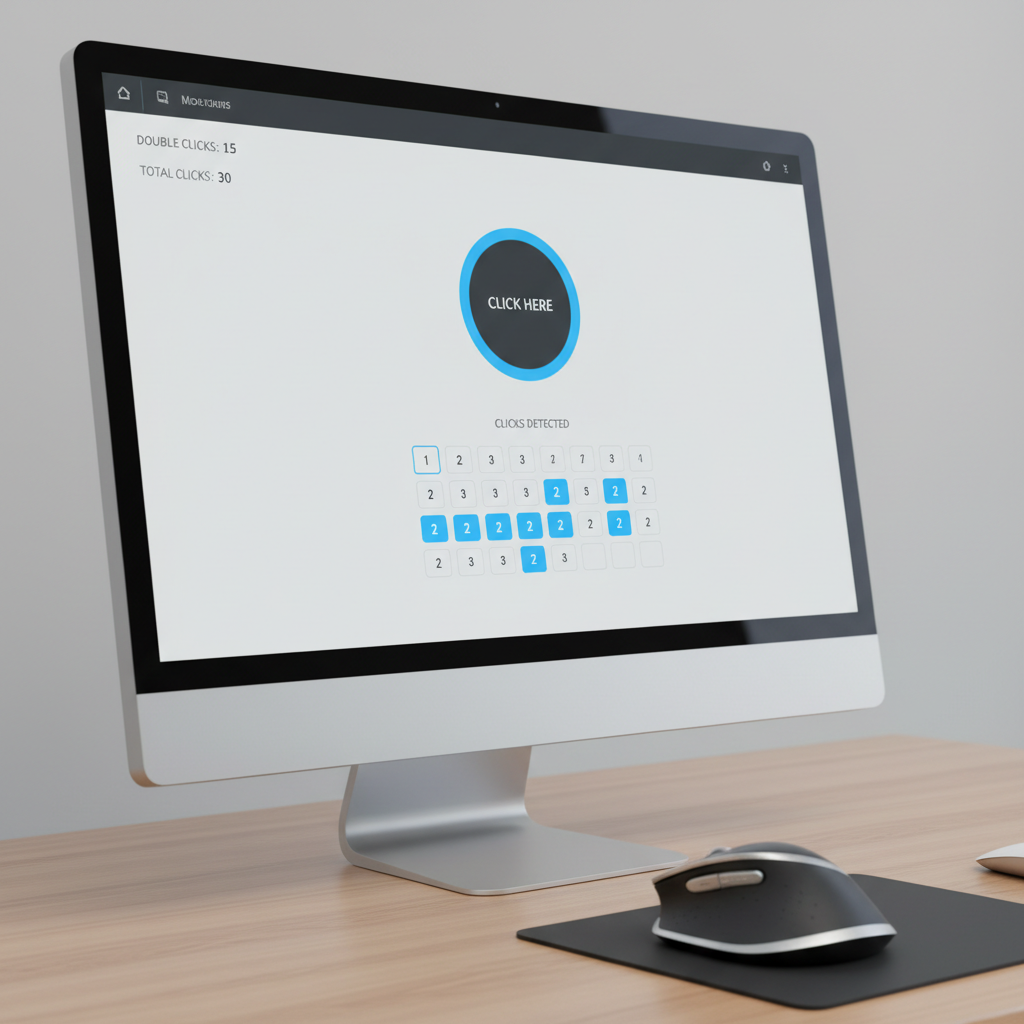
Test B: use an online double-click test page
Search “mouse double click test” and click repeatedly in the tester area. If it logs double clicks while you’re intentionally clicking slowly and once, that’s a strong hint of switch bounce.
Fix mouse double click in Windows (most common settings)
If your tests suggest a software issue, these Windows tweaks are the highest-value moves.
1) Adjust double-click speed
- Windows 11/10: Settings → Bluetooth & devices → Mouse → Additional mouse settings
- In the Buttons tab, move Double-click speed toward Slow, then test.
This setting is underrated. When it’s too fast, your “normal” click rhythm can be misread.
2) Turn off “single-click to open” (File Explorer)
- Open File Explorer Options (search it in Start).
- Under Click items as follows, select Double-click to open an item.
People often report “double-clicking” when this is enabled because folders open instantly, and it feels like the mouse is acting on its own.
3) Update or reinstall mouse drivers
- Open Device Manager → Mice and other pointing devices.
- Right-click your mouse → Update driver.
- If the issue started after an update, you can try Uninstall device, reboot, and let Windows re-detect it.
If you use Logitech Options/Options+, Razer Synapse, Corsair iCUE, or similar tools, check for click-related features like macros or “rapid fire” bindings that can mimic extra clicks.
Fix mouse double click on macOS
Mac users run into this too, especially with older mice or third-party devices.
1) Change double-click speed
- Go to System Settings → Accessibility → Pointer Control (wording can vary by macOS version).
- Adjust Double-click speed toward Slow, then try selecting files and dragging.
According to Apple Support, Accessibility settings include pointer and double-click adjustments intended to improve click recognition and control.
2) Remove and re-add Bluetooth mouse
- System Settings → Bluetooth → forget/remove the mouse.
- Restart, then pair again.
If the issue appears only over Bluetooth but not via a receiver or cable, you may be dealing with wireless interference rather than a failing switch.
Hardware-focused fixes (when the mouse is the culprit)
If your testing points to the mouse itself, your goal is to reduce false clicks long enough to keep working, or confirm it’s time to replace.
Try these low-risk steps
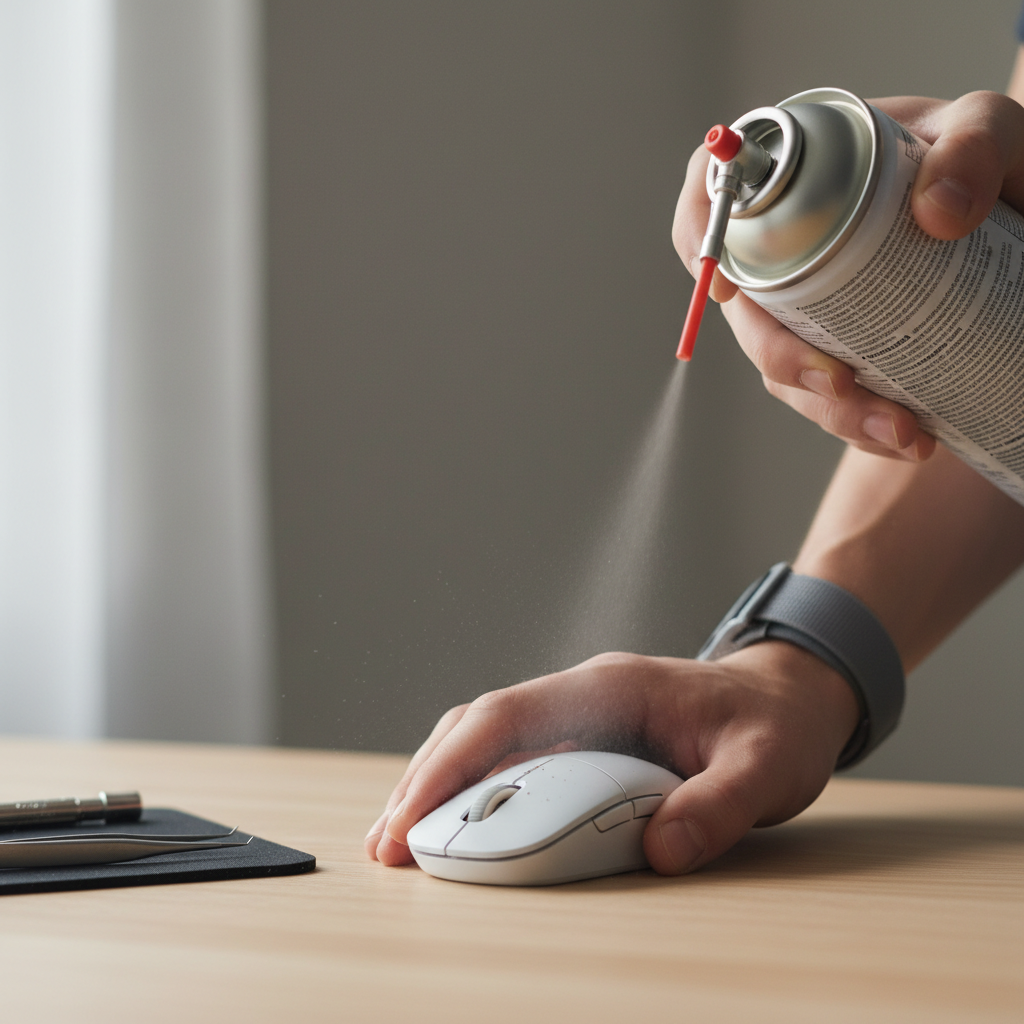
- Clean around the buttons: power off, remove batteries/unplug, then use compressed air around the left/right click seams. A cotton swab with a tiny bit of isopropyl alcohol can help if the button feels sticky, but avoid soaking anything.
- Change surface and pad: a warped pad or uneven desk edge can cause micro-movements that feel like extra clicks, especially during drag.
- Lower click force habits: not a “solution,” but heavy clicking can make a borderline switch behave worse.
What I would not treat as a reliable fix is spraying random lubricants into the mouse. In many cases it creates residue, attracts dust, and makes the long-term behavior messier.
Decide whether repair is worth it
For many mainstream office mice, replacing is cheaper than repairing. For premium gaming mice, some people replace switches, but that requires soldering and comfort with small electronics. If you’re not already into that, it can become a weekend project fast.
Practical decision table: what to try, in what order
If you just want a sane sequence, this is it.
| Symptom | Most likely cause | Try this first | Next step |
|---|---|---|---|
| Folders open on one click | Windows click behavior setting | Turn off “single-click to open” | Adjust double-click speed |
| Double clicks show in a tester even when clicking slowly | Worn mouse switch | Test mouse on another computer | Replace mouse or repair switch |
| Dragging drops unexpectedly | Switch bounce or sensitivity | Slow double-click speed | Clean button seam, then replace |
| Only happens on Bluetooth | Wireless interference/stack issue | Re-pair device | Try USB receiver/cable, update firmware |
| Only in one app (e.g., game or design tool) | App binding or macro | Check app settings/macros | Reinstall mouse software, reset profiles |
Common mistakes that waste time
- Changing five settings at once: you’ll “fix” it and not know what actually helped, then it comes back later.
- Blaming Windows immediately: a surprising number of cases are just a failing switch, especially on older mice.
- Ignoring power issues: low batteries can cause weird input behavior on some wireless models, not always, but often enough to check.
- Testing on a USB hub: hubs can introduce power or connection quirks, so test directly on the computer first.
Key takeaways (so you can stop thinking about it)
- Confirm whether it’s settings or hardware by testing the mouse on another computer or using a click tester.
- On Windows and macOS, double-click speed is the quickest setting that can genuinely change behavior.
- If false double clicks happen across devices, replacement is usually the cleanest fix, especially for budget mice.
Conclusion: the fastest path to a stable click again
If you came here for a clean answer on how to fix mouse double click when single click, start with one controlled test: try the mouse on a second computer or run a click tester. If the double clicks follow the mouse, stop burning time on settings and plan for cleaning or replacement. If the issue stays with one computer, dial in double-click speed, turn off single-click-to-open, and then look at drivers or mouse software profiles.
If you want an easy action plan today, pick one change, test for two minutes, then move to the next. That simple discipline usually beats random toggling.
FAQ
Why is my mouse double clicking even though I click once?
Most of the time it’s either a worn switch that “bounces” or a system double-click speed that’s too sensitive. Testing the mouse on another computer is the quickest way to separate the two.
Does lowering double-click speed fix the issue permanently?
It can help a lot when the problem is sensitivity or timing, but if the switch is physically failing, settings often only reduce symptoms for a while.
How do I stop single click from opening folders in Windows?
Go to File Explorer Options and choose Double-click to open an item. When single-click-to-open is enabled, it can feel like your mouse is “misclicking” constantly.
My mouse only double-clicks in one game or one program, why?
That usually points to an app binding, macro, or mouse software profile. Check for remapped buttons, turbo/rapid-fire options, or accessibility features inside the app.
Can dust really cause double clicking?
Sometimes. Dust and residue can change how the button returns or how consistent the contact feels. Cleaning is worth trying because it’s low risk, but it won’t fix a truly worn-out switch.
Is it safer to use a wired mouse if this keeps happening?
Wired can reduce wireless interference variables, but it won’t prevent switch wear. If the double click follows the same mouse whether wired or wireless, the switch is still the main suspect.
When should I replace the mouse instead of troubleshooting?
If a click tester shows frequent unintended double clicks and the behavior appears on multiple computers, replacement is usually the most time-efficient choice, especially for inexpensive office mice.
If you need a more “set it and forget it” fix
If you’re trying to fix this during work hours and just need reliability, it may be easier to grab a known-good spare mouse, confirm the problem disappears, then troubleshoot the original one later. That small detour often saves more time than chasing settings while deadlines pile up.