
how to change default apps windows 11 is mostly a Settings job now, but it still trips people up because Windows splits defaults by file type, link type, and protocol, not one simple “set Chrome as default” button everywhere.
If you keep getting the “wrong” app opening PDFs, photos, email links, or meeting invites, it wastes time and makes your PC feel unpredictable, especially when you switch browsers or install a new media player.
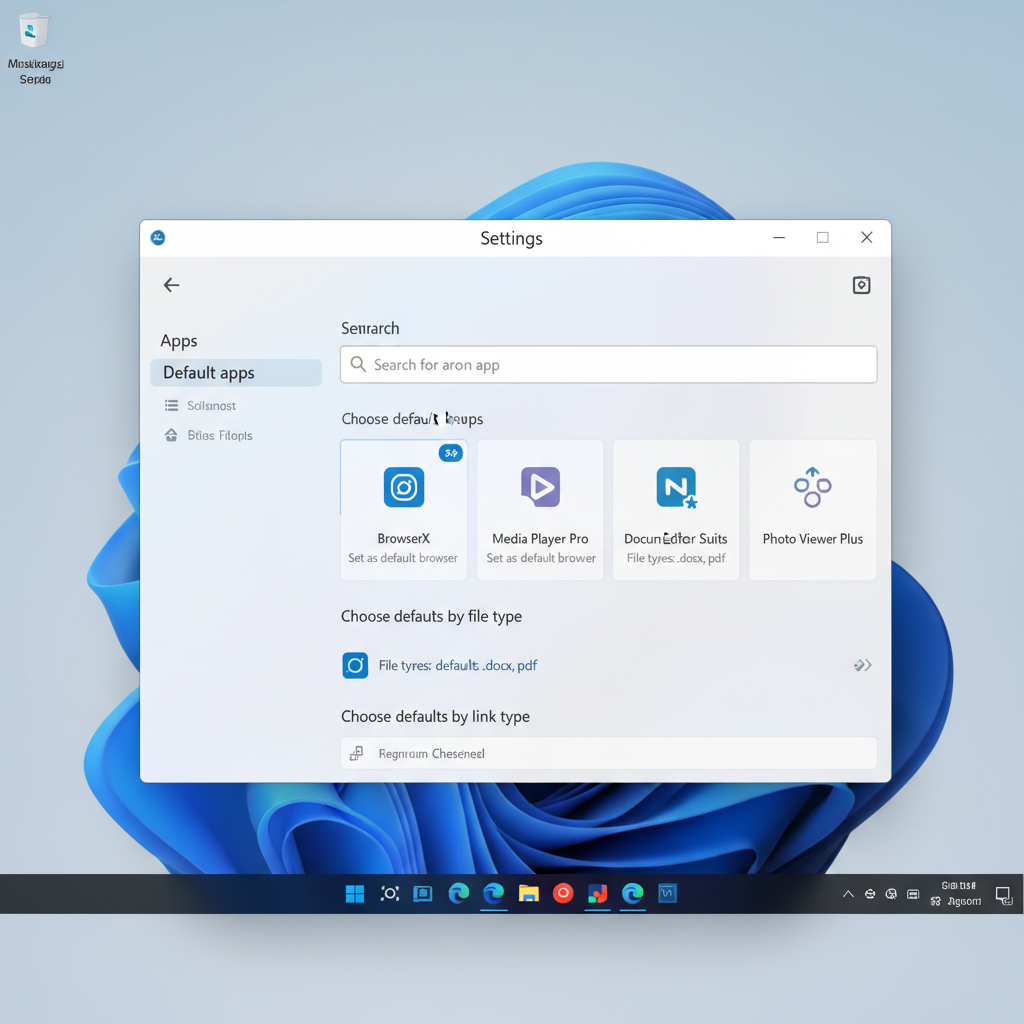
This guide focuses on what actually works in Windows 11: changing defaults for a single app, fixing specific extensions like .pdf, controlling web link handling (HTTP/HTTPS), and troubleshooting when Windows “snaps back” after updates.
What “default apps” means in Windows 11 (and why it feels different)
Windows 11 treats defaults as a set of associations: file extensions (like .pdf), link types (like HTTP/HTTPS), and protocols (like MAILTO). That’s why changing one thing doesn’t always change everything you expect.
According to Microsoft, default app settings are managed in Windows Settings and can be set per file type or link type, which is intended to give more control but adds extra steps for common changes.
- File type defaults: what opens .jpg, .mp4, .pdf, .docx, and so on
- Link type defaults: what opens web links such as http and https
- Protocol defaults: what opens mailto, ms-office, zoommtg, etc., depending on what’s installed
The fastest way: change defaults by app (recommended for most people)
If your goal is “make this app open its stuff,” switching defaults by app is usually quicker than hunting extensions one by one.
Steps
- Open Settings → Apps → Default apps
- Search for the app name (for example: Chrome, Adobe Acrobat, VLC)
- Select the app, then review the list of file types and link types
- Click a type (like .pdf or HTTPS) → choose the app you want → confirm
If you’re trying how to change default apps windows 11 for browsing, don’t stop at .htm and .html, make sure HTTP and HTTPS point to your preferred browser too.
Change a default for one specific file type or link type
This is the better route when only one thing is wrong, like PDFs opening in Edge while everything else is fine.
Option A: Change defaults from Settings (most consistent)
- Settings → Apps → Default apps
- In the “Set defaults for applications” area, type the extension (example: .pdf)
- Select the current default → pick your preferred app
Option B: Change defaults from File Explorer (quick, but not always complete)
- Right-click a file (example: any PDF) → Open with → Choose another app
- Select your app → check Always use this app → OK
File Explorer works well for simple extensions, but it may not cover link/protocol behavior, so if web links still open “wrong,” go back to Default apps in Settings.
Common default app tasks (quick reference table)
If you want a practical map for how to change default apps windows 11 without guessing where Windows hid the switch, use this cheat sheet.
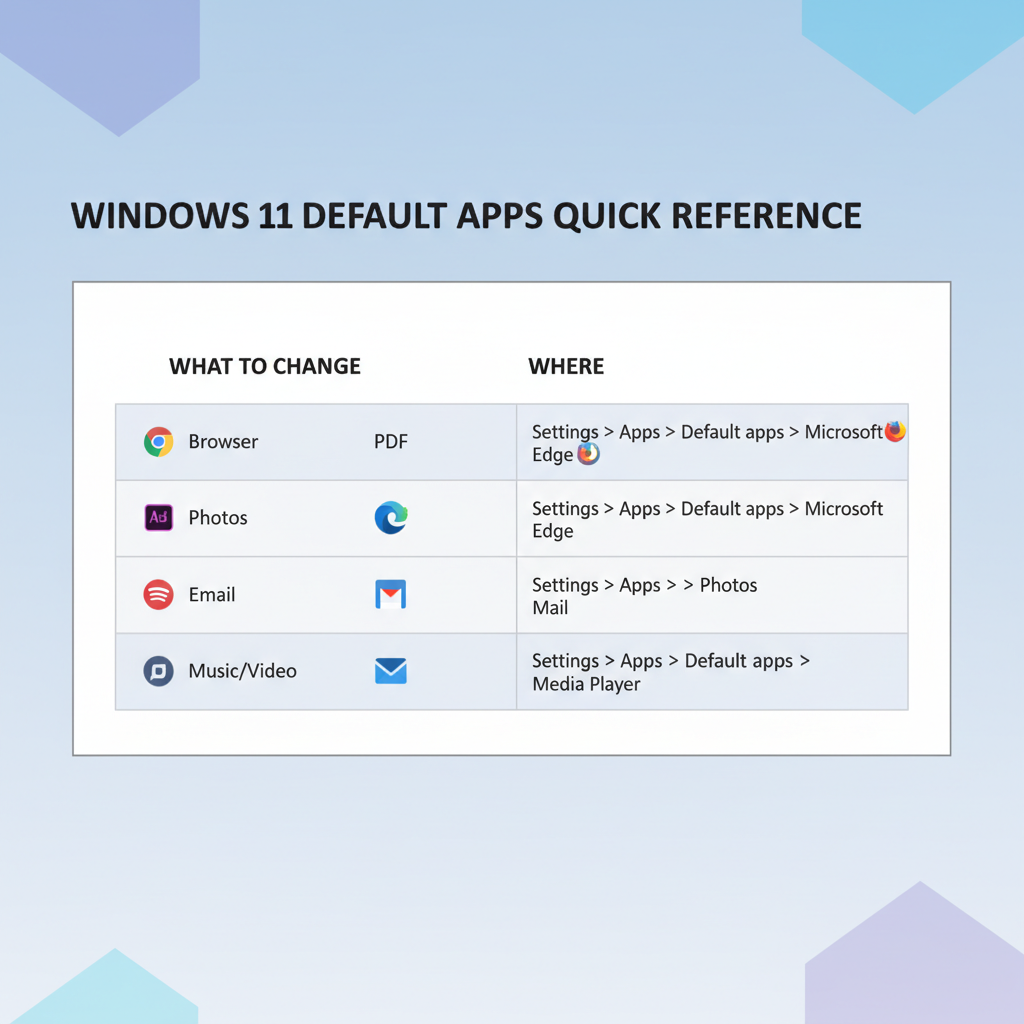
| What you’re changing | What to set | Where to do it |
|---|---|---|
| Default browser | HTTP, HTTPS, .htm, .html | Settings → Apps → Default apps → choose browser |
| PDF opener | Settings → Apps → Default apps → search .pdf | |
| Photos viewer | .jpg, .png, .heic | Settings → Apps → Default apps → choose Photos app |
| Email links | MAILTO protocol | Settings → Apps → Default apps → choose mail app |
| Video player | .mp4, .mkv, .mov | Settings → Apps → Default apps → choose media app |
Self-check: why your defaults keep “not sticking”
When people say Windows 11 “won’t keep” their defaults, it’s usually one of these scenarios, not a single mysterious bug.
- You changed only file types, but links still point elsewhere (common with browsers)
- The app isn’t fully installed or is missing components, so Windows keeps offering another handler
- You have multiple apps competing for the same type (PDF tools, image editors, media suites)
- A Windows update or app update nudged associations back, especially after reinstalling a browser
- Work/school device policies enforce defaults via IT management tools
Quick test: pick one file type you care about (like .pdf), set it, then immediately open two different PDFs from different folders. If one opens correctly and the other doesn’t, you might be dealing with a different extension (for example .PDF vs a handler for a browser download flow) or a policy-managed setting.
Step-by-step fixes for the most common scenarios
Scenario 1: You want Chrome (or another browser) as default for everything web
- Settings → Apps → Default apps → select your browser
- Set HTTP and HTTPS to that browser
- Also set .htm and .html
- Test by clicking a link in email and in a document, not just from the Start menu
This is where how to change default apps windows 11 most often goes wrong: people set .html but forget HTTPS, then links from apps still open in a different browser.
Scenario 2: PDFs keep opening in Microsoft Edge
- Search .pdf in Default apps and set it to your PDF app
- If your PDF app offers a “make default” setting, you can use it, but confirm in Windows Settings anyway
- If you use multiple PDF apps, pick one primary tool, the “last installed” app often causes churn
Scenario 3: Photos open in the wrong app after installing an editor
- Set defaults for .jpg, .png, and any phone formats you use like .heic
- If you only want the editor sometimes, keep Windows Photos as default and use Open with when needed
Scenario 4: Mail links (mailto) don’t open your email client
- Settings → Apps → Default apps
- Search MAILTO (protocol) and assign your email app
- Test from a browser and from Teams/Slack, since each app can behave slightly differently
Common mistakes to avoid (saves time)
- Only changing one extension when you really need a bundle (browser and media players are the big ones)
- Relying on an app pop-up that says “Set as default,” it may not cover protocols
- Confusing “Open with” with true defaults, File Explorer is convenient but not always complete
- Ignoring managed devices, if your laptop belongs to an employer or school, defaults may be locked
If you suspect a managed device, it’s worth asking IT before spending an hour clicking settings that keep reverting, that behavior is often expected under policy.
When it makes sense to get extra help
If none of your changes persist, or you don’t even see certain app choices, you may be dealing with permission limits, corrupted app registrations, or management policies. According to Microsoft Support, some default behaviors can be influenced by organization settings and by whether an app is properly installed and registered in Windows.
On personal PCs, you can consider reinstalling the target app, checking for Windows updates, and confirming you’re using an administrator account. In business environments, the safer move is usually to contact IT, because changing defaults can conflict with required compliance tools.

If your situation involves accessibility needs or specialized software (assistive tech, medical devices, regulated workflows), it may be smarter to confirm changes with a qualified professional, because the “right” default app can be safety-relevant in some contexts.
Key takeaways (so you can move on)
- Use Settings → Apps → Default apps as the source of truth, not random pop-ups.
- For browsers, set HTTP/HTTPS plus .htm/.html, otherwise links still misbehave.
- If defaults revert, check for competing apps or work/school policies.
If you want one quick action today, open Default apps, search the one file type that annoys you most, change it, then test from two places (File Explorer and a link inside another app). That usually reveals what’s actually missing.
FAQ
Why can’t I change all default apps at once in Windows 11?
Windows 11 typically requires per-type associations, so you set defaults for extensions and protocols rather than flipping one global switch. It’s more granular, even if it feels slower.
How do I set Chrome as default on Windows 11 for links and not just HTML files?
Go to Default apps, pick Chrome, then set HTTP and HTTPS to Chrome as well. Many people change .html and stop there, then email links still open elsewhere.
Where do I change the default PDF app in Windows 11?
In Settings → Apps → Default apps, search .pdf and change the current handler to your preferred PDF app. Confirm by opening a PDF from File Explorer.
Why does Edge keep becoming my default after updates?
It can happen after Windows updates, browser reinstalls, or when Windows detects a missing association. Recheck HTTP/HTTPS and the specific extensions you care about, not just the app name.
How do I change the default email app for mailto links?
In Default apps, search for the MAILTO protocol and choose your email client. Then test by clicking an email link in a browser and inside another app.
Can my workplace block default app changes?
Yes, many organizations manage defaults through device policies. If settings revert immediately or options are missing, it’s reasonable to assume management controls and check with IT.
Is “Open with” the same as setting a default app?
Not always. “Open with” can set a default for that extension, but it may not affect protocols or link types, and Settings remains the most reliable place to verify.
If you’re trying to standardize defaults across multiple PCs or you’re helping a family member who keeps getting bounced between apps, it may be easier to work from a short checklist of the exact file types and protocols you care about, then verify them in Settings in one pass instead of chasing issues one click at a time.