
how to disable fast startup windows 11 is usually a quick fix when your PC won’t fully shut down, drivers act weird after boot, or you keep missing the BIOS/UEFI key during startup.
Fast Startup is meant to speed up boot time by using a hybrid shutdown, but in real life it can create “it feels restarted, but it isn’t” moments, especially after updates, driver changes, dual-boot setups, or troubleshooting sleep/hibernate behavior.
This guide shows the safest ways to turn it off, how to confirm it’s actually disabled, what changes you should expect, and when you might want to leave it on.
What Fast Startup does (and why it can cause issues)
Fast Startup combines a normal shutdown with parts of hibernation. Instead of closing everything and starting fresh next boot, Windows saves certain system state information to disk, then loads it back on startup.
That shortcut can be helpful, but it also means a “Shutdown” may not behave like a full shutdown. According to Microsoft, Fast Startup is designed to reduce startup time on some systems by using a hybrid shutdown process, which also explains why some troubleshooting steps recommend disabling it temporarily.
- Driver or hardware changes don’t apply cleanly, especially with GPUs, Wi‑Fi, Bluetooth, docking stations, and some USB devices.
- Dual-boot headaches can show up when another OS tries to access Windows partitions that aren’t fully closed.
- BIOS/UEFI access feels “too fast”, so you miss the key prompt or the PC skips certain initialization steps.
- Shutdown ≠ truly off, which can matter for troubleshooting, encryption workflows, and some enterprise policies.
Quick self-check: do you actually need to disable it?
If your PC feels stable and you just want the fastest boot possible, you might not need to change anything. But if any of these sound familiar, turning it off is a reasonable test.
- You shut down, power back on, and the system behaves like it never fully reset.
- After Windows Update, you see odd device behavior until you restart (not shut down).
- Your external drives or USB devices don’t reconnect reliably after a shutdown.
- You run Linux alongside Windows and get warnings about an “unclean” Windows partition.
- You’re troubleshooting boot, sleep, hibernate, or wake problems and want a clean baseline.
Tip: A “Restart” usually bypasses Fast Startup behavior, so if restarting fixes the issue but shutting down doesn’t, that’s a strong hint.
Disable Fast Startup in Control Panel (most common method)
This is the standard path most IT teams use because it’s visible, reversible, and doesn’t require extra tools.
Steps
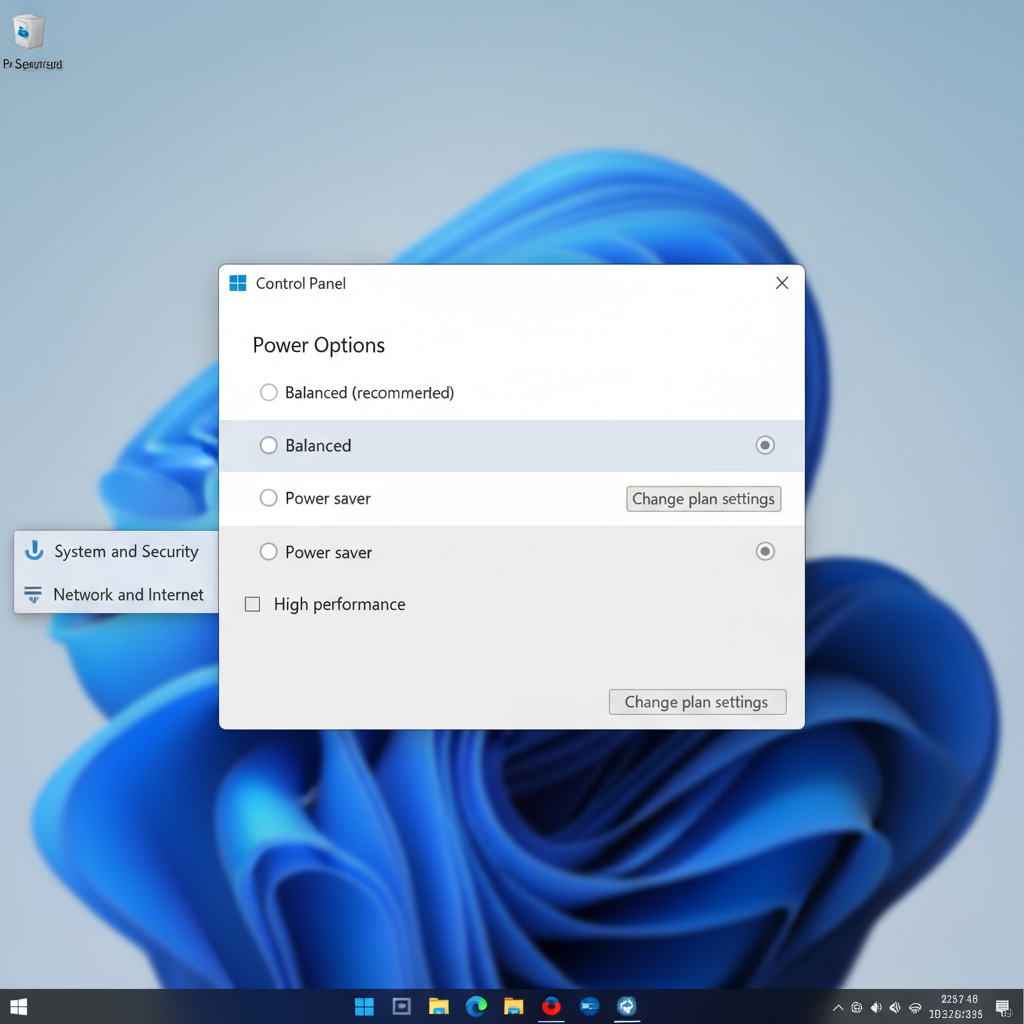
- Press Windows + S, type Control Panel, open it.
- Go to Hardware and Sound → Power Options.
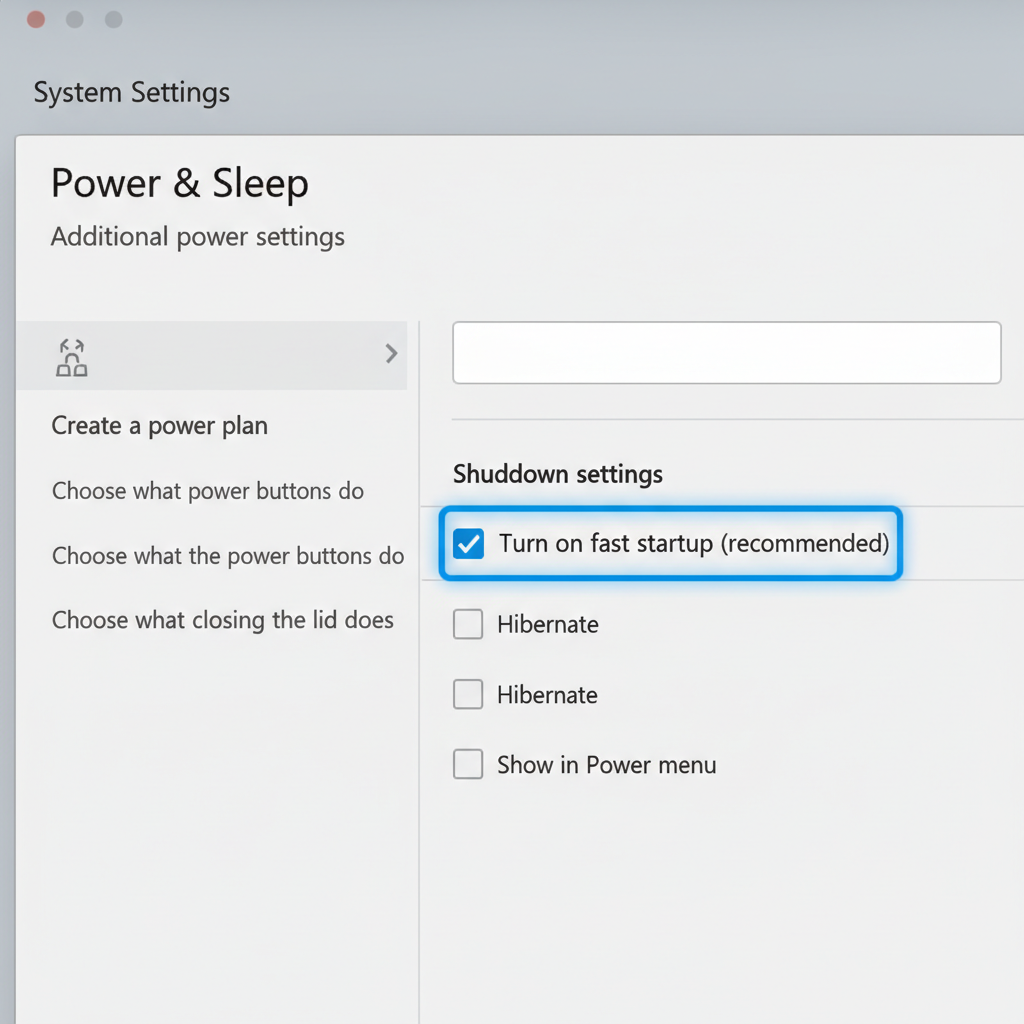
- Click Choose what the power buttons do (left side).
- Click Change settings that are currently unavailable.
- Under Shutdown settings, uncheck Turn on fast startup (recommended).
- Click Save changes, then do a full Shutdown.
If you don’t see the checkbox at all, skip ahead to the section about hibernation being disabled, that’s the usual reason.
Disable it with Command Prompt (useful for troubleshooting)
If you prefer a quicker approach or you’re following a troubleshooting checklist, the most practical method is to disable hibernation. Fast Startup depends on hibernation, so when hibernation is off, Fast Startup can’t run.
Important: This also removes Hibernate from the power menu, and it can affect features that rely on hibernation (for example, certain laptop power workflows). If you care about hibernate, use the Control Panel method instead.
Steps (Admin required)
- Press Windows + X → choose Terminal (Admin) or Command Prompt (Admin).
- Run: powercfg /h off
- Shut down the PC, then power it back on to test behavior.
To re-enable hibernation later
- Run: powercfg /h on
How to verify it’s really off (and what “off” should feel like)
Fast Startup being disabled is subtle. You’re not looking for a dramatic change, you’re looking for fewer “sticky” states after shutdown.
- Shutdown should behave like a clean power-off: hardware reinitializes more consistently after power-on.
- BIOS/UEFI access may be easier: you may have a slightly longer window to hit the key prompt.
- Some boots may take a bit longer: especially on older HDD-based systems; on many SSD PCs the difference is small.
If you disabled it via Control Panel, return to the same screen and confirm the checkbox stays unchecked. If you disabled hibernation, you typically won’t see the Fast Startup option available.
Trade-offs: should you leave Fast Startup off?
It depends on what you value: speed, or predictability during troubleshooting and hardware changes. Here’s a practical view you can use to decide.
| Situation | Usually keep Fast Startup | Usually disable Fast Startup |
|---|---|---|
| Stable home PC, SSD, no dual-boot | Yes, if you want slightly faster cold boots | Only if you’re chasing odd shutdown behavior |
| Dual-boot Windows + Linux | Rarely | Often helps avoid partition lock/unclean mount issues |
| Driver debugging, device disconnects, docking issues | Not ideal during troubleshooting | Common first step to get consistent results |
| Enterprise/managed laptops with strict policies | Policy dependent | Policy dependent, check with IT before changing |
Common mistakes that waste time
A lot of people disable the setting and still think it’s “not working,” because one detail gets missed.
- Confusing Restart with Shutdown: Restart is already a clean cycle most of the time, test with actual Shutdown.
- Forgetting admin unlock: if you didn’t click “Change settings that are currently unavailable,” your change might not save.
- Assuming Fast Startup is the only cause: firmware updates, chipset drivers, and USB power settings can look similar.
- Disabling hibernation unintentionally: using powercfg /h off is effective, but it also removes Hibernate.
When to seek additional help (IT, manufacturer, or a repair shop)
Disabling Fast Startup is a safe setting change, but if the underlying problem is firmware, storage, or power management, you may need deeper help.
- Your PC randomly reboots, freezes, or shows repeated blue screens after you disable it.
- You suspect drive errors, BitLocker prompts, or boot configuration issues.
- You’re on a work device with management software, and policy might revert the setting.
According to Microsoft, persistent startup and shutdown issues can involve driver, firmware, or system file problems, so if symptoms continue after you turn off Fast Startup, consider standard Windows troubleshooting steps or contact your device support channel.
Conclusion: the simple move that often makes shutdown “honest” again
If you came here because Windows 11 shutdown feels unreliable, learning how to disable fast startup windows 11 is a practical, low-risk step. Start with the Control Panel checkbox, then test with a full shutdown and cold power-on. If your issue disappears, you’ve found a clean baseline, and you can decide whether the small speed trade-off is worth the stability.
Action idea: Disable it for a week during updates or driver changes, then reassess. If everything stays stable, you can keep it off or re-enable it based on what you prefer.