
how to fix app crashing on iphone usually comes down to a short list of culprits: a buggy app update, low storage, a shaky network session, or an iOS issue that needs a refresh.
Crashes feel random, but they often follow patterns, like only happening on one app, right after an update, or when your phone gets warm or storage is almost full. If you spot the pattern, the fix gets faster.
This guide walks through practical checks in the order that tends to work in real life, starting with low-risk resets and moving toward deeper steps like reinstalling apps or resetting settings. I’ll also call out when it’s probably the app developer’s problem, not yours.
Quick triage: figure out what kind of crash this is
Before you start toggling every setting, take 60 seconds to classify the crash. It saves time and helps you avoid “fixes” that can’t possibly matter.
- One app only: usually an app bug, corrupted local data, login/session issues, or a compatibility problem after an update.
- Several apps crash: more likely iOS, low storage, memory pressure, or an accessory/VPN profile causing conflicts.
- Crashes only on Wi‑Fi or only on cellular: points to network, DNS, VPN, captive portals, or flaky routers.
- Crashes during camera, mic, or Bluetooth use: can relate to permissions, accessory firmware, or a specific feature path in the app.
- Crashes when phone feels hot: overheating can trigger aggressive resource limits that push apps out.
Key point: if the crash started right after an app update, the “fix” is often updating again, reinstalling, or waiting for a hotfix, not changing your whole phone.
Start with the simplest fixes (they work more often than you’d think)
These steps are safe, quick, and surprisingly effective for the “it just started happening” scenario.
1) Force close the app and reopen
Swipe up to the App Switcher, flick the app away, then open it again. This clears a stuck process and resets the app’s immediate state.
2) Restart your iPhone
A reboot clears temporary caches and can resolve background services that apps depend on. According to Apple Support, restarting is a standard first step for unexpected app behavior.
3) Toggle Airplane Mode (for network-triggered crashes)
If crashes happen when loading content, try Airplane Mode on for 10 seconds, then off. It rebuilds network connections without deeper changes.

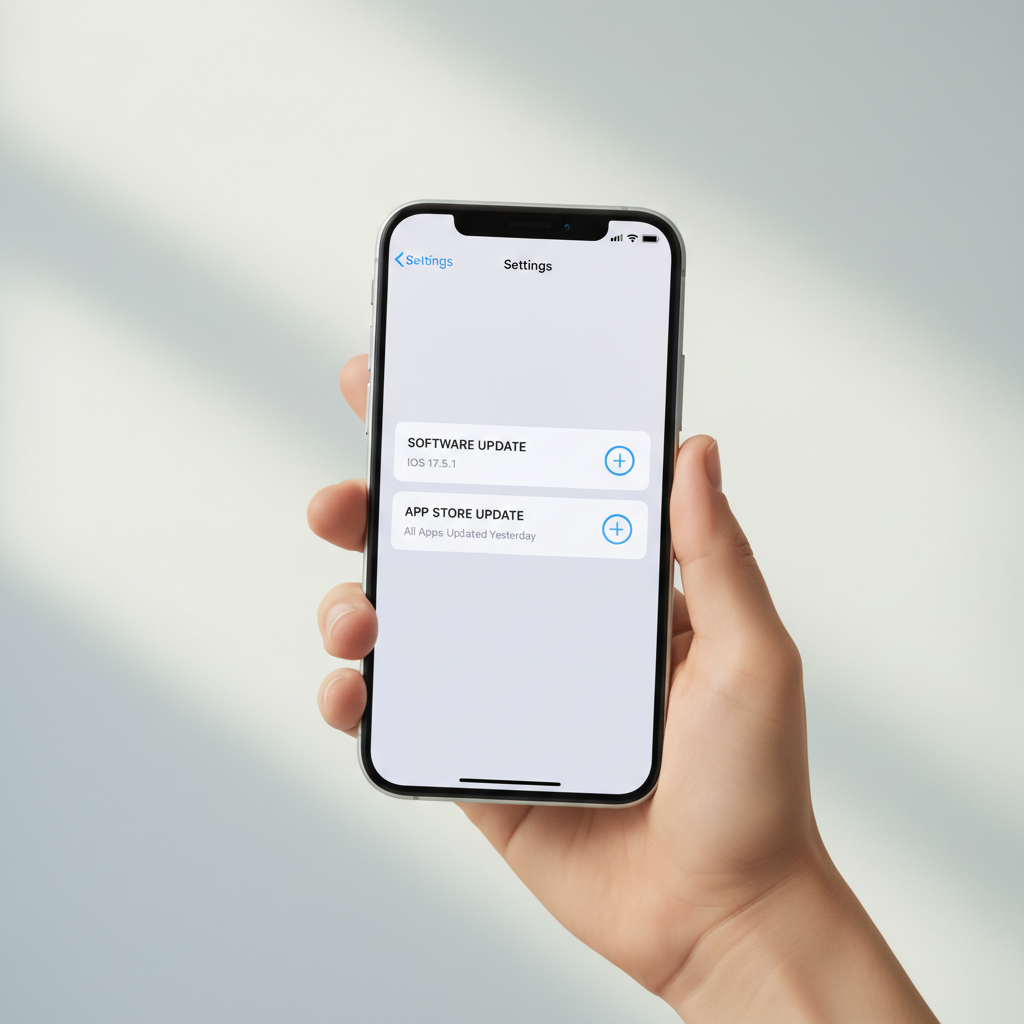
Update iOS and the app (compatibility matters)
When people search how to fix app crashing on iphone, updates are the unglamorous answer, but they matter because crashes often come from version mismatches: a new app build hitting an older iOS, or iOS changing APIs the app relies on.
Update the app
- Open App Store → tap your profile → scroll to Available Updates → update the crashing app.
- If you already updated and the problem started right after, check a day later for a follow-up patch. That’s common.
Update iOS
- Go to Settings → General → Software Update.
- If an update is available, install it after backing up (iCloud or computer) if you’re cautious.
Reality check: on very old iPhones, the newest app versions may be less stable simply because the device has less RAM and the iOS version support window narrows. You can still do a lot, but expectations should be realistic.
Check storage, memory pressure, and background activity
Low storage can cause apps to crash in messy ways, especially when an app needs to write cache, download media, or unpack an update. This is one of the most overlooked answers to how to fix app crashing on iphone.
Storage: aim for breathing room
Open Settings → General → iPhone Storage. If you’re close to full, free space and retest the app.
- Delete large videos you don’t need, or move them to iCloud/Google Photos.
- Offload apps you rarely use (keeps documents, removes the app).
- Clear big message attachments and offline downloads in streaming apps.
Close heavy background tasks (selectively)
You don’t need to obsessively close every app, but if you have a game, camera editor, and several social apps running, memory pressure can spike. Closing the heaviest few before testing is a fair diagnostic step.
Reinstall the app (best fix for corrupted local data)
If one specific app keeps quitting, reinstalling often works because it replaces damaged binaries and clears local caches. That said, you might lose local-only data if the app doesn’t sync to an account.
Safer approach: Offload, then reinstall
- Settings → General → iPhone Storage → select the app → Offload App.
- Tap Reinstall App and test again.
Full delete (when offload doesn’t help)
- Delete the app, restart the iPhone, reinstall from the App Store.
- Log back in and check whether the crash happens before or after sign-in, that detail matters.
Tip: if the app crashes only after you log in, the issue may relate to an account session, corrupted cloud sync state, or a specific dataset in your profile. In that case, the developer’s support team can sometimes reset something server-side.
Network, VPN, and permissions: the “it only crashes when…” fixes
Some crashes are really “failures that look like crashes,” especially when an app can’t reach its services, can’t access the camera, or hits a blocked network path.
Test without VPN or content filters
- Disable VPN: Settings → VPN (or General → VPN & Device Management).
- If you use ad blockers, DNS filters, or workplace profiles, pause them and retry.
Reset network settings (when Wi‑Fi/cellular is the trigger)
This is more disruptive because it forgets Wi‑Fi networks. Go to Settings → General → Transfer or Reset iPhone → Reset → Reset Network Settings.
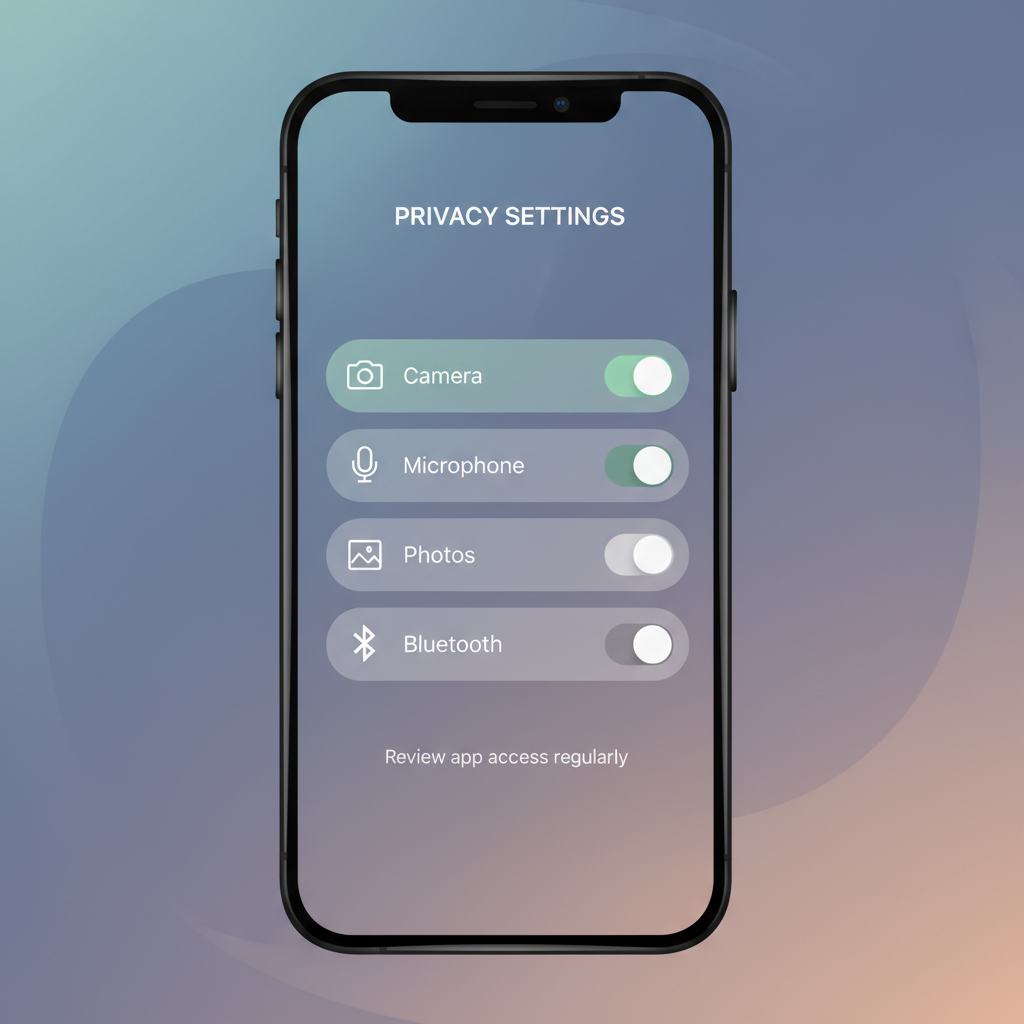
Check permissions for camera, microphone, photos, Bluetooth
- Settings → scroll to the app → confirm required permissions are enabled.
- If the crash happens when attaching photos, review Photos permission (Selected Photos vs Full Access).
- For Bluetooth accessories, reconnect the device or “Forget This Device” and pair again.
When to reset settings or check for deeper iOS issues
If multiple unrelated apps crash and basic steps don’t move the needle, it may be time to reset settings. This can fix odd conflicts without wiping your data.
Reset all settings (not erase)
Go to Settings → General → Transfer or Reset iPhone → Reset → Reset All Settings. This keeps photos and apps, but resets things like Wi‑Fi, notifications, and privacy preferences.
Check Analytics data (optional, for patterns)
If you’re curious, go to Settings → Privacy & Security → Analytics & Improvements → Analytics Data. Repeated logs naming the same app can confirm it’s app-specific. You don’t need to decode the file, just look for repetition.
Last resort: backup and restore
A full restore can help if iOS system components are corrupted, but it’s time-consuming and not always necessary. According to Apple Support, restoring from backup is a troubleshooting option when problems persist across apps.
What to do when it’s clearly the app’s fault (and you need a workaround)
Sometimes the right answer to how to fix app crashing on iphone is admitting you can’t “fix” it locally because the crash comes from the app build itself. You can still reduce pain while waiting for an update.
- Try a different connection: switch Wi‑Fi to cellular or vice versa, or test another network.
- Use the web version if the service offers one (banking, email, social platforms often do).
- Disable one feature path: for example, turn off in-app background refresh, live widgets, or a specific integration if crashes correlate.
- Report it with useful detail: device model, iOS version, app version, and the exact action that triggers the crash. That’s what support teams can act on.
A practical checklist (and a quick decision table)
If you want the shortest path, run this checklist in order and stop when the crash disappears.
- Restart iPhone, then try the app again.
- Update the app and update iOS.
- Free storage space if you’re near full.
- Offload/reinstall the app.
- Disable VPN/filters and test on another network.
- Reset network settings or reset all settings if multiple apps crash.
Decision table: match the symptom to the most likely fix
| What you notice | Most likely cause | What to try first |
|---|---|---|
| Only one app crashes after an update | Bug or corrupted cache | Update again, then offload/reinstall |
| Crashes when loading content | Network/VPN/DNS issue | Disable VPN, toggle Airplane Mode, try another network |
| Several apps crash, storage nearly full | Storage pressure | Free space, then restart |
| Crashes when using camera/mic/photos | Permissions or feature-specific bug | Check permissions, reinstall, test without accessories |
| Random crashes across apps for days | iOS settings conflict or system issue | Reset all settings, consider backup/restore |
Conclusion: stabilize first, then go deeper only if needed
Most fixes for app crashes are boring on purpose: restart, update, free storage, reinstall. If you do those in a smart order, you usually avoid the nuclear options.
If the crashing is isolated to one app and it started right after an update, focus on that app, not your entire iPhone. If multiple apps crash and you see other odd behavior, take the iOS-level steps and consider reaching out for help.
Action you can take today: check iPhone Storage, update iOS and the affected app, then offload/reinstall if the problem sticks.
When to contact Apple or the app’s support
If crashes persist after updates, reinstall, and settings resets, or if the phone shows broader instability like overheating, battery drain, or unexpected restarts, it’s reasonable to contact Apple Support or the app developer. If you rely on the app for work or finances, getting official guidance is often faster than endless trial-and-error.