
how to disable startup apps on windows 11 is one of the quickest ways to make a sluggish PC feel normal again, especially when boot time drags and the fan spins up for no good reason.
The catch is that “startup apps” includes both helpful tools and totally unnecessary clutter, and Windows doesn’t always make the difference obvious, so people either disable nothing or disable the wrong thing.
This guide gives you a practical way to decide what to turn off, where to do it (Settings, Task Manager, and a couple deeper spots), and how to avoid breaking drivers, security tools, or sync services you rely on.
Why startup apps slow down Windows 11 (and what “startup” really means)
Startup slowdown usually comes from too many processes competing for CPU time, disk access, and network, right when Windows is trying to load your profile and core services. Even “small” apps can add up when they all check for updates, load helpers, or sync in the background.
- Boot time gets longer because multiple apps launch at the same time and Windows has to juggle them.
- Sign-in feels heavy because background tasks keep running after the desktop appears, so you see lag even when it “looks” ready.
- Battery and heat can worsen on laptops when startup tools keep active in the tray.
- Network starts busy because cloud drives, chat apps, and auto-updaters all connect at once.
Also, not everything that launches “at startup” lives in one place. Some items are classic startup apps, others are scheduled tasks, services, or driver utilities. That’s why you might disable a few items and still feel like nothing changed.
Quick self-check: which startup items are safe to disable?
Before you start toggling things off, do a fast pass with a simple rule: if you don’t need it immediately after sign-in, it probably doesn’t need to auto-launch.
Usually safe to disable (most home users)
- Music players, game launchers, streaming apps
- Meeting apps you use occasionally (you can open them when needed)
- Auto-updaters for apps that update fine when launched
- “Helper” apps for printers you rarely print to
- Tray apps you never click
Be careful with these (disable only if you understand the impact)
- Security software and VPN clients you rely on for always-on protection
- Cloud sync (OneDrive/Dropbox/Google Drive) if you expect files to be ready right away
- Driver utilities for touchpads, audio enhancements, GPU overlays, docking stations
- Accessibility tools you depend on at sign-in
If you’re unsure what an entry is, don’t guess based on the name alone. Look for the publisher, the file location, and whether it’s tied to hardware you use daily.
Method 1: Disable startup apps using Settings (simple and safe)
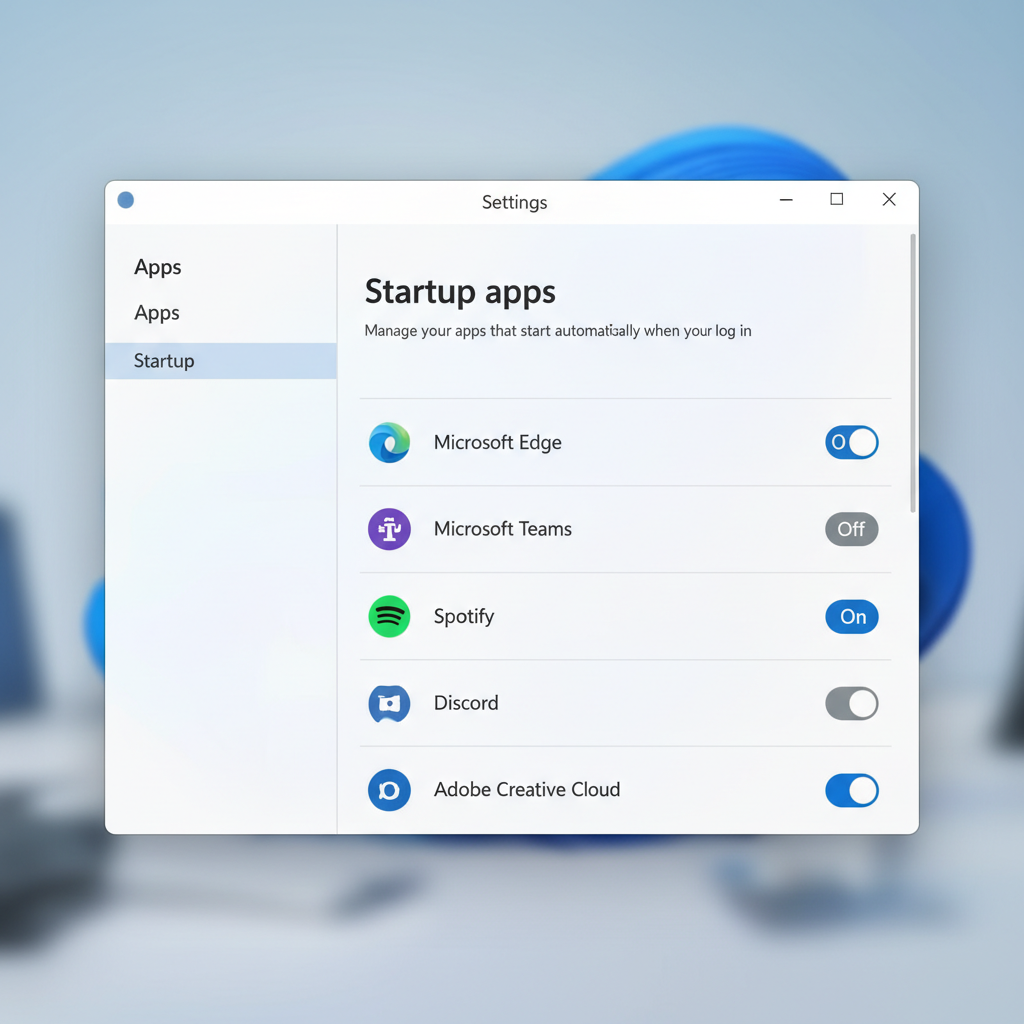
For most people, the cleanest approach is the built-in toggle list. It’s designed for exactly this job, and it’s hard to damage Windows with it.
- Open Settings → Apps → Startup
- Sort by Startup impact if available, then scan the top offenders
- Toggle off apps you don’t need immediately after sign-in
Focus on high-impact items first, that’s where you’ll usually notice the change. You can always turn something back on later.
Method 2: Use Task Manager for better visibility (impact + publisher)
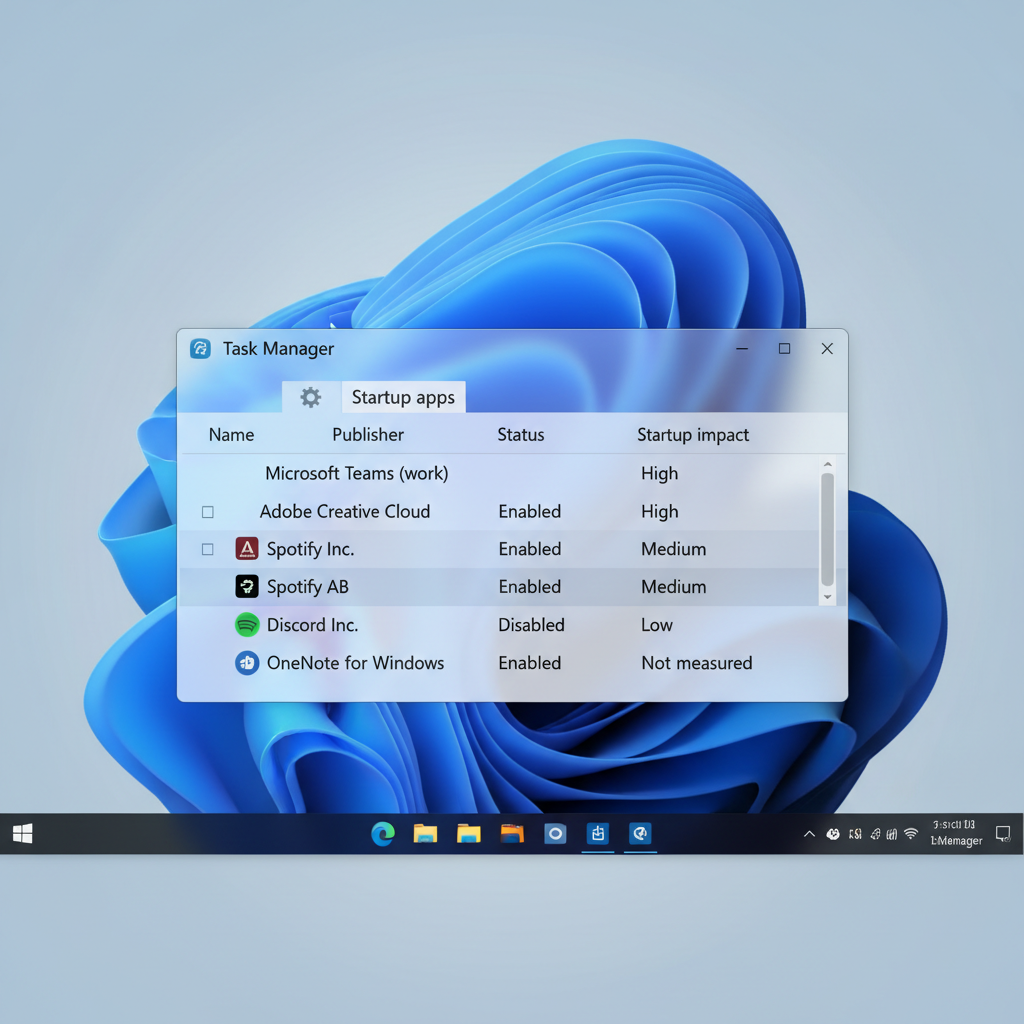
If you want more context, Task Manager is the better “editor view.” You can quickly see what’s enabled, what it does to startup, and sometimes the vendor.
- Right-click the taskbar → Task Manager
- Go to Startup apps
- Right-click an item → Disable
According to Microsoft Support, Task Manager can be used to manage which apps run at startup, and changes take effect on the next sign-in. That “next sign-in” part matters, don’t judge results until after a restart.
A small decision table that saves time
| What you see | What it usually means | What to do |
|---|---|---|
| High impact + you never use it | Easy win | Disable, test for a day |
| Medium impact + you use it weekly | Convenience vs speed tradeoff | Disable if you value boot speed |
| Low impact + hardware-related vendor | Could support hotkeys/features | Leave on unless you’re troubleshooting |
| Unknown publisher or weird name | Could be leftover or unwanted | Research file location before disabling |
Method 3: Stop the “hidden” startup sources (when toggles aren’t enough)
If you’ve already learned how to disable startup apps on windows 11 and the PC still boots like it’s wading through mud, the remaining slowdown often comes from places the Startup list doesn’t show clearly.
Check scheduled tasks (common for updaters)
- Open Start, type Task Scheduler
- Browse Task Scheduler Library
- Look for entries that run “At log on” or “At startup”
Be conservative here. Disabling random tasks can break update mechanisms or vendor tools. If the task name clearly matches a nonessential updater, that’s usually fine, but driver and security tasks deserve extra caution.
Check Services (advanced, don’t mass-disable)
- Press Win + R, type services.msc
- Sort by Status and Startup Type
- If you change anything, prefer Manual over Disabled
Services are not the same as apps. If you’re not sure what a service does, leave it alone and focus on obvious app startup items first.
Practical “speed-first” setup: a 10-minute plan
This is the workflow that tends to work in real life, because it limits risk while still delivering noticeable improvement.
- Step 1: In Settings → Apps → Startup, disable 3–6 items you recognize and don’t need immediately.
- Step 2: In Task Manager → Startup apps, disable anything with High impact that you don’t actively use.
- Step 3: Restart, then time your boot informally: how long until the desktop feels responsive, not just visible.
- Step 4: If something you miss stops auto-opening, re-enable only that one item.
A helpful mindset is “fewer things racing at sign-in,” not “disable everything.” You want Windows to breathe.
Common mistakes that waste time (or cause new problems)
- Disabling security tools because they “look heavy.” If you don’t have a replacement plan, you may trade speed for risk.
- Assuming “Disabled” uninstalls anything. It only stops auto-launch, the app still exists.
- Chasing tiny gains by turning off low-impact entries while ignoring a couple high-impact items.
- Confusing startup with background permissions. Some apps still run background tasks unless you change their permissions or uninstall them.
- Over-tuning services without understanding dependencies, this is where people break Bluetooth, audio, or printing.
If the system remains slow even after cleanup, startup apps may not be the core issue. Disk health, low RAM, and driver problems can show similar symptoms.
When it’s time to get help (or look beyond startup apps)
If you’ve trimmed startup items and Windows 11 still struggles, it’s reasonable to widen the scope.
- Persistent 100% disk usage in Task Manager after sign-in
- Repeated app crashes or “not responding” right after boot
- Unknown entries with suspicious file paths, or security alerts
- Work or school devices with management policies you shouldn’t override
According to CISA, keeping software updated and using reputable security tools reduces risk from unwanted software and malware. If you suspect anything malicious, it’s usually smarter to run a reputable security scan or consult IT support rather than manually disabling random entries.
Key takeaways you can act on today
- Start with Settings → Apps → Startup for the easiest wins.
- Use Task Manager when you want impact and publisher clues.
- Disable in small batches, restart, then judge responsiveness.
- Be cautious with security, drivers, and sync tools, convenience and safety often matter more than shaving a few seconds.
If you only do one thing: disable 3–5 high-impact items you don’t use daily, reboot, and see whether the desktop feels lighter. That’s usually where the “wow, it’s faster” moment comes from.
FAQ
How do I find out what a startup app actually is in Windows 11?
Open Task Manager → Startup apps, then check the publisher and use “Open file location” if available. If it lives in a well-known vendor folder and matches software you installed, it’s usually legitimate, unknown locations deserve more scrutiny.
Will disabling startup apps make my PC faster immediately?
You’ll typically notice the difference after a restart or next sign-in, because that’s when Windows stops launching those items. Some apps also have background components that may still run until you reboot.
Is it safe to disable OneDrive at startup?
Often yes, but it depends on how you use it. If you rely on synced files being ready right away, you may prefer leaving it on, if you only need it occasionally, disabling at startup can reduce early background load.
Why do some apps re-enable themselves at startup?
Some apps reset preferences after updates, others install helper components or scheduled tasks. If it keeps happening, check the app’s own settings for “Run at startup,” and look in Task Scheduler for a related logon task.
What’s the difference between disabling and uninstalling?
Disabling only prevents auto-launch when you sign in. Uninstalling removes the software, which can free disk space and reduce background services, but it also removes features you might still want.
How many startup apps should I keep enabled?
There isn’t a magic number. Many people do well with a short list: security tool, essential driver utilities, and one sync tool if needed, everything else can usually launch on demand.
If my boot is still slow after I disable startup apps, what should I check next?
Look at Task Manager right after sign-in for high CPU, memory, or disk usage, then consider storage health, available RAM, pending Windows Updates, and driver issues. If it’s a work-managed device, IT may need to review policies or endpoint security settings.
If you’re trying to speed up a Windows 11 PC and want a more “set it up once” approach, share what feels slow for you, boot time, sign-in lag, or constant background CPU, and you can map the exact startup items to keep, disable, or replace without guessing.