
Laptop ram upgrade guide searches usually come from the same frustration: your laptop still “works,” but it feels slow, stutters with too many tabs, or struggles during Zoom, Photoshop, or light gaming.
The good news is that a RAM upgrade can be one of the most noticeable performance boosts for many older or mid-range laptops, especially if you multitask. The tricky part is that not every laptop can be upgraded, and “buy any stick of RAM” is where people waste money.
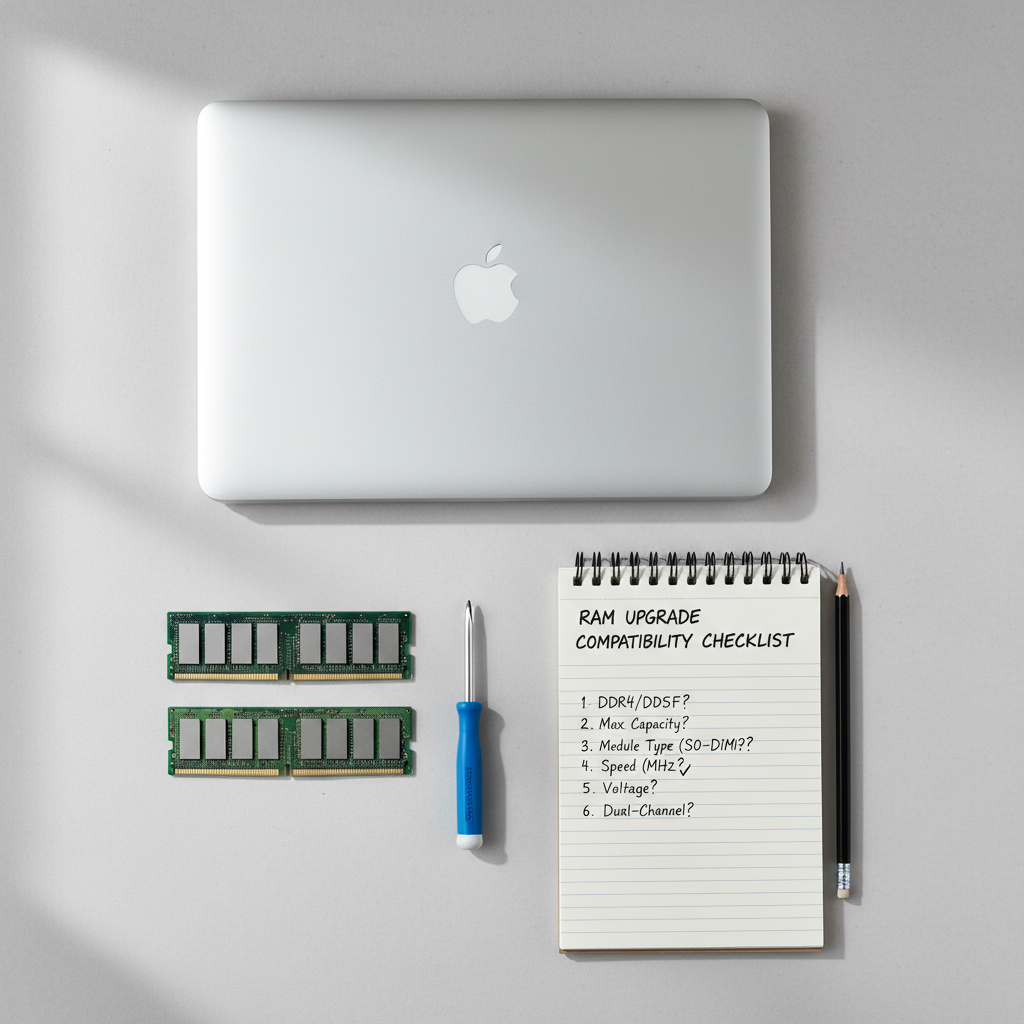
This guide walks you through how to tell whether your laptop is upgradeable, what specs matter (and which ones don’t), how to install memory safely, plus what to do if the laptop won’t boot afterward.
Is a RAM upgrade the right fix, or are you chasing the wrong bottleneck?
Upgrading memory helps most when your laptop runs out of RAM and starts using storage as “swap” memory. That swap is much slower than real RAM, so everything feels laggy.
Common signs you’re RAM-limited:
- Browser + Office apps feel fine alone, but everything crawls when you open several at once
- Video calls lag when you share screen and keep multiple tabs open
- Light photo/video editing becomes choppy as projects grow
- You hear the fan ramp up while the system feels “stuck” (often because apps are fighting for memory)
When RAM is probably not the main issue:
- Your laptop uses a hard drive (HDD) instead of an SSD, storage may be the bigger bottleneck
- It’s slow even right after boot with nothing open, could be background software or a failing drive
- Games are low FPS even with plenty of free RAM, that’s often GPU or CPU limits
Quick reality check: a RAM upgrade won’t turn an old dual-core laptop into a modern workstation, but it can make everyday multitasking feel dramatically smoother in many cases.
Compatibility basics: what RAM your laptop can actually take
This is where most “it didn’t work” stories start. Laptop memory is typically SO-DIMM (smaller than desktop DIMMs), and the generation has to match what your motherboard supports.
Key specs to verify before buying:
- RAM generation: DDR3, DDR4, or DDR5 (not interchangeable)
- Form factor: SO-DIMM for most laptops (some ultrabooks use soldered memory)
- Capacity per slot and total max: e.g., 16GB per slot, 32GB total (varies by model)
- Speed rating: the laptop will usually run RAM at what it supports, faster sticks often downclock, but don’t assume
- Number of slots: 1 vs 2 matters for your upgrade plan
According to Crucial (Micron) and Kingston, using their compatibility tools by laptop model is one of the simplest ways to avoid mismatched RAM, especially when manufacturers ship the same laptop line with different internals.
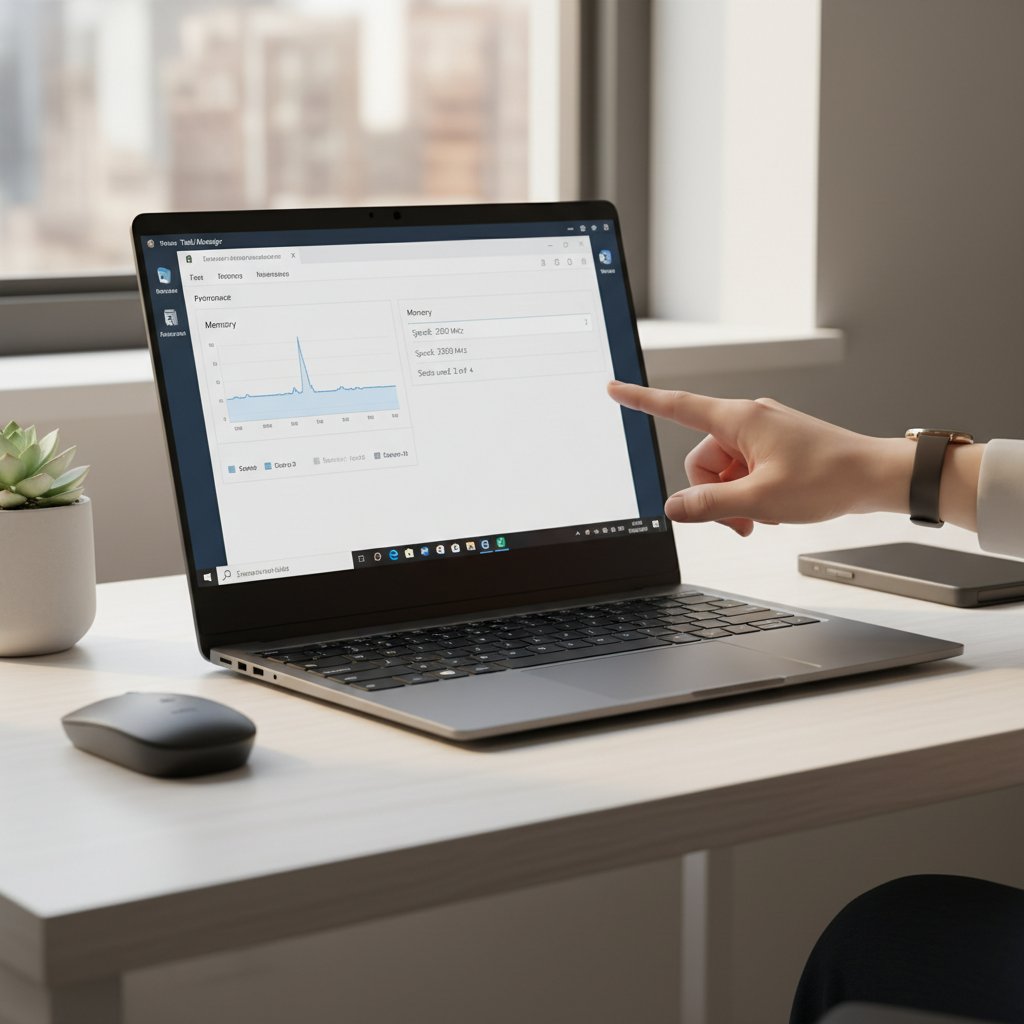
If you prefer to verify manually, check your laptop’s service manual or spec sheet, and confirm what’s installed now in Windows Task Manager or System Information.
How much RAM should you upgrade to? (with a practical table)
More isn’t always better if your workload doesn’t need it, but too little is frustrating. For most people, the sweet spot depends on how many heavy apps run at the same time.
Rule of thumb: if you’re at 8GB and multitask a lot, moving to 16GB is often the most noticeable jump. If you do content creation or keep dozens of tabs plus creative apps open, 32GB can make sense.
Recommended RAM targets
| Use case | Common symptoms | Suggested total RAM |
|---|---|---|
| Basic browsing, email, streaming | Occasional slowdowns with many tabs | 8GB (16GB if you keep lots of tabs) |
| Office work + Zoom + multitasking | Stutter during calls, switching apps feels slow | 16GB |
| Light photo editing, coding, multiple monitors | App reloads, slow exports on larger files | 16GB–32GB |
| Video editing, heavy creative work, VMs | Frequent “memory pressure,” long pauses | 32GB (sometimes more if supported) |
Also consider dual-channel. If your laptop has two slots, running a matched pair (like 2x8GB instead of 1x16GB) often improves bandwidth, which can help integrated graphics and some workloads.
Pre-upgrade checklist: confirm upgradeability and avoid surprises
Before you spend money, do this quick self-check. It saves the most time and returns the fewest “why doesn’t it boot?” headaches.
- Identify the exact laptop model (including sub-model). Sticker on the bottom, BIOS, or system info.
- Confirm whether RAM is soldered. Many thin ultrabooks have no accessible slots.
- Check slot count and current config. If you have 4GB soldered + one slot, your options are different than 2 slots.
- Verify maximum supported RAM via manufacturer documentation when possible.
- Plan your end state: add a second stick, replace one stick, or replace both.
If you’re using this laptop ram upgrade guide because your system is painfully slow and you’re still on a hard drive, it’s worth pricing an SSD too. In many real-world setups, SSD + adequate RAM is the combo that makes an older laptop feel “new enough.”
Step-by-step: how to install laptop RAM safely
This is straightforward, but it’s also easy to rush and bend something. Take your time, use gentle pressure, and don’t force parts that don’t align.
What you’ll need
- Compatible SO-DIMM RAM (ideally from a reputable brand)
- Small Phillips screwdriver (many laptops)
- Plastic pry tool (optional, helps avoid case scratches)
- Clean, non-carpeted workspace
Installation steps (general workflow)
- Power down fully, unplug charger, and disconnect peripherals.
- If your laptop has a removable battery, remove it. If not, just keep it powered off.
- Discharge static by touching a grounded metal object. If you use an anti-static strap, follow its instructions.
- Open the RAM access panel (some laptops) or remove the bottom cover (many modern models).
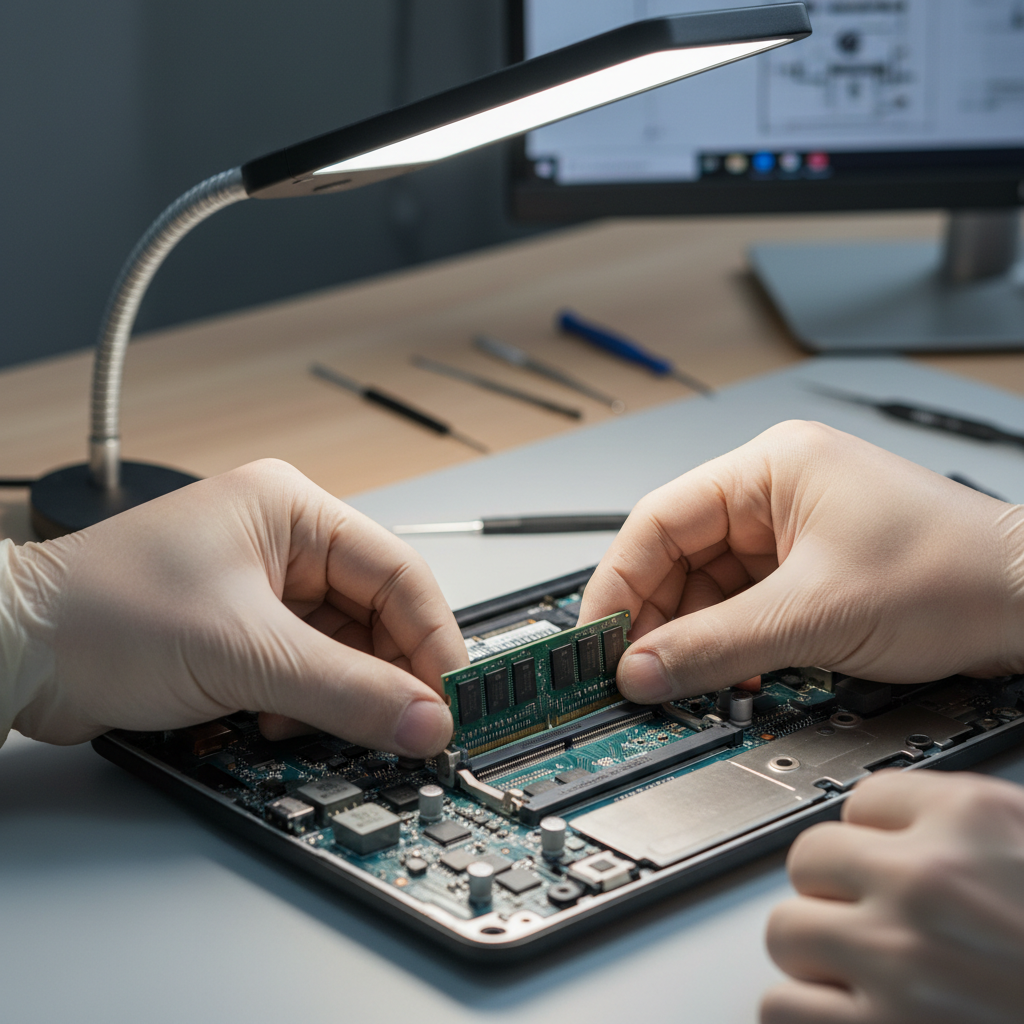
- Locate SO-DIMM slots, gently spread the side clips, and remove the existing stick if replacing.
- Insert new RAM at the same angle (often ~30 degrees), align the notch, then press down until clips click.
- Reassemble, reconnect power, boot up, and confirm the system detects the new total memory.
According to iFixit, using the correct tool size and following model-specific teardown guidance reduces the chance of stripping screws or snapping plastic clips. If your laptop is tricky to open, it’s worth looking up a dedicated guide for your exact model.
After the upgrade: verify performance and stability
Don’t assume it’s done just because Windows starts. You want to confirm the laptop sees the right amount of memory and that it stays stable under load.
- Windows: Task Manager → Performance → Memory (check total RAM and “Slots used”)
- macOS (limited upgradeable models): About This Mac → Memory
- Run your normal workload for 30–60 minutes: browser tabs, calls, exports, whatever usually triggers slowdowns
If you want a deeper stability check, you can run a memory diagnostic. According to Microsoft, Windows Memory Diagnostic can help identify memory problems, though intermittent issues may still require more testing.
Common mistakes and troubleshooting (when the laptop won’t boot)
Sometimes the laptop powers on but shows a black screen, beeps, or restarts. That’s usually compatibility or seating, not a “broken laptop.” Usually.
Try these fixes in order:
- Reseat the RAM: remove and reinstall, making sure it clicks into place.
- Test one stick at a time: confirm each module boots by itself, and test each slot.
- Confirm the DDR generation: DDR4 and DDR5 look similar to beginners, but they are not interchangeable.
- Update BIOS/UEFI if the manufacturer notes memory compatibility improvements (follow official instructions carefully).
- Mixing RAM: different brands/speeds can work, but mismatches sometimes cause instability. A matched kit tends to be simpler.
Also, be careful with “max RAM” claims online. Some laptops technically accept more than the official spec, but it’s inconsistent, and this laptop ram upgrade guide is written for predictable outcomes, not best-case forum experiments.
When it’s smarter to get professional help
If your laptop is under warranty, sealed with difficult-to-remove adhesive, or has a history of hardware issues, a shop might be the lower-stress option. In some designs, opening the bottom cover risks breaking clips or tearing a ribbon cable, and that turns a simple RAM upgrade into a repair bill.
Consider asking a professional if:
- The laptop has no obvious screws and requires heat/pry methods
- You see swelling, corrosion, or liquid residue inside
- It won’t boot even after you reinstall the original RAM
- You rely on the laptop for work and downtime costs more than the service
Key takeaways (read this if you’re about to buy RAM)
- Confirm upgradeability first, many thin laptops have soldered memory.
- Match DDR generation and SO-DIMM form factor, that’s non-negotiable.
- 16GB is a practical target for multitasking on many Windows laptops, 32GB fits heavier creative work if supported.
- Dual-channel can help when you have two slots, especially with integrated graphics.
- After install, verify detected RAM and stability, not just a successful boot.
Conclusion: a RAM upgrade is small work with a big payoff (when you buy the right parts)
If your laptop slows down mainly when you multitask, a memory upgrade is often one of the cleanest ways to get responsiveness back without replacing the whole machine. Use this laptop ram upgrade guide as a buying checklist as much as an install guide, because the compatibility step is where most problems start.
Your next move: check whether your model has open SO-DIMM slots and what DDR generation it uses, then decide whether you’re aiming for 16GB or 32GB based on the apps you actually run.
FAQ
How do I know if my laptop RAM is upgradeable?
Look up your exact model’s service manual or use a reputable compatibility tool from major memory brands. If the laptop has “onboard” or “soldered” memory only, you typically can’t upgrade RAM.
Is 8GB to 16GB RAM worth it on a laptop?
For many people, yes, especially if you keep many browser tabs open or run Zoom plus other apps. If your usage is truly light, you may notice less change.
Can I mix RAM brands or different speeds?
Often it works, but it’s not guaranteed. Mixed speeds usually run at the slower stick’s speed, and mismatched modules can occasionally cause instability, so matched kits are the safer bet.
What happens if I install incompatible RAM?
In many cases the laptop won’t boot, or it may boot but crash under load. Reseating the module and confirming DDR generation and supported capacity per slot are the first troubleshooting steps.
Does upgrading RAM improve gaming performance?
Sometimes. If you’re currently memory-limited or using integrated graphics, dual-channel and more RAM can help. If the game is GPU-bound, the improvement may be minor.
Do I need to change BIOS settings after a RAM upgrade?
Usually no. Most laptops automatically detect new memory. A BIOS update might help in specific compatibility cases, but follow manufacturer instructions carefully.
Should I upgrade RAM or switch to an SSD first?
If you still have a hard drive, an SSD often delivers the biggest everyday speed boost. If you already have an SSD and you multitask heavily, RAM becomes the more likely win.
If you’re trying to decide what to buy and want a more “no surprises” path, using a model-based compatibility checker and choosing a matched kit can be the most convenient way to avoid returns and troubleshooting time.