
Finding the best usb c hubs for multiple devices usually comes down to one thing, your mix of gear, because a hub that feels “perfect” for a MacBook desk setup can be annoying for a Windows laptop on the go.
If you have ever plugged in a monitor, SSD, keyboard, and charger, then watched something disconnect at the worst moment, you already know why picking the right hub matters. Ports on modern laptops are scarce, and a hub turns one USB-C port into a workable workstation, or a travel kit that actually behaves.

Also, “USB-C hub” gets used loosely. Some are simple adapters, others are closer to compact docks with higher bandwidth and steadier power. This guide helps you match hub type to your devices, avoid the common spec traps, and choose a setup you will not want to redo in a month.
What “multiple devices” really means for a USB-C hub
Most shoppers say “multiple devices” but mean different loads. Before comparing models, pin down your workload because it drives both port selection and stability.
- Office basics: keyboard, mouse, webcam, headset, Ethernet, occasional thumb drive.
- Creator setup: external display, SD/microSD, fast SSD, maybe a second monitor.
- Travel and meetings: HDMI for presentations, pass-through charging, one or two USB-A ports.
- Power-heavy mix: bus-powered HDD/SSD, phone charging, capture card, plus display output.
A practical note, the “one port does everything” dream often breaks when you push video + fast storage + charging at the same time. That is not always a bad hub, it can be a bandwidth or power budget issue.
Key specs that separate a smooth hub from a flaky one
Specs look similar across listings, but a few details explain most real-world headaches.
USB-C upstream bandwidth: USB 3.2 vs Thunderbolt
USB-C is the connector, not the speed. A USB-C hub may run USB 3.2 (often 5 or 10 Gbps), while Thunderbolt docks and some hubs run much higher bandwidth. If you run one monitor plus a fast SSD, extra headroom helps.
According to Intel (the steward of Thunderbolt), Thunderbolt is designed to carry data and display signals over one cable with higher throughput than typical USB solutions, which is why heavy multi-device setups often feel more stable on Thunderbolt-class gear.
Video output: HDMI specs and refresh rate reality
Do not shop only by “4K support.” Many hubs can output 4K at 30 Hz, which can feel laggy for daily work. If you want 4K at 60 Hz, confirm the listing explicitly states it, and make sure your laptop supports the needed mode over USB-C.
Power Delivery pass-through: wattage and heat
Pass-through charging is great, but it has limits. A hub rated for 100W PD may reserve some power for itself, so your laptop might see less. Also, higher power through a compact hub can run warm, that is normal, but it should not be scorching.
Ethernet and card readers: small details, big convenience
- Ethernet: 1GbE is plenty for most homes and offices, 2.5GbE helps if your network supports it.
- SD reader: UHS-II matters for newer cards and faster imports, UHS-I is fine for occasional use.
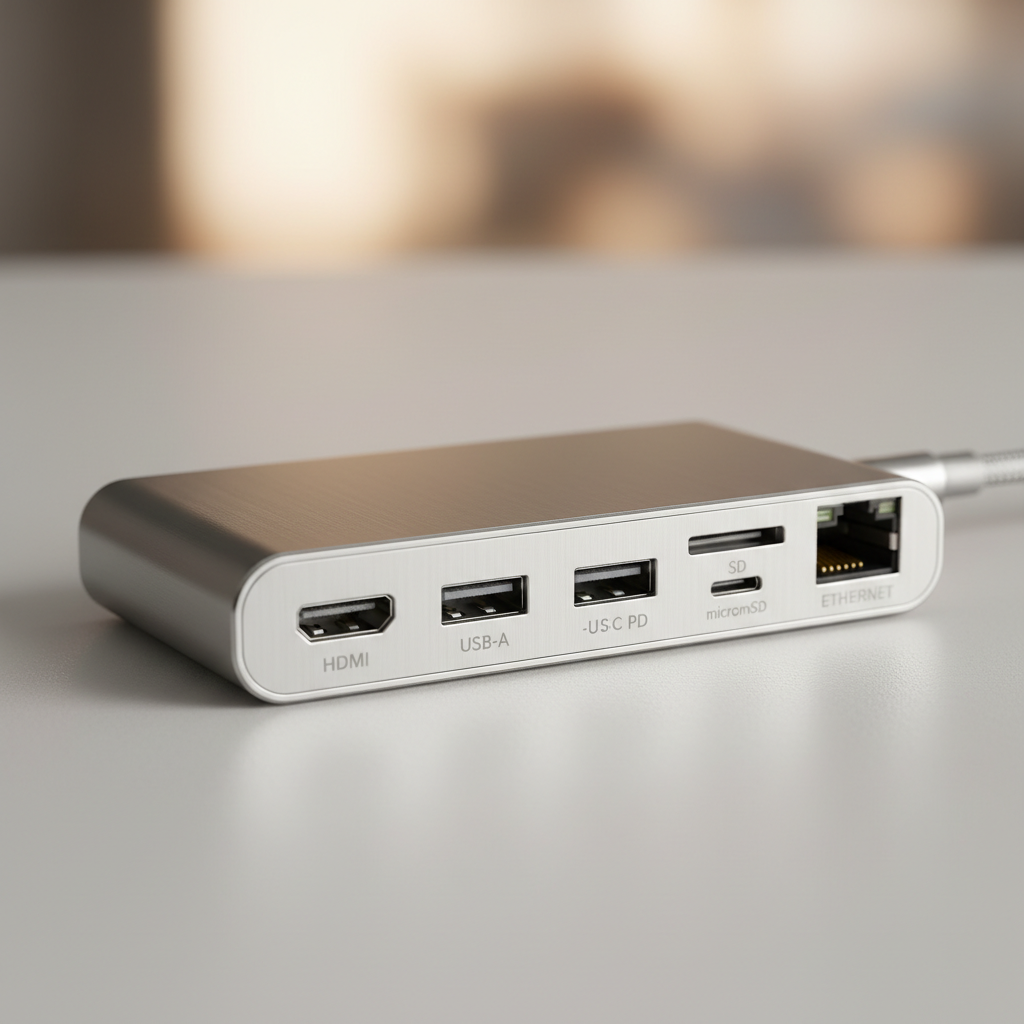
Quick comparison table: which hub type fits your setup
If you want a fast decision, start here, then read the buying advice below to avoid mismatch.
| Hub type | Best for | Typical ports | Trade-offs |
|---|---|---|---|
| Compact travel hub | Meetings, presentations, light peripherals | HDMI, 1-2 USB-A, USB-C PD, sometimes SD | Often limited to 4K@30, fewer high-speed ports |
| Desktop USB-C hub (multiport) | Home office with one monitor + accessories | HDMI/DP, multiple USB-A, USB-C data, Ethernet, SD | Bandwidth can be tight with fast SSD + display |
| Thunderbolt dock | Creators, heavy multitasking, multiple displays | TB/USB-C, DP/HDMI, many USB, Ethernet, audio | Higher cost, sometimes larger power brick |
| Monitor with built-in hub | Clean desk setup, one-cable laptop docking | USB-C upstream, USB-A, Ethernet, display, PD | Tied to one monitor, upgrade cycle less flexible |
How to choose the best USB-C hub for your devices (a practical checklist)
When people search for the best usb c hubs for multiple devices, they often compare port counts first. Port count matters, but the better order is laptop capability, then workload, then ports.
- Step 1: Confirm your laptop supports video over USB-C (DisplayPort Alt Mode) or Thunderbolt, depending on what you plan to connect.
- Step 2: List your “always plugged” devices and your “sometimes” devices, this prevents overbuying.
- Step 3: Decide if you need 4K@60 or if 4K@30 is acceptable for your screen and your eyes.
- Step 4: If you use a fast external SSD for editing, prioritize higher upstream bandwidth and a true high-speed USB-C data port.
- Step 5: Match PD pass-through to your charger and laptop needs, especially for 14–16 inch laptops that draw more power.
- Step 6: Think about cable strain and placement, a hub that dangles can wear a port over time.
According to USB-IF (the organization behind USB standards), the USB-C connector can support many different capabilities depending on how a device implements the spec, which is exactly why two “USB-C” hubs can behave very differently on two laptops.
Scenario-based recommendations (what tends to work)
I am not listing one “winner” because brand availability and model refresh cycles change, but these picks are how I would narrow your options in real buying situations.
1) You need one monitor, Ethernet, and a pile of USB-A
Look for a desktop-style multiport hub with 1GbE, at least three USB-A ports, and PD pass-through that matches your laptop class. This is the sweet spot for many home offices, and it usually keeps your cost reasonable.
- Good sign: clearly stated 4K@60 support if you want smoother cursor and scrolling.
- Watch for: only one high-speed data port shared among all devices.
2) You edit from an external SSD and use a 4K display
This is where “it connects” is not enough. Consider a higher-bandwidth solution, often a Thunderbolt dock if your laptop supports it, because it handles display plus storage without feeling like a juggling act.
- Good sign: separate high-speed ports and strong thermal design.
- Watch for: hubs that advertise speed but do not specify which port gets it.
3) You travel a lot and only need the essentials
Choose a compact travel hub with HDMI, USB-C PD, and one or two USB-A ports. Smaller units are more likely to run warm when charging plus video, but many are perfectly fine if you keep the load light.
4) You want a clean “one cable to the laptop” desk
A monitor with built-in USB hub or a dock with a longer, sturdier host cable can reduce cable clutter. The everyday win is that you stop reaching for multiple plugs, which also reduces wear on the laptop port.

Setup tips that prevent dropouts and weird behavior
Even the best usb c hubs for multiple devices can look bad if the setup is sloppy. These steps fix a surprising number of “my hub is broken” complaints.
- Use a known-good charger: if your hub supports PD pass-through, plug your laptop’s original charger into the hub first, then test third-party chargers.
- Replace the HDMI cable: for 4K@60, a low-quality cable is a common silent failure point.
- Don’t stack adapters: USB-C to HDMI adapters plugged into hubs tend to cause handshake issues.
- Plug power-hungry devices last: some hubs negotiate power at connection time, and plugging in a bus-powered drive early can destabilize the rest.
- Keep firmware and OS current: laptop USB and Thunderbolt updates can change hub stability.
Key takeaways: bandwidth and power are the two real limits, port count is just the surface, and a stable one-monitor setup is usually easier than “monitor plus fast SSD plus charging” on a tiny travel hub.
Common mistakes buyers make (and how to avoid them)
- Assuming every USB-C port supports video: some are data-only, especially on budget machines.
- Buying for a future second monitor without checking support: multi-display over one USB-C connection can depend on laptop GPU features and OS support.
- Overlooking return policy: real compatibility is sometimes only proven on your exact laptop model.
- Chasing the cheapest “12-in-1” listing: many work fine for light use, but quality control and thermal design vary a lot.
According to Apple Support, some Mac models support one external display over certain ports while others support more, so if you are building around dual monitors, confirm your exact model’s limits before blaming the hub.
Conclusion: pick for your workload, not the marketing name
The best usb c hubs for multiple devices are the ones that match your actual mix of monitor, storage, network, and charging, and do it without running at the edge of their bandwidth. If you start by confirming laptop support, then choose the hub class that fits your heaviest day, you usually end up with a setup that feels boring in the best way.
If you want a concrete next step, write down the devices you plug in daily, then choose one hub type from the table, and only then compare port layouts and PD wattage, it cuts through most of the noise.
FAQ
- What should I look for in the best USB-C hub for multiple devices?
Prioritize upstream bandwidth, the exact video spec you need, and PD pass-through wattage, then make sure it has enough ports for your “always connected” gear. - Why does my USB-C hub disconnect when I plug in an external drive?
Often it is a power draw or bandwidth spike, especially with bus-powered SSDs. Try powering the hub, using a shorter cable, or moving the drive to a higher-speed port if available. - Do USB-C hubs support 4K at 60Hz?
Some do, many do not. Look for explicit 4K@60 language and confirm your laptop supports DisplayPort Alt Mode or Thunderbolt output at that refresh rate. - Is a Thunderbolt dock worth it for multiple devices?
For creators or anyone running fast storage plus one or two displays, it often feels more stable. For light office use, a simpler USB-C hub can be enough. - Can I charge my laptop through a USB-C hub?
Many hubs support Power Delivery pass-through, but your laptop may receive less than the charger’s rating. If your laptop is underpowered, it may charge slowly or hold battery level. - Why does Ethernet on my hub feel slower than Wi‑Fi?
It can be a 100Mbps adapter, a bad cable, or a router/switch port limitation. Verify the hub supports 1GbE and test with a known-good Cat5e or better cable. - Will one USB-C hub work for both Mac and Windows?
Usually yes for basics, but display behavior can differ by OS and laptop hardware. If your setup relies on dual displays, confirm support on your specific models before buying.
If you are trying to simplify a desk with a monitor, SSD, and peripherals, and you want a hub that fits your laptop’s real capabilities, it can help to share your exact laptop model, monitor resolution, and the devices you plug in daily, then you can shortlist options without guessing.