
best budget mechanical keyboards rgb usually come down to one trade-off: you can get solid switches and fun lighting, but you need to be picky about stabilizers, software, and layout so you don’t end up with a loud, rattly board you stop using a month later.
If you’re shopping in the U.S., the “budget” space is crowded, and listings often hide the details that actually matter, like hot-swap support, switch type, and whether the RGB is per-key or just zones. This guide narrows the decision to what changes your daily experience, not what looks good in a product photo.
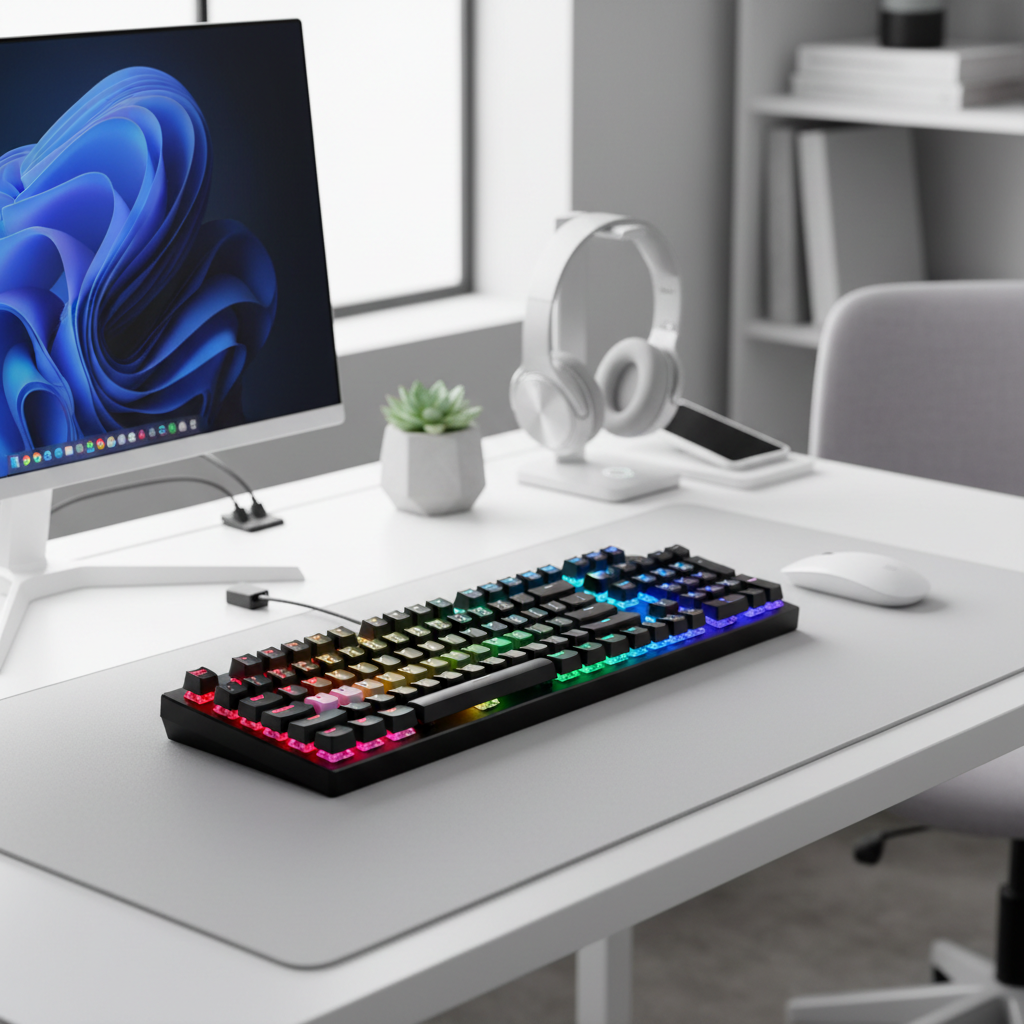
You’ll also get a quick self-check, a comparison table, and a few practical setup tips so your keyboard feels better out of the box. No miracle claims, just the stuff that tends to separate a “good deal” from “cheap.”
What “Budget RGB Mechanical” Really Means (and Why Prices Vary)
In many cases, a budget RGB mechanical keyboard sits in the sub-$100 range, sometimes lower during sales, but price alone won’t tell you if it’s a smart buy.
- RGB type: Per-key RGB gives better effects and customization than zone lighting, but software quality varies a lot.
- Switch quality: Name-brand switches help, but some house switches feel great too; consistency matters more than the logo.
- Stabilizers: This is the hidden cost. Cheap stabilizers cause spacebar rattle, even if the rest feels fine.
- Case and plate: A thin plastic case can sound hollow; a metal top plate can add rigidity but may increase “ping” unless tuned.
- Features: Hot-swap, wireless, knob, foam, and QMK/VIA support each push price up.
According to Consumer Reports and other product-testing orgs, build quality and reliability tend to matter more for long-term satisfaction than flashy features, and keyboards are a classic example where small hardware choices change the feel day to day.
Quick Self-Check: Which RGB Mechanical Keyboard Fits You?
Before you compare products, pin down your non-negotiables. This takes two minutes and prevents “spec shopping.”
Pick your layout
- Full-size: need a numpad for work, spreadsheets, or accounting tasks.
- TKL (tenkeyless): keeps arrows and nav cluster, saves desk space.
- 75%: compact but still practical, great for mixed work and gaming.
- 65%: smaller, still has arrows, learning curve is manageable.
Pick your switch feel (don’t overthink it)
- Linear (smooth): common for gaming, usually quieter than clicky.
- Tactile (bump): popular for typing, feedback without the loud click.
- Clicky (loud): fun, but can annoy roommates and coworkers fast.
Choose a “must-have” feature set
- If you plan to experiment with switches, prioritize hot-swap.
- If you move between devices, look for Bluetooth/2.4GHz and easy switching.
- If you hate software, consider boards with onboard shortcuts or VIA/QMK support.
Comparison Table: What to Look for in the Best Budget Picks
Instead of pushing one “winner,” this table shows what typically separates strong budget options from the ones that just photograph well.
| What you’re comparing | Good budget sign | Common budget drawback | Why it matters |
|---|---|---|---|
| RGB | Per-key RGB, good brightness control | Limited effects, buggy software | Usability and consistency beat flashy modes |
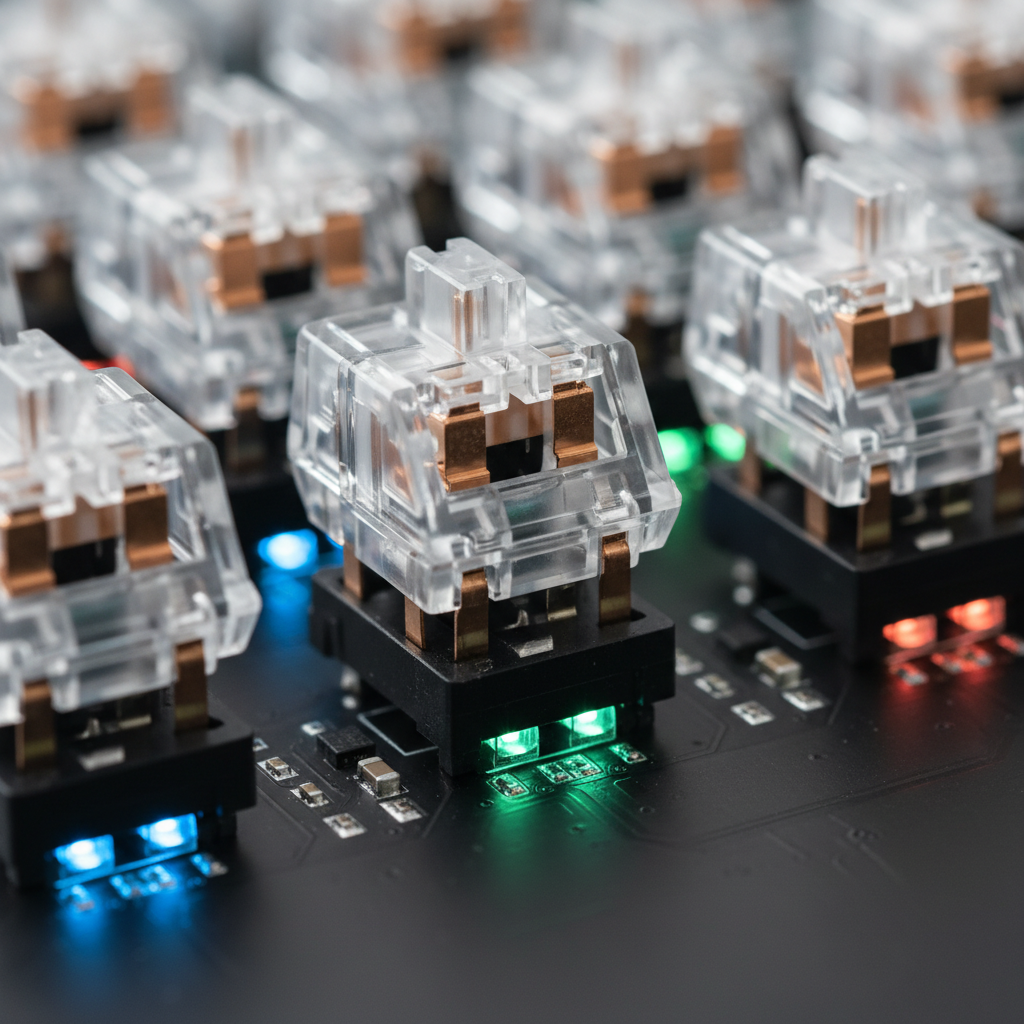
| Switches | Consistent feel, decent factory lube | Scratchy, inconsistent springs | Most of your “feel” comes from this |
| Stabilizers | Minimal rattle, solid return | Spacebar rattle, ticking | Makes the board feel cheap even if it isn’t |
| Hot-swap | 5-pin support, standard sockets | 3-pin only, fragile sockets | Lets you tune the board without buying a new one |
| Latency (wireless) | 2.4GHz dongle option | Bluetooth-only gaming lag | Competitive games can feel off |
| Firmware | VIA/QMK or stable app | Closed software, poor updates | Keymaps and lighting shouldn’t be a headache |
Shortlist: Budget RGB Mechanical Keyboards Worth Considering (by Scenario)
These are common “safe” directions when you want the best budget mechanical keyboards rgb experience without gambling on mystery specs. Availability and pricing can swing, so treat this as a shortlist style guide rather than a fixed ranking.
If you want the easiest all-around buy (75% or TKL)
- Look for: hot-swap, per-key RGB, foam or some internal dampening, a straightforward companion app.
- Why it works: 75% and TKL formats are forgiving, you keep arrows and function access without living in layers.
If you want “quiet-ish” for shared spaces
- Look for: linear switches, pre-lubed stabilizers, gasket or tray mount with foam, and PBT keycaps if possible.
- Reality check: A budget board can still be noisy; the quickest win is stabilizer tuning and a desk mat.
If you care most about customization
- Look for: 5-pin hot-swap, standard keycap sizes (avoid weird right-shift rows), and VIA/QMK compatibility where possible.
- Why it works: You can upgrade switches and keycaps later, turning a “cheap” board into a long-term setup.
If you need wireless for work + gaming
- Look for: 2.4GHz dongle, easy device switching, and a battery indicator you can actually see.
- Small warning: Some boards market “gaming” wireless but feel inconsistent; buy from retailers with easy returns.
How to Get Better Sound and Feel in 30–60 Minutes (No Soldering)
Most people chasing the best budget mechanical keyboards rgb aren’t actually unhappy with RGB, they’re unhappy with noise, wobble, and “cheap” feel. The good news: you can often fix that quickly.
1) Stabilizer quick tune (highest impact)
- Check spacebar, enter, backspace for rattle and ticking.
- If your board allows it, lightly lube stabilizer wires with a safe keyboard lubricant; if you’re unsure, consider a beginner guide from a reputable keyboard retailer.
- If you don’t want to open anything, swapping to a thicker spacebar keycap sometimes reduces harshness.
2) Add a desk mat (cheap, underrated)
- Desk mats cut high-pitched reflections from the desk surface.
- This is the “I don’t want to mod” option that still changes the sound a lot.
3) Tame spring ping and hollow case sound
- If your board supports it, add thin case foam or a PE sheet kit made for your layout.
- Don’t overstuff; too much foam can make keystrokes feel mushy.
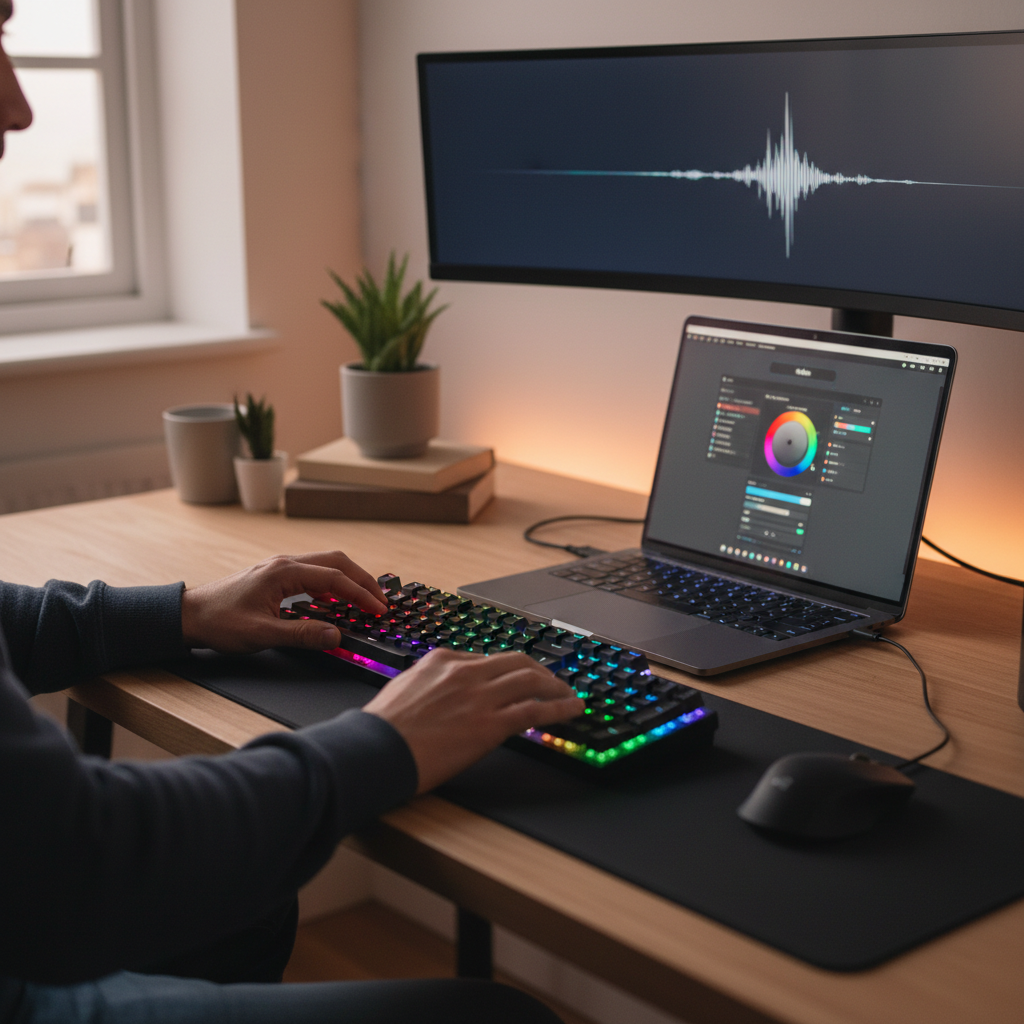
4) Set RGB for usability, not chaos
- Use a single-color layer for work, and a brighter profile for gaming at night.
- Dim RGB to reduce glare, especially on shinier keycaps.
Common Mistakes That Make a “Good Deal” Feel Bad
These come up constantly in budget keyboard shopping, and they’re avoidable.
- Buying clicky switches for an office: you might love it, everyone else might hate it, and returns can be annoying.
- Ignoring layout quirks: non-standard bottom rows make keycap upgrades harder than they should be.
- Assuming software will be fine: RGB apps vary wildly; if you care about lighting, skim user forums before buying.
- Overpaying for “gaming” branding: latency and polling claims are often vague, so focus on proven 2.4GHz implementations and return policies.
- Chasing specs over feel: a simple hot-swap board with decent stabilizers often beats a “feature monster” that sounds terrible.
When It’s Worth Paying a Little More (and When It Isn’t)
Budget is a moving target, but there are a few upgrades that often justify the extra cost if you can swing it.
- Worth it: better stabilizers, hot-swap with 5-pin support, stronger wireless (2.4GHz), and keycaps that don’t shine immediately.
- Sometimes worth it: aluminum cases in the budget tier, because sound can get sharper unless the internal design is good.
- Usually not worth it: dozens of RGB modes you’ll never use, or proprietary “ecosystems” that lock you into one brand’s parts.
According to IEEE general guidance on human factors in computing, comfort and usability tend to drive long-session satisfaction, which is another way of saying: prioritize typing feel, stability, and layout over novelty lighting patterns.
Key Takeaways + Practical Buying Steps
Key points: a good budget board is defined by stabilizers, switch feel, layout fit, and sane software, RGB is the fun bonus that should not create extra friction.
- Step 1: choose layout (75%/TKL are the easiest “one keyboard for everything” picks).
- Step 2: pick switch type for your environment (linear or tactile is the safer starting point).
- Step 3: require per-key RGB and hot-swap if you want long-term flexibility.
- Step 4: scan for stabilizer complaints in reviews, that’s where budget models usually show weakness.
- Step 5: buy from a seller with easy returns, especially if you’re new to mechanical keyboards.
If you want a short “north star,” shop for best budget mechanical keyboards rgb by filtering for hot-swap + per-key RGB + a layout you can live with, then use the first week to decide whether you want to tune stabilizers or swap switches, both are normal and don’t require expert-level skills.
FAQ
What should I prioritize first: RGB brightness or switch quality?
Switch feel and stabilizers typically change your daily experience more than brightness. If you like the look, aim for per-key RGB, but don’t trade away consistency and comfort for extra lighting modes.
Are budget RGB mechanical keyboards good for typing all day?
Many are, especially in 75% and TKL layouts with tactile switches. If you type for long stretches, pay attention to keycap quality and wobble, and consider a wrist rest if you feel strain.
Do I need hot-swap to get a good budget keyboard?
No, but it’s one of the best value features. Hot-swap lets you fix “I hate these switches” without replacing the whole board, which is a common regret purchase scenario.
Is Bluetooth good enough for gaming on a budget keyboard?
For casual play it can be fine, but Bluetooth latency varies by device and environment. If gaming matters, look for 2.4GHz wireless or use wired mode.
What’s the easiest mod that makes a cheap board feel premium?
Stabilizer tuning plus a desk mat is the usual quick win. If you’re uncomfortable opening the board, start with the mat and consider swapping the spacebar keycap.
How can I avoid bad RGB software?
Look for boards that save lighting profiles onboard, or models compatible with simpler tools like VIA where applicable. Also, check whether the brand updates software regularly, forums and retailer Q&A are often revealing.
Are “gaming mechanical keyboards” automatically better?
Not automatically. Some gaming boards are excellent, but marketing often emphasizes RGB and speed claims while ignoring stabilizers and acoustics, which is where budget models can disappoint.
If you’re trying to narrow down the field fast, a simple approach is to pick your layout and switch type first, then only compare models that offer per-key RGB and hot-swap, you’ll spend less time debating specs and more time ending up with a board you actually enjoy using.