
how to disable background data on apps is one of the quickest ways to stop surprise data usage, reduce annoying “data warning” pop-ups, and often help your battery last a bit longer.
If you have a limited data plan, use hotspot data for work, or travel with spotty coverage, background activity can feel like your phone is “spending” data behind your back. In reality, Android apps frequently refresh feeds, sync files, update ads, and check for notifications even when you are not actively using them.
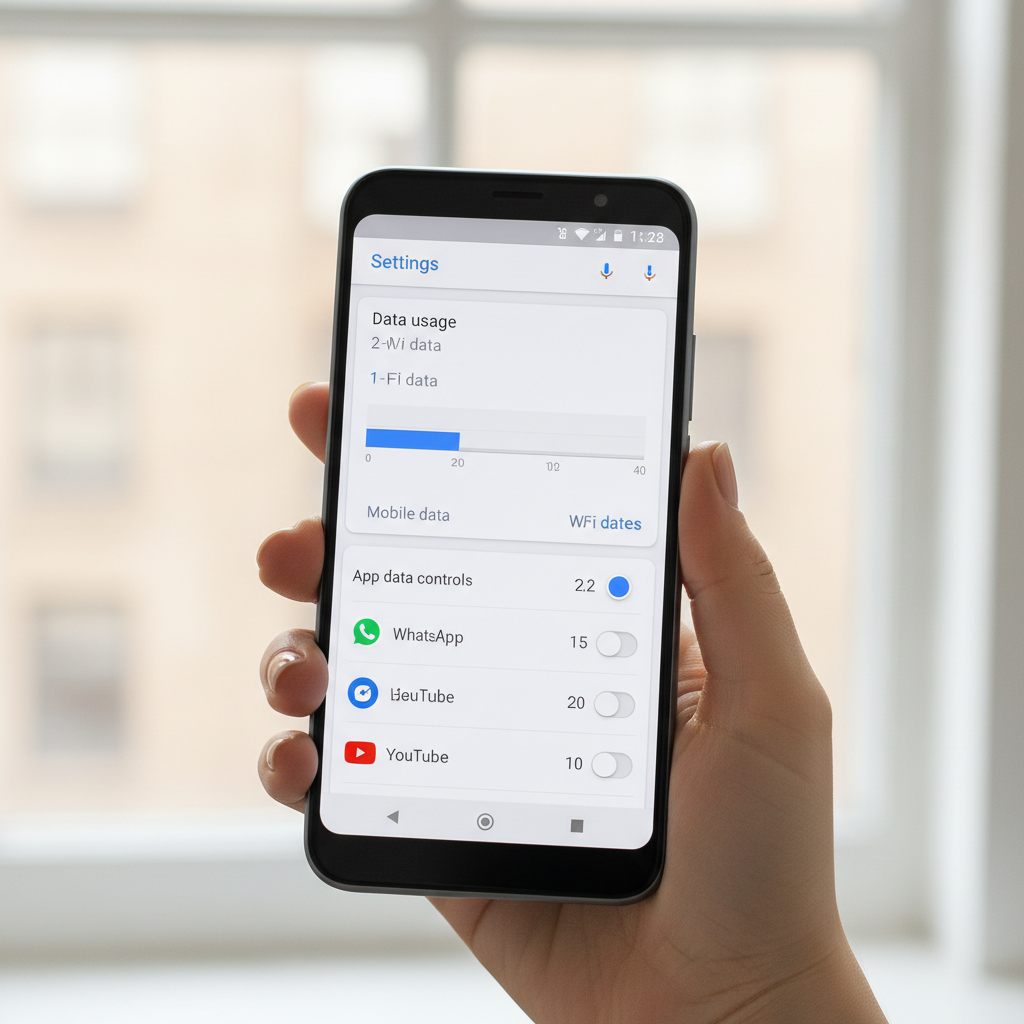
This guide walks you through the practical options Android offers, what changes depending on your phone brand, and the trade-offs so you can pick the right level of restriction without breaking important apps like messaging, email, or maps.
What “background data” means on Android (and what it does not)
Background data is any mobile or Wi‑Fi data an app uses when it is not in the foreground. Think: syncing, refreshing content, uploading logs, downloading small updates, fetching new messages, or preloading media.
Two quick clarifications help avoid confusion:
- Background data is not the same as app updates. Google Play can still update apps depending on your Play Store settings and whether you allow updates over mobile data.
- Background data is not the same as background “activity”. An app might still run tasks locally (like indexing files) even if it cannot use data freely.
According to the Federal Communications Commission (FCC), monitoring data use and using device settings can help consumers avoid overage charges, especially on limited plans. Android’s controls are one of the most direct ways to do that.
Why apps use background data (common real-world culprits)
Most people assume background usage only comes from “sketchy” apps, but plenty of mainstream apps are simply aggressive about staying fresh.
- Social apps refreshing feeds and preloading videos
- Email and chat syncing new messages and attachments
- Cloud storage backing up photos, scanning folders, syncing large files
- Streaming apps prefetching content, downloading recommendations
- Ads and analytics checking in, refreshing ad inventory
- System services syncing accounts, location services, and network checks
But the part that surprises people: one “small” background refresh repeated all day can add up, especially if your phone flips between Wi‑Fi and mobile data and keeps retrying transfers.
Quick self-check: do you actually need to disable it?
Before you start blocking everything, it helps to identify whether you have a real background data problem or just one heavy app.
A fast checklist
- You hit your monthly data cap even though you mostly use Wi‑Fi
- Your carrier app shows spikes during hours you were not actively using your phone
- Battery drains faster when you are away from Wi‑Fi
- You see frequent “data usage warning” notifications
- One or two apps dominate your data usage list
If only one app is the issue, a targeted restriction is usually less painful than turning on broad limits that might delay notifications across the board.
How to disable background data on Android apps (exact paths that usually work)
Android menus vary by version and brand (Samsung, Pixel, OnePlus), but the core options are consistent. You may see slightly different names like “Mobile data,” “Data usage,” or “Background data.”
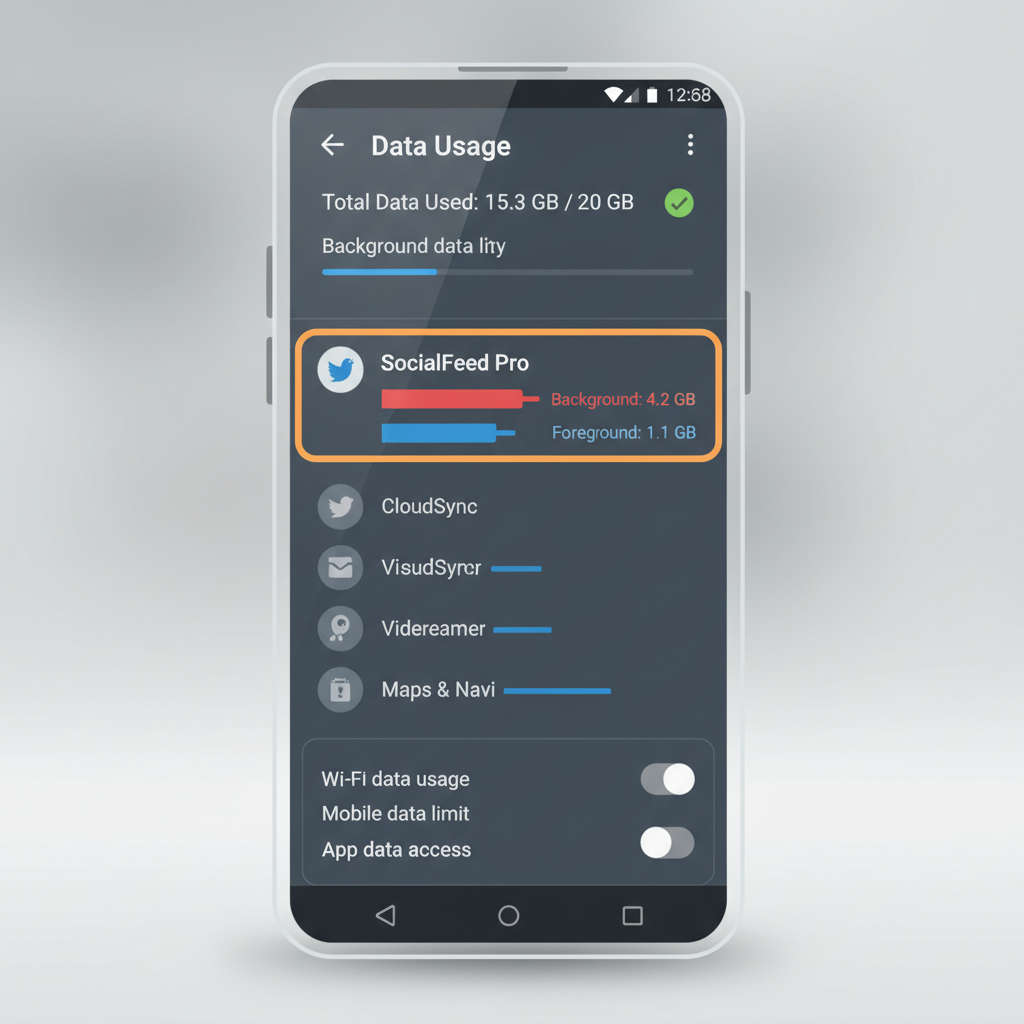
Method A: Restrict background data for a specific app (recommended)
This is the most practical way to reduce usage without breaking everything.
- Open Settings
- Go to Apps (or Apps & notifications)
- Select the app you want to limit
- Tap Mobile data & Wi‑Fi (or Data usage)
- Turn off Background data or enable Restricted data usage (wording varies)
Some phones split controls by network type. If you see separate toggles, double-check both Mobile data and Wi‑Fi data behavior.
Method B: Turn on Data Saver (broad limit, good for travel)
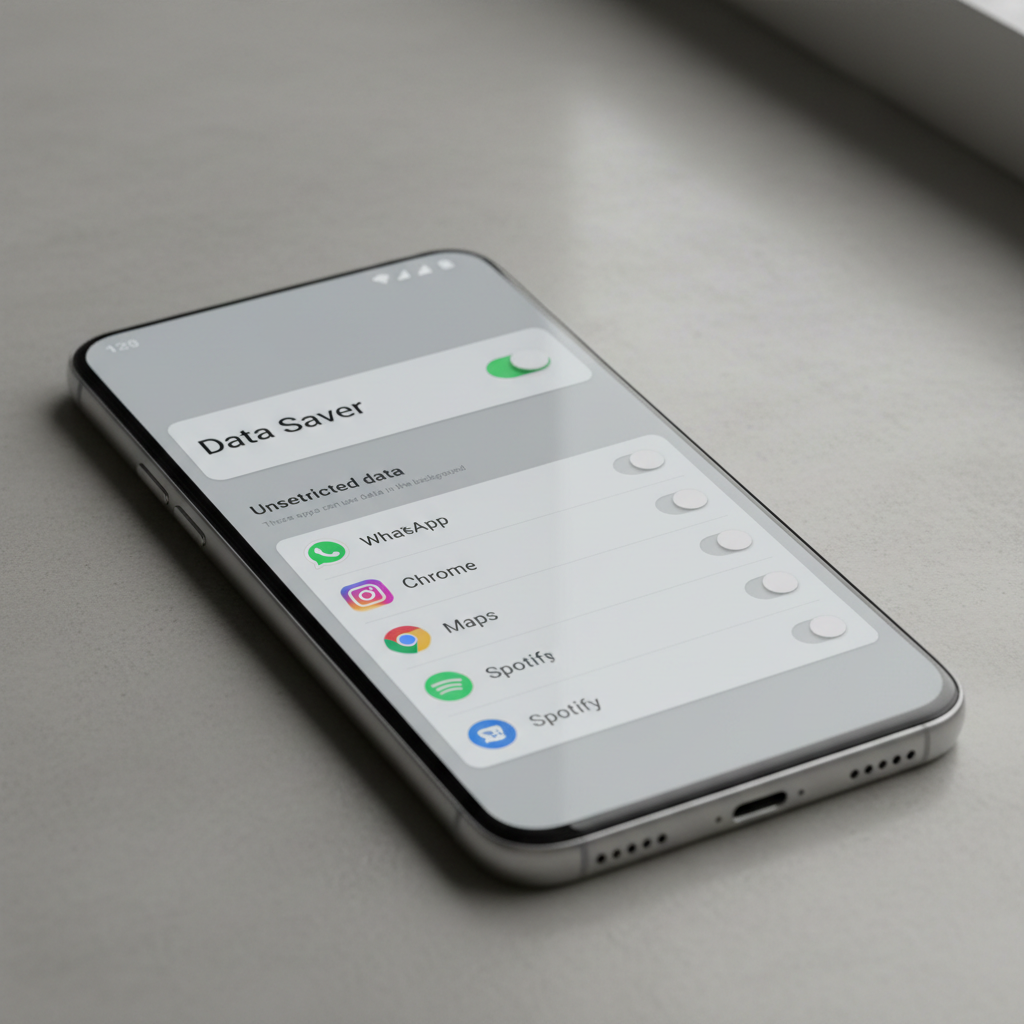
Data Saver is a “big hammer.” It restricts background data for most apps and can be ideal when you are on a tight plan or roaming.
- Open Settings
- Tap Network & internet (or Connections)
- Choose Data Saver
- Turn Data Saver on
Then add exceptions for apps that must stay live, like messaging or work authentication apps.
Method C: Block mobile data entirely for an app (stronger than background limits)
If an app should only run on Wi‑Fi, block its mobile data access.
- Settings → Apps → pick the app
- Mobile data & Wi‑Fi
- Turn off Mobile data (and sometimes Background data as well)
This is useful for cloud photo backup or podcast downloads, but expect the app to “stall” until you are back on Wi‑Fi.
Which option should you use? (A quick decision table)
Most people mix and match: restrict the worst offenders, then use Data Saver only when needed.
| Goal | Best setting | What might change |
|---|---|---|
| Stop one app from chewing data | Per-app background data restriction | Notifications/content may update only when you open the app |
| Reduce overall data on the go | Data Saver | Some apps sync less often, message previews may delay |
| Force Wi‑Fi-only behavior | Disable mobile data for the app | Uploads/downloads pause off Wi‑Fi |
| Control usage on a specific Wi‑Fi network | Set network as Metered | Many apps behave as if on a limited plan |
Practical tips so you do not break the apps you rely on
Disabling background data is not risky in the “damage your phone” sense, but it can quietly break workflows. The pain usually shows up later: missed notifications, delayed uploads, or apps that seem “stuck.”
Allowlist what must stay connected
- Messaging and calling: WhatsApp, Signal, Google Messages, FaceTime alternatives
- Email you actually need in real time: work accounts, on-call mailboxes
- Security and account apps: 2FA authenticators that push approvals, password managers (sync)
- Navigation and rideshare: maps can misbehave if background access is too constrained
Use “metered” settings for shared or hotspot Wi‑Fi
If you tether from your phone or use a limited hotspot, set that network as metered so apps treat it cautiously.
- Settings → Network & internet → Internet/Wi‑Fi
- Select the network → enable Metered (or Treat as metered)
That approach often feels smoother than shutting off background data for a long list of apps.
Common mistakes and troubleshooting (what to do when things feel “off”)
The most common complaint after tightening data settings is “my notifications stopped.” That usually means the restriction is too broad, or Android is also limiting the app’s background activity.
- Notifications delayed: add the app to Data Saver’s “Unrestricted data” list, and check notification permissions.
- Uploads never finish: ensure the app is allowed on Wi‑Fi, and confirm you are not on a metered network unintentionally.
- App works only when open: you likely restricted background data per-app; that is expected behavior, pick a different method if you need real-time updates.
- High usage continues: check if usage is happening on Wi‑Fi (not just mobile), and review in-app settings like “Autoplay” or “Download over cellular.”
If you want to be extra precise, look at Android’s built-in usage breakdown: Settings → Network & internet → Internet (or Mobile network) → App data usage. The app list typically shows foreground vs background consumption, which helps you target the real culprit.
Key takeaways (so you can act fast)
- Per-app restriction is the cleanest way to control a few heavy apps.
- Data Saver is great for travel days or months when you are close to your cap.
- If you need Wi‑Fi-only behavior, block mobile data for that app.
- When notifications matter, use exceptions/allowlists instead of blanket blocking.
Conclusion: a simple plan that usually works
If you are trying to figure out how to disable background data on apps without turning your phone into a “manual refresh” machine, start small: restrict one or two top data users, live with it for a day, then expand. For many people, that alone stops the monthly data surprises.
When you know you will be away from Wi‑Fi, flip on Data Saver, allowlist the apps you cannot miss, and turn it off again when you are back to normal. It is not fancy, but it is the routine that tends to stick.
FAQ
- How do I find which apps are using background data the most?
Go to Settings → Network & internet → Internet/Mobile network → App data usage. Look for apps with high “background” numbers, not just total usage. - Will disabling background data stop notifications?
It can. Messaging and email often rely on background sync. If notifications are critical, consider allowlisting that app in Data Saver or using a lighter restriction. - Is Data Saver the same as disabling background data for every app?
Not exactly. Data Saver broadly restricts background usage, but Android still allows certain system traffic and lets you create exceptions for specific apps. - Can I disable background data on Wi‑Fi too?
On many Android versions you can limit an app’s background behavior regardless of network, but controls vary. Another practical move is marking a Wi‑Fi network as metered. - Why is an app still using data after I restricted it?
A few things may be happening: the app is using foreground data when you open it, it is updating via Play Store, or the restriction applies only to mobile data while Wi‑Fi remains unrestricted. - Does restricting background data improve battery life?
Often, but not always. Less network activity can help, yet battery drain can also come from CPU-heavy background work. If battery is the main issue, also review battery optimization settings. - What should I do if a work app breaks after restrictions?
Undo the restriction for that app first, especially for VPN, email, and authentication tools. If your employer uses device management, you may need IT guidance since policies can override settings.
If you are trying to cut data use with less trial-and-error, a good next step is to list your top three apps by background consumption, then adjust one setting at a time so you can see what actually changed.