
Best portable monitors for laptop shopping gets confusing fast, because the “right” pick depends less on brand hype and more on your laptop ports, how you travel, and what you actually do on that second screen.
If you’ve ever tried editing a spreadsheet on a 13-inch display, or you’ve juggled Zoom on one window and notes on another, you already know the pain point, you’re productive until you hit the limits of one screen. A portable monitor is a simple fix, but only if you buy one that plays nicely with your laptop and your day-to-day workflow.

This guide focuses on what matters in real use, connections, power draw, screen finish, durability, and a few “quiet” specs people forget until the first trip. You’ll also get a quick checklist and a comparison table so you can narrow choices without overthinking.
What actually makes a portable monitor “best” for laptop and travel
The best travel monitor is the one you can set up in two minutes, without hunting adapters, outlets, or a stable stand. Most people regret the purchase when one of these basics goes wrong.
- Single-cable setup: USB-C with DisplayPort Alt Mode can carry video + power, so you avoid extra cords.
- Port compatibility: Some laptops need HDMI for video, some can do USB-C video, some need both.
- Brightness and finish: A glossy panel can look great indoors, then turn into a mirror in an airport lounge.
- Weight and rigidity: A thin panel is nice, but flexy shells and weak covers get annoying in backpacks.
- Stand quality: Built-in kickstands feel “minor” until the screen keeps sliding down during a call.
According to VESA (the group behind common display mounting standards), consistent mounting and ergonomic positioning are key for comfortable multi-screen setups. You won’t mount most travel monitors, but the spirit still applies, if it can’t sit at a stable, usable angle, you’ll stop using it.
Quick self-check: which type of portable monitor fits you?
Before you compare models, figure out your primary use-case. It saves money because it prevents “spec chasing.”
- Frequent flyer / coffee shop worker: prioritize 14–15.6 inch, matte or anti-glare, under ~2 lb, and a cover-stand that holds angle.
- Spreadsheet and ops work: 16:10 or higher resolution helps, and you’ll appreciate better brightness and sharper text.
- Creators (photo/video): look for wide color gamut support and decent factory calibration notes, plus a stable stand.
- Gamers with a laptop: higher refresh rate can matter, but only if your laptop can output it over the right port.
- One-bag minimalist: smaller screens (13–14 inch) reduce weight, but expect tighter multitasking.
If you can’t confidently answer “How will I connect it?” pause here and check your laptop specs for USB-C video output or HDMI support. That one detail shapes everything else.
Key specs to compare (without drowning in jargon)
Spec sheets are noisy, but a few lines usually predict whether the monitor feels effortless or fussy.
Connectivity: USB-C video vs HDMI
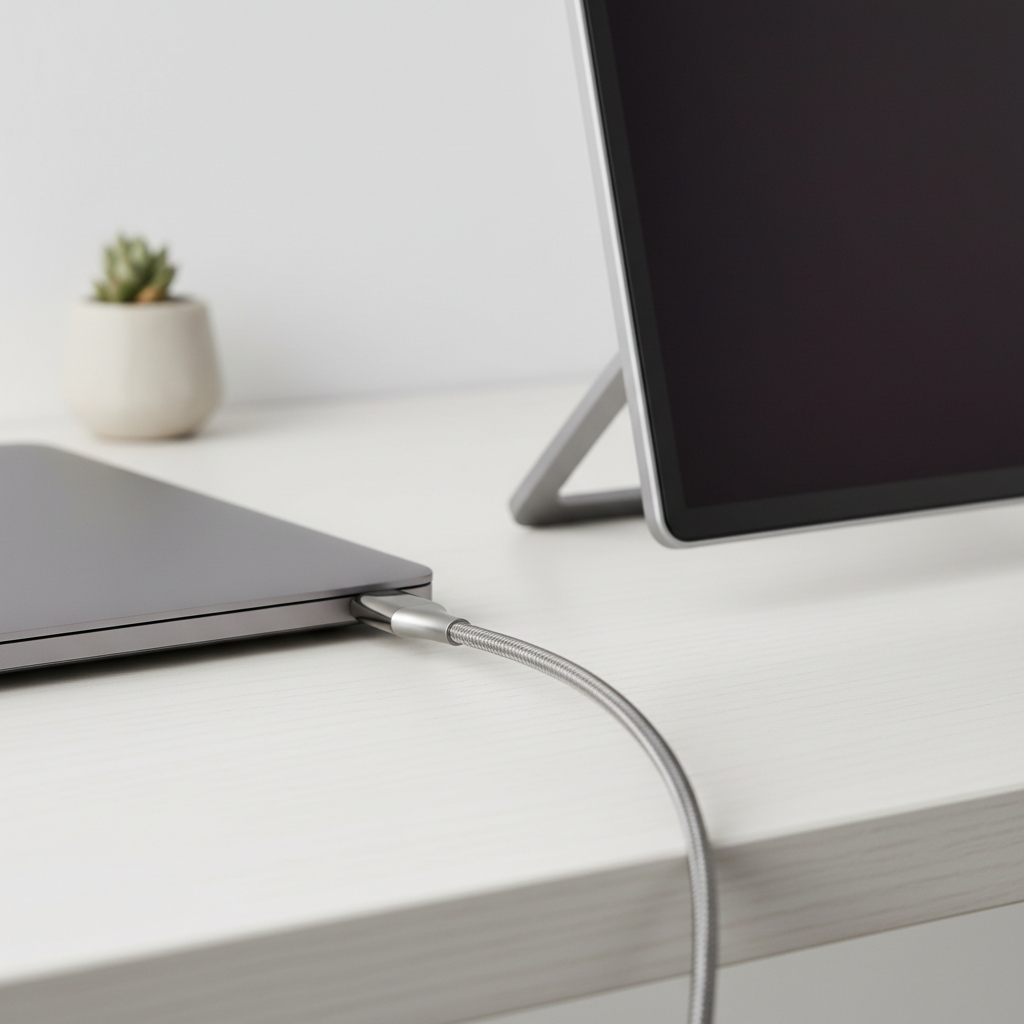
USB-C is the cleanest travel setup when it supports video output. Many portable displays also include mini-HDMI for compatibility, but that often means you’ll need an extra cable and power source.
- Best-case: USB-C (video + power) from laptop to monitor.
- Common case: HDMI for video + USB-C (or USB-A) for power.
- Adapter reality: if your laptop only has USB-A, you’ll likely need a hub or adapter for video.
Size, aspect ratio, and readability
15.6-inch 1080p is the “default” because it’s affordable and widely compatible, but 16:10 models often feel better for documents and browsing. If you stare at text all day, don’t underestimate pixel density and scaling comfort.
Brightness and glare
For travel, brightness and glare control matter more than perfect blacks. A matte finish usually wins for mixed lighting. If you work by windows a lot, glossy screens can become frustrating.
Power draw and pass-through charging
Some portable monitors sip power, others noticeably cut your laptop battery life. If you work unplugged, check whether the display supports pass-through charging so you can charge your laptop while the monitor stays connected.
Touch support (nice, but not “free”)
Touch models can be great for quick navigation, but they can cost more, add weight, and sometimes need extra drivers. If your workflow doesn’t rely on touch, it’s usually an optional upgrade, not a must-have.
Comparison table: common “best portable monitor” categories
Instead of naming one universal winner, here’s the practical breakdown most shoppers end up using. Use this to shortlist what fits your laptop and travel habits.
| Category | Best for | Typical trade-offs | What to look for |
|---|---|---|---|
| 14-inch ultra-light USB-C | Frequent travel, tight bags | Smaller workspace, sometimes dimmer | USB-C video, matte/anti-glare, rigid cover stand |
| 15.6-inch 1080p all-rounder | General productivity, remote work | More bulk, 16:9 feels shorter for docs | USB-C + HDMI, stable kickstand, decent brightness |
| 16-inch 16:10 productivity | Docs, coding, spreadsheets | Costs more, fewer models | 16:10 aspect, strong text clarity, good scaling |
| Color-focused creator display | Photo/video design on the go | Higher price, calibration may vary | Wide color gamut support, consistent panel quality, good stand |
| High refresh portable gaming | Competitive play with a laptop | Battery hit, needs compatible output | Refresh rate support over USB-C/HDMI, low-lag feel, good brightness |
How to choose in 10 minutes: a practical buying checklist
If you want a quick “yes/no” process, run through this in order. It’s the same logic many experienced buyers use, just written down.
- Step 1, confirm your laptop output: does your USB-C support video (DP Alt Mode/Thunderbolt), or will you use HDMI?
- Step 2, decide your travel size: 14 inch for portability, 15.6 inch for comfort, 16 inch if you value vertical space.
- Step 3, pick the screen finish: matte for mixed light, glossy if you work mostly indoors and prefer punchier contrast.
- Step 4, check the stand situation: folio cover stands vary wildly, a weak hinge is a daily annoyance.
- Step 5, verify cables included: you want at least one USB-C cable, and HDMI if you need it, otherwise add it to your cart now.
- Step 6, think about power: if you work unplugged, prioritize pass-through charging or bring a PD power bank.
Key takeaway: Most “bad portable monitor” experiences come from mismatched ports and shaky stands, not from resolution.
Real-world setup tips (so it feels like a second screen, not a chore)
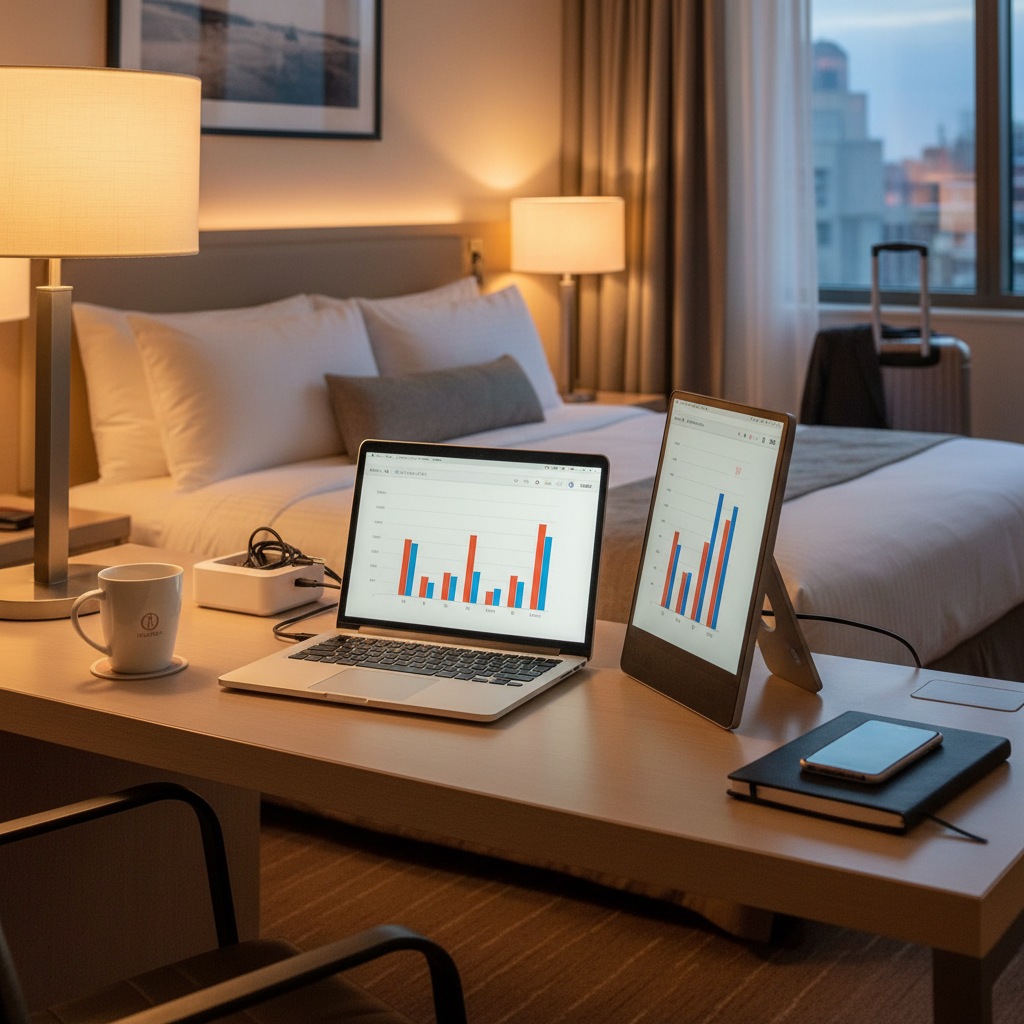
Once you buy, the goal is to make the setup repeatable. Travel work already has enough friction.
Pack a tiny “display kit”
- One USB-C cable you trust (short, flexible, not ultra-stiff)
- HDMI cable or USB-C to HDMI adapter if your laptop needs it
- Compact USB-C charger (or PD power bank) if you work away from outlets
Dial in your ergonomics quickly
Try to keep the portable display close to your laptop screen height so your neck doesn’t do constant up-down movement. If you feel tension, adjust the angle and distance, small tweaks matter.
Use software shortcuts
On Windows, Win+P and display settings can save time. On macOS, arranging displays and choosing “More Space” or “Larger Text” for scaling often makes the portable panel feel sharper and less cramped.
Common mistakes (and how to avoid them)
A lot of people buy what reviews call the best portable monitors for laptop use, then discover their own setup is the exception. These are the repeat offenders.
- Assuming every USB-C port supports video: many do, some don’t. Check your laptop model specs before buying.
- Ignoring glare until the first trip: if you work in bright places, prioritize anti-glare over “looks amazing in a dark room.”
- Overpaying for resolution you won’t use: higher resolution can be great, but it may introduce scaling quirks on smaller panels.
- Forgetting audio needs: some portable monitors have weak speakers, plan to use headphones if calls matter.
- Buying a flimsy stand: if the stand wobbles, your eyes and focus pay the price all day.
According to FCC guidance on device compliance, using certified cables and power adapters helps reduce connectivity issues and potential electrical risks. If you notice overheating, buzzing, or unstable power behavior, it’s smart to stop using that accessory and consider professional advice.
Conclusion: pick the “best” portable monitor by your travel reality
The best portable monitors for laptop work are usually the ones that disappear into your routine, one cable, stable angle, readable screen, and no adapter chaos. If you travel often, prioritize portability and glare control; if you live in spreadsheets, prioritize comfortable size and aspect ratio; if you create, pay attention to color support and consistency.
If you do one thing today, check your laptop’s USB-C video capability and decide between 14 and 15.6 inches, that narrows the field more than any top-10 list. After that, choose the stand and finish you won’t hate in real lighting.
FAQ
- What are the best portable monitors for laptop users who only have USB-C?
Look for USB-C with DisplayPort Alt Mode support and pass-through charging, so one cable can handle video and power in many setups. - Will a portable monitor drain my laptop battery a lot?
It can, especially at higher brightness. If you work unplugged, consider a monitor with lower power draw and bring a USB-C PD charger or power bank. - Do I need 4K in a portable monitor?
Usually not for travel productivity. 1080p or 1440p often feels more predictable for scaling and battery, while still looking sharp at 14–16 inches. - Why does my USB-C portable monitor say “no signal”?
Common causes include a USB-C port that doesn’t output video, a cable that only supports charging, or a laptop setting that isn’t mirroring/extending correctly. - Is a touchscreen portable monitor worth it for work travel?
It depends. Touch can speed up quick navigation, but it adds cost and sometimes setup friction. If your apps don’t benefit from touch, you can skip it. - What size portable monitor is easiest to travel with?
14-inch tends to be the sweet spot for weight and bag space, while 15.6-inch is often easier on the eyes for long sessions. - Can I use a portable monitor with an iPad or phone?
Sometimes, but compatibility varies by device and cable. Check whether your tablet/phone supports video output over USB-C, and verify the monitor’s input requirements.
If you’re trying to choose between a few models and want a more “no surprises” setup, start by listing your laptop ports, your typical work locations, and whether you need single-cable USB-C. That little checklist usually makes the right option obvious.