
Best budget tablet pens for drawing can be genuinely good, but only if you match the pen to your tablet’s digitizer, your apps, and the way you hold a pen for an hour straight.
If you’ve ever bought a “universal stylus” and got rubbery lines, random skips, or palm-rejection chaos, you already know the pain: cheap isn’t the problem, mismatch is. A $20 pen can feel great on one tablet and unusable on another.
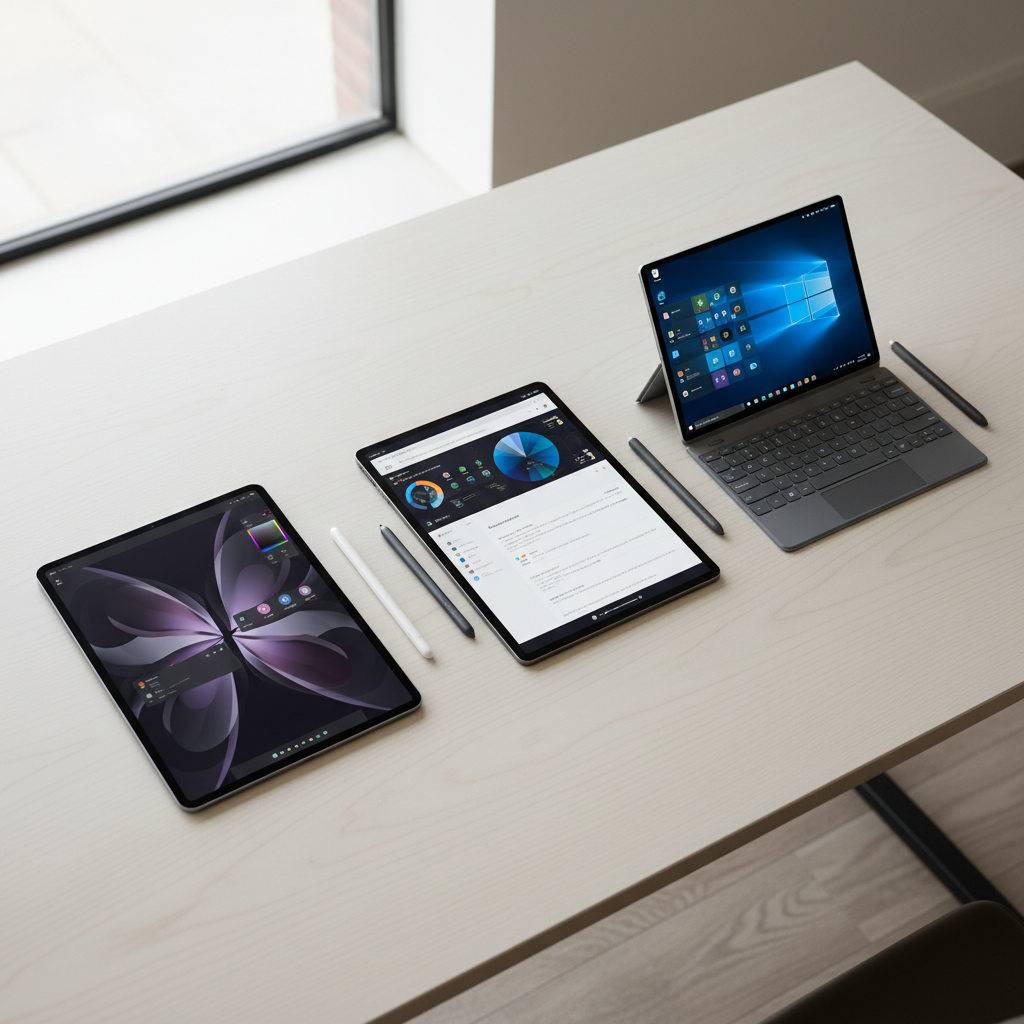
This guide stays practical: what “budget” really means by platform, what features matter for drawing vs note taking, and how to avoid buying a stylus that can’t do what you expect.
What “budget” really means (and why compatibility beats features)
In stylus shopping, “budget” usually means under $30 for capacitive pens or $30–$80 for active pens that support pressure and palm rejection. The catch is that active pens are rarely universal.
Quick reality check:
- Capacitive stylus: works on almost any touchscreen, no pairing, but no real pressure sensitivity and limited palm rejection.
- Active stylus: talks to the tablet (Bluetooth and/or digitizer), can support palm rejection, tilt, buttons, and sometimes pressure.
According to Apple Support, Apple Pencil compatibility depends on specific iPad models, and the Pencil experience relies on iPadOS features like palm rejection and Pencil input handling. That same idea applies across brands: tablet model first, pen second.
Fast self-check: which stylus type do you need?
If you’re not sure where you land, run this quick checklist. It saves money because it stops you from paying for features your tablet can’t use.
- Your tablet supports an active pen? Look up “stylus compatibility” for your exact model (not just the brand).
- You draw (shading/line weight) more than you write? You’ll want pressure sensitivity and low jitter, which usually means active pen support.
- You mainly take notes, highlight PDFs, tap UI elements? A good capacitive disc-tip stylus can be enough.
- You rest your hand on the screen? Prioritize palm rejection; without it, long sessions get frustrating.
- You use a paperlike matte screen protector? Some tips wear faster, and cheap tips can feel scratchy.
If your tablet has no active pen support, don’t overpay chasing pressure features that won’t show up in your apps.
Best budget picks by tablet ecosystem (what to buy, and who it’s for)
Rather than tossing a random “top 10” at you, here’s the way most people actually shop: by device family. Treat these as categories to look for, then confirm your model’s compatibility before checkout.
iPad (budget route)
If you own an iPad that supports Apple Pencil, the most reliable “budget” path is often an older official Pencil model (when it matches your iPad) or a third‑party active stylus designed specifically for iPad with palm rejection and tilt.
- Best for: note taking, basic sketching, classes, journaling.
- Watch-outs: many cheaper iPad-focused pens offer tilt and palm rejection but may not support pressure sensitivity, which matters if you shade and ink seriously.
Android tablets (Samsung, Lenovo, etc.)
Android is the most mixed. Some models (especially Samsung devices with S Pen support) have strong pen hardware; others rely on generic capacitive input.
- Best for: students and casual artists who want a responsive pen experience on supported models.
- Watch-outs: “works with Android” in a listing often just means capacitive. Confirm whether your device supports an active digitizer pen.
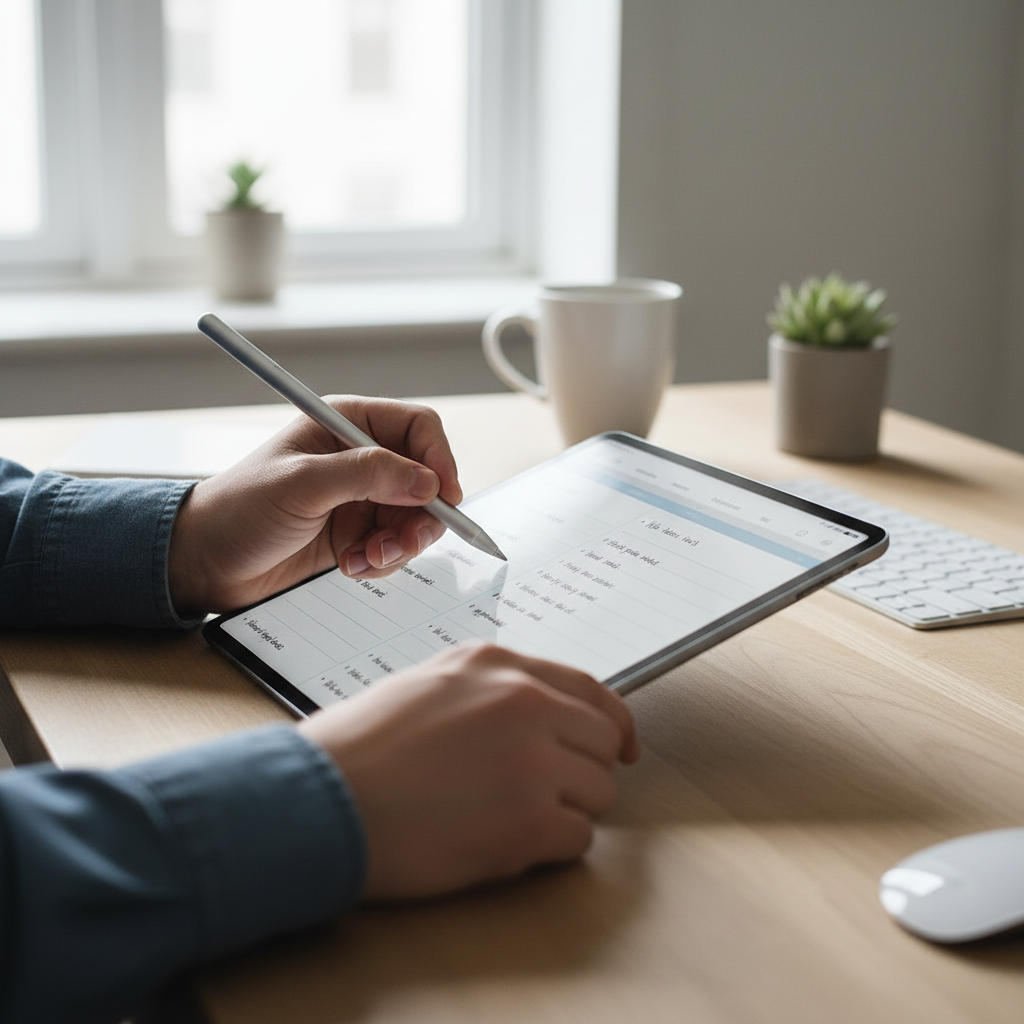
Windows 2-in-1s (Surface-style devices)
Windows devices often support active pens, but protocols vary (for example, MPP on many models). A “cheap pen” can work fine, but the feel depends a lot on tip quality and screen glass.
- Best for: OneNote users, PDF markup, diagramming, hybrid work.
- Watch-outs: confirm the pen protocol (often listed as MPP) and check whether tilt/pressure are supported on your exact device.
Comparison table: what to look for under a budget
Use this table to avoid paying for the wrong “upgrade.” It’s less about brand names and more about what changes your day-to-day experience.
| Use case | Minimum you should accept | Nice-to-have (often worth it) | Common budget trap |
|---|---|---|---|
| Note taking | Palm rejection (active pen), stable tip | Shortcut button, magnetic attach | Buying a capacitive pen and expecting palm rejection |
| Drawing / sketching | Low jitter, good diagonal lines | Pressure sensitivity, tilt shading | Chasing “pressure” on a tablet that doesn’t support it |
| PDF markup | Accurate tip, consistent strokes | Fine tip options, replaceable nibs | Hard tips on matte protectors wearing down too fast |
| Casual navigation | Capacitive disc tip, comfortable grip | Pocket clip, spare tips | Cheap rubber tips that feel mushy and skip |
How to test a stylus in 10 minutes (before you commit)
Even among the best budget tablet pens for drawing, small differences show up fast when you do a simple test in the apps you actually use.
- Line test: draw slow diagonal lines and circles. If you see wobble/jitter, it may feel “cheap” for illustration.
- Pressure test (if supported): draw one stroke gradually increasing pressure. Look for smooth thickness changes, not sudden jumps.
- Palm test: rest your hand naturally while writing a paragraph. If your app keeps zooming or making stray marks, adjust settings or rethink the pen type.
- Edge test: write near the screen edges. Some devices show offset near corners, and a better pen can’t always fix that.
- Latency feel: do quick hatching. If the ink trails behind, check if there’s a “low latency” or “stylus mode” setting.
According to Microsoft Support, pen and touch settings in Windows can affect inking behavior, including hand preference and how the device handles pen input. If your strokes feel “off,” software settings can matter more than swapping pens.
Practical buying advice (so you don’t waste $25 three times)
Here’s the shortlist I’d use if I were buying for a friend who wants to keep it simple.
- Start with your exact tablet model, then search “stylus compatibility” plus that model name.
- For drawing, prioritize stability and pressure support over gimmicks like “4x faster charging.” Feel matters more than spec fluff.
- For notes, prioritize comfort, palm rejection, and reliable connection. A slightly thicker barrel can reduce hand fatigue.
- Assume nibs are consumables. If replacement tips are hard to find, that “cheap” pen gets expensive.
- Check return policy. With budget accessories, quality varies; an easy return is part of the value.
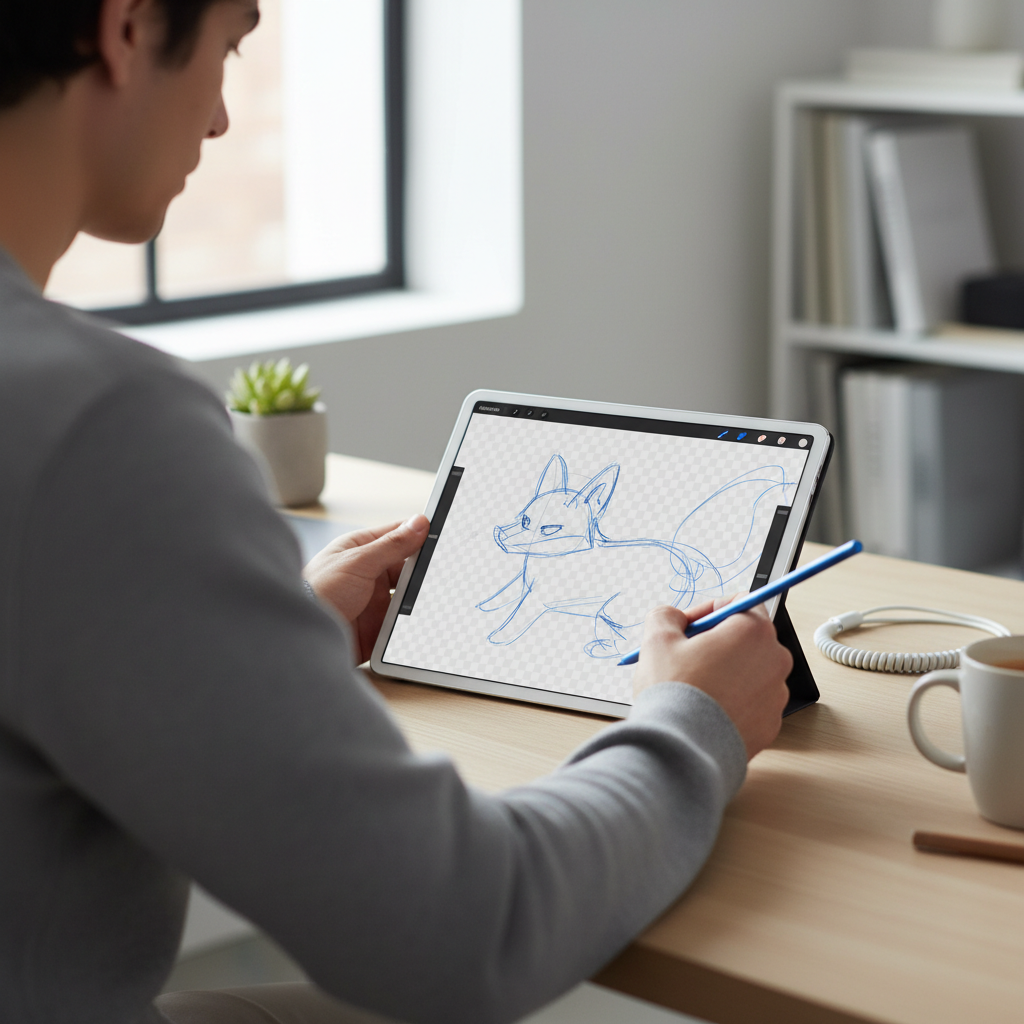
Common mistakes (and what to do instead)
Most stylus disappointment is predictable. If you avoid these, you’ll usually end up with something you can live with.
- Mistake: buying “universal active stylus” for any tablet.
Do instead: treat “active” as ecosystem-specific, and confirm digitizer support. - Mistake: blaming the pen for messy handwriting.
Do instead: try a note app with stabilization options, change nib type, and adjust zoom level. - Mistake: ignoring screen protector friction.
Do instead: if you use matte protectors, keep spare nibs and avoid overly sharp hard tips. - Mistake: expecting pro illustration performance on entry hardware.
Do instead: for serious art, prioritize pressure + low jitter; sometimes that means saving up for a compatible active pen.
Conclusion: a “good cheap pen” is the one that matches your tablet
The best budget tablet pens for drawing are rarely the ones with the most bullet points, they’re the ones that your device and apps can actually support, and that feel stable in the strokes you make every day.
If you want a simple next step, do two things: confirm your tablet’s supported stylus types, then choose a pen that matches your primary task, sketching or note taking. That alone filters out most regret purchases.
FAQ
What is the best budget tablet pens for drawing if I don’t know my tablet model?
Find the model in your tablet settings (or on the back label), then search compatibility using that exact name. Without the model, you’re basically guessing, and that’s how people end up with a capacitive pen when they needed an active one.
Are cheap styluses good for digital art?
They can be, especially for sketching and practice, but “good” depends on pressure support and line stability. If your tablet doesn’t support pressure, your art app can simulate it a bit, but it won’t feel the same as real pressure sensitivity.
Do I need palm rejection for note taking?
If you write more than quick labels, palm rejection usually matters. Without it, your hand can trigger touch input, which interrupts writing and breaks focus fast.
Why does my stylus skip or jitter when drawing slow lines?
Skipping can come from a worn nib, a dirty screen, or poor capacitive contact. Jitter often comes from digitizer limitations or a lower-quality pen tip. Try another app, remove a thick screen protector temporarily, and check if your device has an inking setting or firmware update.
Will a budget iPad stylus work for Procreate?
Many third-party iPad pens work for basic strokes, but Procreate’s best features shine with pressure sensitivity. If your pen lacks pressure, you can still draw, but you may rely more on brush settings and stabilization.
Is a capacitive disc-tip stylus better than a rubber tip?
In many cases, yes. Disc tips tend to feel more precise for tapping and writing. Rubber tips can feel mushy and can drag, especially on matte protectors.
Can a stylus damage my tablet screen?
Most reputable tips are designed to be screen-safe, but grit on the screen or a damaged tip can scratch glass over time. If you notice a sharp edge or a cracked tip, replace it, and keep the screen clean.
How much should I spend if I want both drawing and note taking?
If your tablet supports an active pen, spending a bit more for pressure and reliable palm rejection often pays off. If it doesn’t, stay truly budget with a high-quality capacitive stylus and put the rest toward a better app or a paperlike protector.
If you’re trying to pick between a few options and want a more “no-regrets” route, narrow it to your exact tablet model, your main app, and whether you need pressure sensitivity, that little triangle usually points to the right pen faster than browsing endless listings.