
how to fix distorted microphone sound on a PC usually comes down to one of three things: the mic signal is too hot (clipping), Windows is processing it in a way that breaks it, or the connection/driver chain is unstable.
If you use your mic for meetings, streaming, or support calls, distortion is more than “bad audio”, it makes you sound unreliable, and it often gets worse right when you need it most: when you raise your voice, laugh, or get excited.
The good news is you rarely need to replace the microphone immediately. In many cases, a few targeted checks in Windows Sound settings, app input settings, and your USB or analog chain will clean it up. Below is a practical path that helps you identify which “bucket” you’re in, then fix it without guesswork.
What “distorted mic sound” usually means (so you don’t chase the wrong fix)
People describe distortion in different ways, and the fix depends on the flavor. Here are the common ones you can actually diagnose.
- Clipping/overload: harsh crackle when you speak loudly, shout, or get close to the mic. This is the #1 cause.
- Robot/warble: voice sounds “underwater” or metallic, often tied to Bluetooth modes, noise suppression, or poor bandwidth.
- Static/buzz: constant hiss, electrical buzz, or intermittent crackle, often cable/port/power related.
- Choppy audio: words cut out, sometimes from CPU load, driver conflicts, or aggressive audio enhancements.
According to Microsoft support guidance on Windows audio troubleshooting, verifying the correct input device, adjusting input levels, and updating drivers are standard first steps before deeper repair actions.
Fast self-check: find your likely cause in 3 minutes
If you want speed, do this mini-triage before touching advanced settings.
Quick checklist
- Does distortion happen only when you speak louder? Likely clipping or an “Auto Gain” feature.
- Only happens in one app (Zoom/Discord/Teams/OBS) but not others? App processing or wrong input device.
- Only on Bluetooth headset mic? Bluetooth hands-free profile limitations, or bad RF conditions.
- Only on one USB port, or when a USB hub is used? Power/connection stability issue.
- Started after Windows update or driver install? Driver or enhancement changes.
Before anything else, record a 10-second sample in Windows Voice Recorder (or Sound Recorder). If it distorts there, the issue is system-side. If it sounds clean there but bad in an app, treat it as app-side.
Fix #1: Stop clipping (the most common reason)
When people search how to fix distorted microphone sound, they often assume the mic is “broken”, but most PC distortion is simply the signal hitting the ceiling.
Windows 11/10 input level and gain
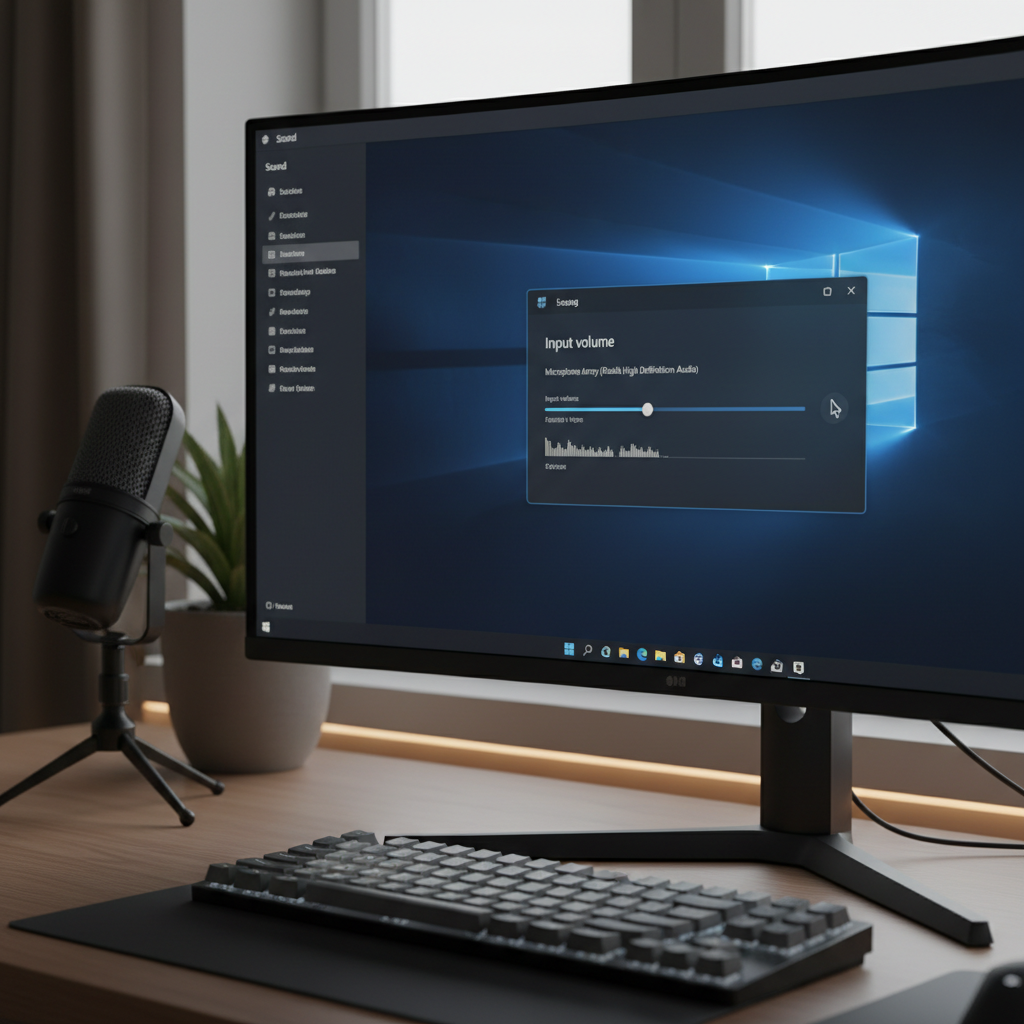
- Go to Settings → System → Sound → Input, select your microphone.
- Lower Input volume gradually (try 80 → 70 → 60) while speaking at your loudest “real” volume.
- If your mic or interface has a physical gain knob, lower that first, then use Windows input volume for fine-tuning.
A practical target: your loudest speech should sound full but not crunchy. If you can’t stop the crackle without making yourself too quiet, you may need to reduce gain at the source (mic/interface) and raise the level later in your app, not in the mic preamp.
Mic distance and technique (yes, it matters on PC too)
- Back the mic off slightly (often 6–10 inches works for many desktop mics).
- Speak across the mic, not directly into it, to reduce plosives and harsh peaks.
- If you have a pop filter, use it; if not, even a basic foam windscreen can help.
Fix #2: Turn off the processing that often creates “robot” distortion
Windows and many apps try to “help” your voice by applying noise suppression, echo cancellation, and enhancements. Sometimes those features conflict, stack, or overcorrect, and you end up with weird artifacts.
Disable Windows audio enhancements (when appropriate)
- Open Control Panel → Sound → Recording.
- Select your mic → Properties.
- Look for Enhancements (or Advanced) and disable enhancements or signal processing options if present.
Not every device exposes the same toggles. Some USB mics or OEM drivers hide enhancement controls in their own utility app.
Avoid “double noise suppression”
Common real-world trap: you enable suppression in Windows (or an OEM app), and also enable suppression in Discord/Zoom/Teams, and also run NVIDIA Broadcast or Krisp on top. Pick one place to do it, test, then add more only if needed.
Fix #3: Match sample rate/format so Windows and apps stop fighting
Another understated reason for distorted microphone sound is format mismatch. It doesn’t always produce distortion, but when it does, it can sound crunchy or glitchy.
Set a sensible default format
- Go to Control Panel → Sound → Recording → Mic Properties → Advanced.
- Try 16-bit, 48000 Hz (common for voice and conferencing), or 16-bit, 44100 Hz if an app prefers it.
- Disable Allow applications to take exclusive control if you see apps “stealing” the device and causing instability.
If you do music production or use an interface with ASIO, your best choice can differ. In that case, pick one rate across your DAW and Windows whenever possible.
Fix #4: App-by-app fixes (Zoom, Teams, Discord, OBS)
If Windows recording sounds fine but calls don’t, focus on app settings. This is where many “it only distorts on meetings” cases live.
Common app settings that cause distortion
- Wrong input device: the app uses a webcam mic or Bluetooth mic, not your intended mic.
- Auto gain / automatic volume: boosts quiet moments, then clips when you speak normally.
- Aggressive suppression: removes fan noise but tears up consonants and creates warble.
- Input too hot in OBS: the meter hits red; filters amplify it further.
Practical reset approach
- Select the correct mic explicitly inside the app.
- Turn off Automatically adjust microphone volume (where available), then retest.
- Reduce the app input level slightly, then re-check Windows input volume if needed.
- In OBS, keep peaks out of the red; if you use a compressor, set makeup gain carefully.
Fix #5: Connection, drivers, and hardware sanity checks (when distortion is random)
Intermittent crackle or sudden distortion often points to the chain, not the settings. This can be annoying because it feels unpredictable, but the checks are straightforward.
USB mics and headsets
- Plug directly into the PC (avoid hubs at first), and try a different USB port.
- Try a different cable if the mic supports it; a marginal cable can cause dropouts and artifacts.
- Disable USB power saving for the port if the device disconnects or glitches during calls.
3.5mm analog mics (headsets, lav mics)
- Confirm you’re using the correct jack (mic vs headphone) or a proper TRRS splitter.
- Check for loose connections; analog crackle can be as simple as a half-seated plug.
- If you hear constant buzz, test on another device to rule out grounding or port noise.
Drivers and firmware (use judgment)
According to Intel and Realtek support resources, audio driver updates can resolve device compatibility issues, but they can also introduce changes. If distortion started after an update, a rollback can be worth trying.
- Update via the PC/motherboard manufacturer first (often more stable than generic).
- If you use a USB interface, check the vendor for firmware and driver revisions.
- After any change, test in one controlled place (Voice Recorder) before returning to meetings.
A simple “what to try first” table (so you don’t overthink it)
Use this to pick the most likely fix without burning an hour toggling random options.
| Symptom | Most likely cause | First action to try |
|---|---|---|
| Crackles when you get loud | Clipping / too much gain | Lower input volume or hardware gain; increase distance |
| Metallic/robot voice in calls | Over-processing or Bluetooth profile | Disable auto gain/suppression in app; avoid Bluetooth mic if possible |
| Sounds fine in Windows, bad in one app | App input device or filters | Select correct mic, reset audio settings, reduce app input level |
| Random crackle or dropouts | USB hub/cable/port/power saving | Direct USB port, new cable, adjust USB power settings |
| Crunchy/glitchy after updates | Driver change or format mismatch | Set 48kHz 16-bit, consider driver rollback from Device Manager |
Key takeaways (the parts most people actually need)
- Most distortion is clipping, and the fix is lowering gain earlier in the chain, not “boosting later”.
- If it’s app-only, stop tweaking Windows and reset the app’s mic selection and auto gain features.
- When audio sounds “robotic”, look for stacked noise suppression across Windows + app + third-party tools.
- For flaky crackle, treat it like a connection stability problem: port, cable, hub, power saving.
When it’s time to get help (or replace something)
If you’ve tried sane gain levels, turned off conflicting processing, and verified the mic sounds distorted even in a basic Windows recording, the issue may be hardware-related: a failing mic capsule, a damaged cable, a noisy analog jack, or an unstable USB controller.
In workplace or enterprise setups, it can also be a managed driver policy or endpoint security tool affecting audio devices. If you’re on a company machine, it’s usually faster to ask IT rather than forcing driver changes yourself.
If distortion comes with unusual heat, burning smell, or visible damage to a cable/port, stop using that hardware and consult a technician, since electrical faults can pose safety risks.
Practical wrap-up
If you’re trying to fix distorted mic audio quickly, start by taming gain to prevent clipping, then remove extra processing layers, and only after that chase drivers or hardware. That order saves time because it matches what tends to break most often.
Your next action: make a short test recording in Windows, lower input volume until loud speech stays clean, then confirm your conferencing app is using the same mic with auto gain turned off.
FAQ
- Why does my microphone distort only when I yell or laugh?
That pattern usually points to clipping: your loud peaks exceed what the mic preamp or Windows input level can handle. Lower hardware gain or Windows input volume, and keep a bit more distance from the mic. - How do I fix distorted microphone sound in Zoom without changing Windows settings?
Pick the correct microphone in Zoom, disable automatic mic volume if it causes pumping, then reduce Zoom’s input level slightly. If Windows recordings are clean, you can often keep system settings as-is. - My mic sounds robotic on Discord, what’s the quickest fix?
Turn off or reduce Discord noise suppression/auto gain features and avoid stacking them with Windows enhancements or third-party suppression tools. Test with a simple voice message to confirm. - Does a higher sample rate stop distortion?
Not usually for clipping, but it can help with glitches caused by format conflicts. A stable, common choice is 16-bit at 48 kHz, then match app settings where possible. - Why does my Bluetooth headset mic sound worse than my wired mic?
Many Bluetooth headsets switch to a hands-free mode for the microphone that reduces bandwidth, which can sound thin or distorted. If voice quality matters, a wired headset or USB mic often behaves more predictably. - Should I reinstall audio drivers to fix distortion?
Only after checking gain, enhancements, and app settings. Driver changes can help when distortion started after an update, but they can also create new issues, so keep the change controlled and test after each step.
If you want a more “set it and forget it” path, write down your mic model, connection type (USB, 3.5mm, interface), and where the distortion happens (Windows vs one app), then you can troubleshoot in a straight line instead of toggling random audio options.