
How to fix pc blue screen memory management usually comes down to three buckets: unstable RAM, a bad driver, or corrupted Windows system files. The annoying part is the error message sounds specific, but in real life it can be triggered by several different faults that all look the same during a crash.
If your PC blue-screens randomly, reboots during gaming, or crashes right after a Windows update, you want a process that narrows the cause fast. Guessing wastes time and can make things worse, especially if you start “cleaning” drivers or BIOS settings without a baseline.

This guide gives you a practical order of operations: quick safety steps first, then checks that separate RAM problems from software problems. You’ll also get a small decision table, a checklist, and the moments where it’s smarter to stop and ask for help.
What the Memory Management BSOD usually means (and what it doesn’t)
“Memory Management” points to Windows detecting something wrong with how memory is being allocated or accessed. That can be physical memory, but it can also be drivers writing to the wrong area, or corrupted system components that manage memory.
According to Microsoft Support, blue screen errors can be caused by hardware issues, driver problems, or software conflicts, and the reliable way forward is to isolate changes and test components instead of guessing.
- Likely hardware: failing RAM stick, unstable XMP/overclock, mismatched RAM kit, motherboard slot issues.
- Likely software: buggy GPU/storage driver, security software conflicts, corrupted Windows files, disk errors.
- Not always “low memory”: adding more RAM might do nothing if the real issue is instability or corruption.
Quick triage: what to do before you start deeper fixes
If the PC still boots into Windows, do a fast triage. You’re trying to protect your data and create a stable testing environment.
- Back up important files to an external drive or cloud. If crashes get worse, you’ll be glad you did.
- Note what changed: Windows update, new driver, new RAM, BIOS update, new game, new antivirus.
- Disconnect non-essential peripherals: docking stations, USB hubs, external drives (leave keyboard/mouse).
- Turn off overclocks: CPU/GPU overclock and RAM XMP/EXPO, at least temporarily.
If you can’t stay in Windows long enough to do this, jump to the Safe Mode section below and work from there.
A quick decision table to narrow the cause
This is not perfect, but it helps you choose the next best test instead of doing everything.
| What you notice | More likely | Best next step |
|---|---|---|
| Crashes soon after adding RAM or enabling XMP/EXPO | RAM instability | Disable XMP/EXPO, test one stick at a time |
| Crashes after GPU driver update or during games | Driver conflict | Clean reinstall GPU driver (DDU in Safe Mode) |
| Crashes during idle or random browsing | System file corruption or RAM | Run SFC/DISM, then Windows Memory Diagnostic |
| Other stop codes appear too (varied BSODs) | Hardware or multiple drivers | Check disk, RAM test, review minidumps |
| PC reboots under load, no clear pattern | Power/thermal or unstable OC | Reset BIOS to defaults, check temps, PSU sanity |
Self-check checklist: confirm which “type” of crash you have
Before “fixing,” decide which bucket you’re in. It keeps your troubleshooting clean and reduces repeated changes.
- Recent change? New RAM, BIOS tweak, driver update, Windows update, new security tool.
- Repeatable trigger? Only when gaming, only waking from sleep, only copying large files.
- Can Safe Mode run for 10–15 minutes? If yes, software/driver becomes more likely.
- Event Viewer clues? Look for “BugCheck” entries and driver-related warnings.
- Any memory errors reported? Windows Memory Diagnostic or tools like MemTest86 (advanced).
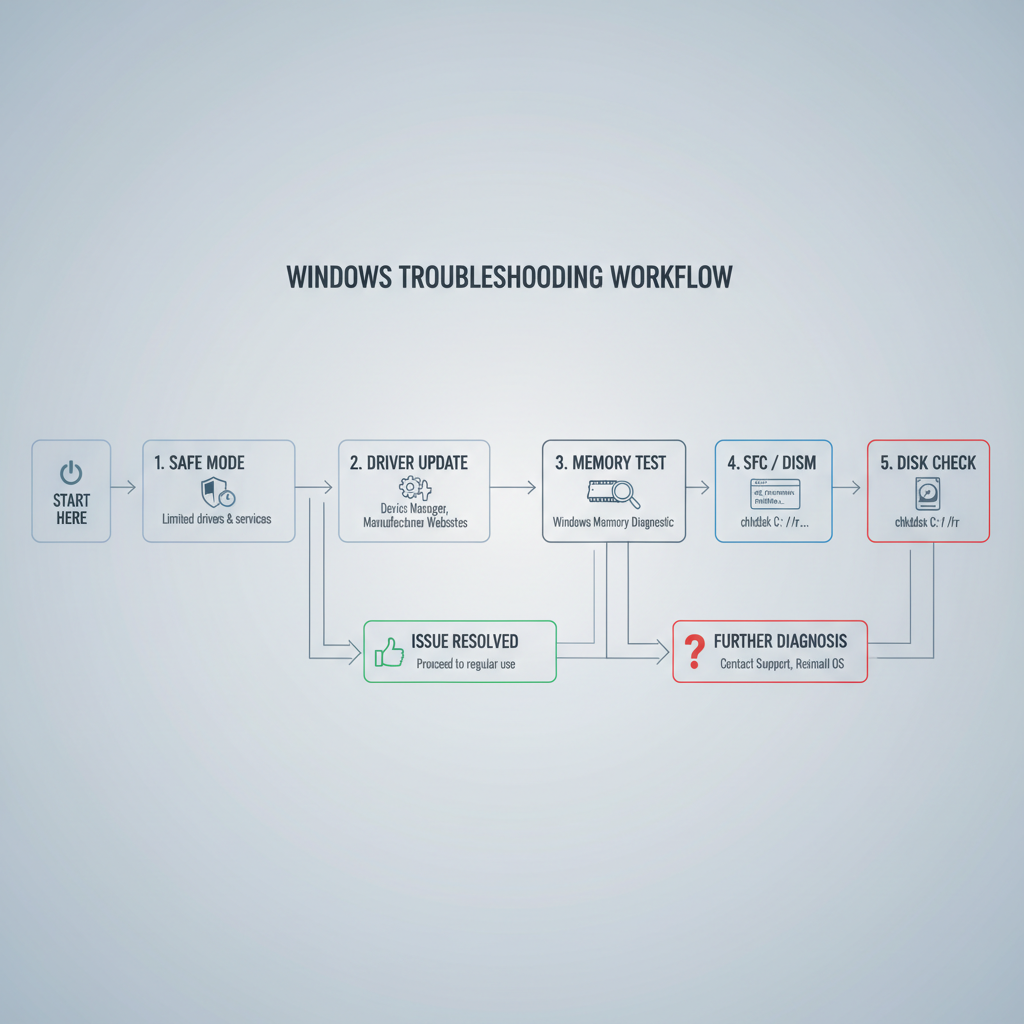
If you’re seeing the same stop code right after a single change, roll that change back first. If the system has been unstable for weeks with multiple changes, prioritize stability resets (BIOS defaults, clean drivers, file repair) before deeper hardware swaps.
Fix path 1: repair Windows files and disk issues (low risk, high payoff)
For many people, this is the quickest win. Corrupted system files can make Windows mis-handle memory and crash, even when RAM is fine.
Run SFC and DISM
Open Command Prompt as Administrator, then run:
- sfc /scannow
- DISM /Online /Cleanup-Image /RestoreHealth
If SFC finds issues it can’t fix, DISM often helps. Reboot after both complete.
Check the drive
Disk errors can mimic memory problems because paging and system file reads go sideways.
- Run chkdsk /scan (quick online scan).
- If issues appear, schedule a deeper check: chkdsk /f (requires reboot).
According to Microsoft Learn, CHKDSK can help identify file system issues and bad sectors, which can contribute to system instability.
Fix path 2: driver cleanup (especially GPU and storage)
If you’re searching how to fix pc blue screen memory management after a driver update, treat drivers as prime suspects. A single bad driver can trigger memory access violations that Windows reports under “memory management.”
Boot into Safe Mode for a clean environment
- Settings → System → Recovery → Advanced startup → Restart now
- Troubleshoot → Advanced options → Startup Settings → Restart → press 4 for Safe Mode
GPU driver: clean reinstall
- Use the vendor installer (NVIDIA/AMD/Intel) and choose a clean install option if available.
- If crashes continue, consider Display Driver Uninstaller (DDU) in Safe Mode, then install a known-stable driver version.
Storage and chipset drivers matter too
- Update chipset drivers from your motherboard or laptop manufacturer site.
- Be cautious with “driver updater” utilities; many cause more problems than they solve.
Fix path 3: test RAM stability the right way (without spiraling)
When the error keeps returning after software repairs, test memory stability in a controlled way. This is where many people waste hours because they change too many variables.
Step 1: reset RAM settings
- Enter BIOS/UEFI and disable XMP/EXPO temporarily.
- If you had any manual timings/voltage changes, revert to defaults.
If the blue screen stops immediately after disabling XMP/EXPO, your RAM might still be “good,” just unstable at that profile. In many cases you can later tune it, but first get stable.
Step 2: run Windows Memory Diagnostic (baseline)
- Search “Windows Memory Diagnostic” → Restart now and check for problems
This test isn’t as aggressive as dedicated tools, but it’s a reasonable first pass.
Step 3: isolate sticks and slots (practical, not glamorous)
- Test with one RAM stick installed, then swap sticks.
- If one stick crashes and the other doesn’t, you likely found the culprit.
- If both crash only in one slot, the motherboard slot or seating might be the issue.
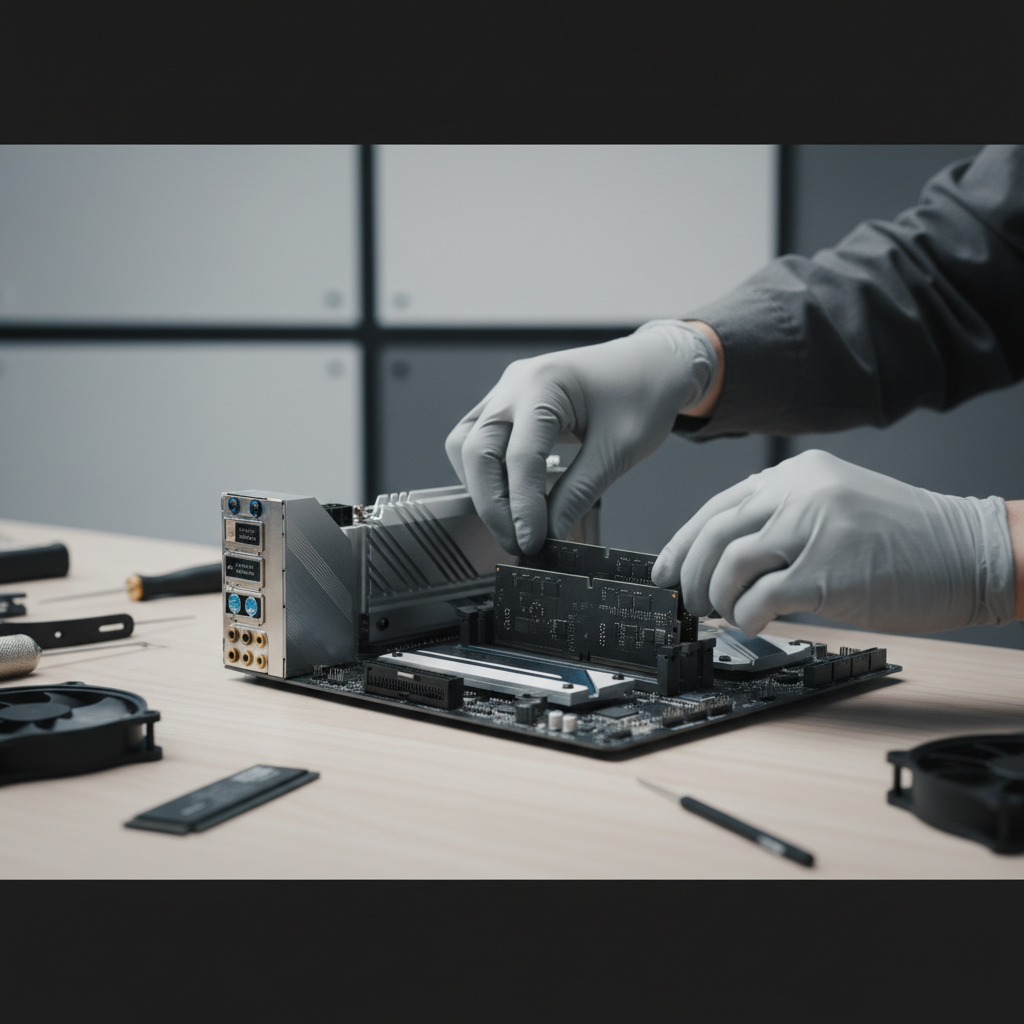
If you’re comfortable going further, MemTest86 is a common next step for deeper testing, but it takes time and you’ll want to follow its instructions carefully. If you’re not sure, this is a good point to ask a repair shop to test with known-good RAM.
Fix path 4: updates, BIOS, and the “last 10%” that often matters
Once you’ve handled drivers and basic integrity checks, the remaining fixes are more situational. They’re also the ones that can backfire if you rush.
- Windows Update: install pending cumulative updates, but if the issue started immediately after an update, consider rolling back that specific update to test.
- BIOS/UEFI update: can improve memory compatibility, especially with newer RAM kits, but do it only if you can follow your manufacturer’s steps and power is stable.
- Disable Fast Startup: sometimes reduces crash loops tied to sleep/hibernation.
- Check temps and power: overheating or a struggling PSU can create instability that looks like random memory failures.
If you’re on a laptop, also check for OEM-specific tools or firmware updates (Dell/HP/Lenovo). They often ship stability fixes outside normal Windows Update.
Common mistakes that waste time (or make crashes worse)
- Changing five things at once: update BIOS, swap drivers, enable XMP, and run “optimizer” tools, then you can’t tell what helped.
- Using registry cleaners: they rarely fix BSODs and can introduce new instability.
- Assuming new RAM can’t be bad: it can, and compatibility can be tricky even when specs “match.”
- Ignoring minidumps: if you’re technical, tools like WinDbg can point to a driver, but the key is acting on a pattern, not one dump.
When it’s time to get professional help
If you’ve tried the safer steps and still see frequent crashes, it may be time to bring in a technician or the manufacturer, especially when the PC is under warranty.
- BSOD happens even after a clean Windows install (suggests hardware).
- RAM tests show errors repeatedly, or the PC fails to boot with certain modules.
- You smell burning, hear clicking from a drive, or see sudden shutdowns under load.
- You rely on the machine for work and can’t risk trial-and-error.
Hardware diagnostics and part swaps with known-good components can shorten the whole process, and in many cases it’s cheaper than losing days to uncertainty.
Key takeaways
- Stabilize first: disable overclocks and XMP/EXPO, then retest.
- Repair Windows integrity: SFC/DISM and disk checks often resolve recurring crashes.
- Drivers are frequent triggers: GPU and chipset/storage drivers deserve a clean reinstall path.
- Test RAM methodically: one stick, one slot, one change at a time.
Conclusion: a reliable order to stop the crashes
If you’re stuck on how to fix pc blue screen memory management, keep it boring: back up your data, remove overclocks, repair system files, clean up drivers, then test RAM in a controlled way. Most persistent cases reveal themselves when you stop changing everything at once and start isolating one variable.
If you want one action today, run SFC/DISM and do a clean GPU driver reinstall, then watch whether the crash pattern changes. That single observation often tells you where to focus next.
FAQ
Why do I get “Memory Management” BSOD even with plenty of RAM?
Because it’s not only about capacity. It can be driver bugs, corruption, or unstable timings that cause invalid memory access, even when Task Manager shows lots of free memory.
Can a GPU driver cause a memory management blue screen?
Yes, in many situations. Graphics drivers interact deeply with system memory and the kernel, and a bad update or conflict can trigger crashes that surface as memory-related stop codes.
Should I run MemTest86 or Windows Memory Diagnostic?
Windows Memory Diagnostic is a good first pass because it’s built in. If crashes persist and you suspect RAM, MemTest86 is more thorough, but it takes longer and requires booting from USB.
Is disabling XMP/EXPO a real fix or just a workaround?
It can be either. If disabling it stops the BSOD, your system is telling you that the profile isn’t stable in your specific setup. Sometimes a BIOS update or different settings can restore stability at higher speeds.
What if the PC won’t boot normally after the BSOD loop?
Use Advanced Startup to enter Safe Mode, remove recent drivers or updates, and run SFC/DISM. If it still won’t boot, you may need Windows recovery media and, in tougher cases, professional diagnostics.
Will reinstalling Windows fix memory management BSOD?
It can fix corruption and some driver problems, but it won’t fix failing RAM or unstable hardware. If a fresh install still crashes, hardware testing becomes the priority.
How do I know which driver is causing the crash?
Minidump analysis can help, but it’s easy to misread one-off results. Look for consistent mentions of the same driver across multiple crashes, and validate by rolling back or clean reinstalling that specific component driver.
Want a more hands-off way to troubleshoot?
If you’re dealing with repeated crashes and you’d rather not guess, a repair shop or manufacturer support can run targeted hardware diagnostics and swap known-good parts to isolate the cause faster, especially when your PC is under warranty or you need the machine stable for work.