
Top free duplicate file finders for pc can help you reclaim disk space, speed up searches, and cut down on the annoying “which copy is the right one?” moments.
If you’ve ever cleaned a Downloads folder and immediately worried you might delete something important, you’re not alone. Duplicate photos, installers, and old project files tend to spread across drives and cloud sync folders, then suddenly you’re out of space or backups take forever.
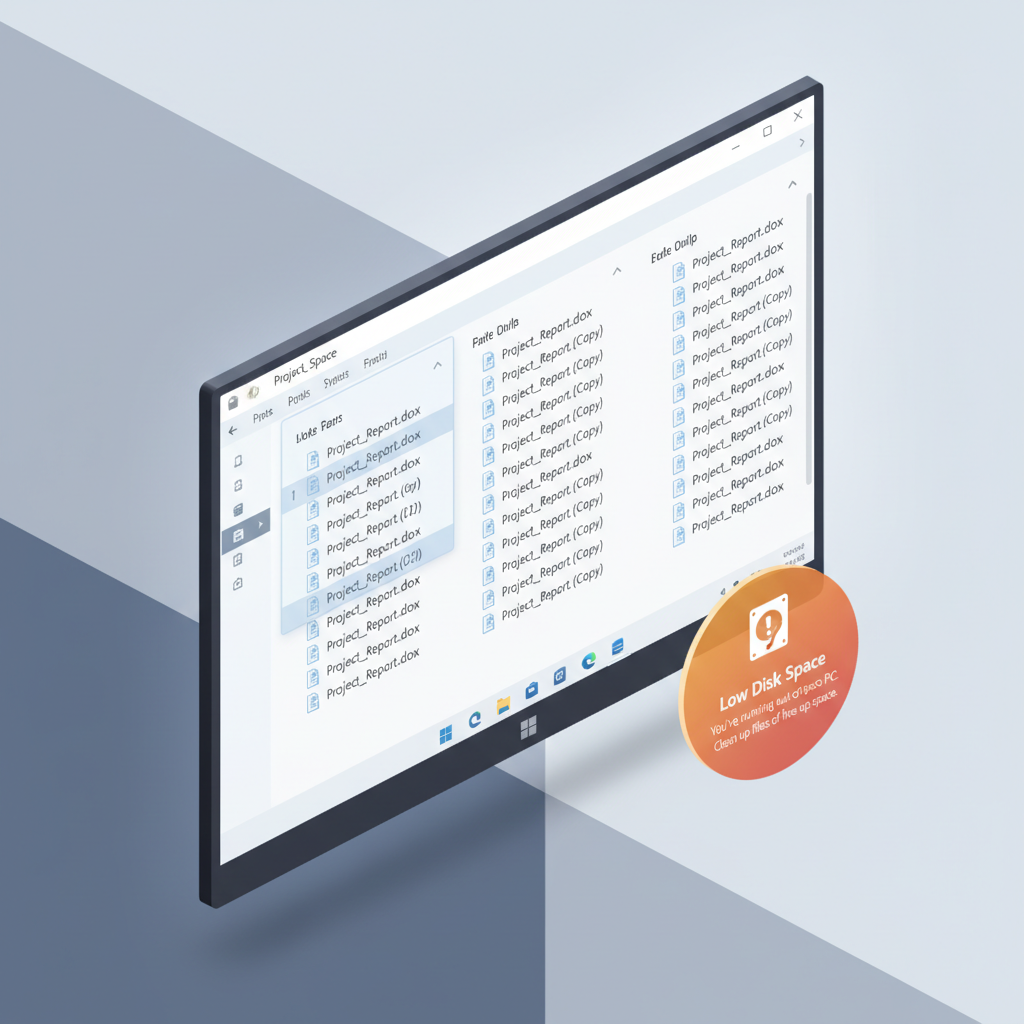
This guide stays practical: what these tools actually do, which ones fit common scenarios, how to run a scan without panic, and what to double-check before you remove anything.
What duplicate file finders really do (and why results can vary)
Most duplicate finders look for duplicates in two main ways: by file metadata (name, size, modified date) and by content matching (hash or byte-by-byte comparison). Content matching takes longer but catches “same file, different name” situations.
Where people get tripped up is that “duplicate” isn’t always “safe to delete.” A few real-world examples:
- Photos: identical images might have different edits, EXIF data, or live-photo components.
- Music: same track in different bitrates is technically not identical, but functionally redundant for many people.
- Apps and games: duplicate DLLs can be shared dependencies, deleting randomly can break software.
- Cloud sync: OneDrive/Dropbox conflict copies can look like clutter but sometimes hold the “latest” version.
According to Microsoft Support documents on storage management, Windows cleanup features help remove temporary files and system clutter, but they typically don’t target user-created duplicates across folders, which is where these dedicated tools earn their keep.
Quick comparison: top free tools worth trying
Below is a realistic snapshot of what you’ll usually care about on Windows: detection method, safety features, and whether the free version is usable for normal cleanups.
| Tool | Best for | How it matches | Safety features to look for | Free version notes |
|---|---|---|---|---|
| dupeGuru | Mixed file types, power users | Content-based, flexible modes | Reference folders, cautious selection | Typically fully usable, UI feels utilitarian |
| AllDup | Deep filtering and advanced rules | Hash/content and metadata options | Preview, rules-based selection | Often feature-rich, learning curve |
| Duplicate Cleaner Free | Beginner-friendly scans | Mix of content + metadata | Selection assistant, previews | Some features may be limited vs Pro |
| Wise Duplicate Finder | Quick, simple cleanups | Common duplicate patterns | Backup/restore options may exist | Free tier usually enough for basics |
| SearchMyFiles (NirSoft) | Lightweight, portable searching | Primarily metadata-oriented | Manual review workflow | More “finder” than guided cleaner |
Key point: the “best” option is often the one that helps you review safely. Fast scans are nice, but good previews and selection rules matter more.
How to choose the right duplicate finder for your situation
Before installing anything, answer one question: what kind of duplicates are you fighting? That choice determines whether you need a photo-focused tool, a general-purpose scanner, or something lightweight.
- You mostly want to clean Photos/Videos: prioritize previews, file-type filters, and folder exclusion (Camera Uploads, iCloud Photos exports, etc.).
- You have multiple drives: look for tools that can compare across drives and handle large libraries without crashing.
- You suspect “same content, different names”: choose content-hash matching rather than filename-only.
- You want portable/no install: lightweight utilities can help you locate duplicates, but you’ll do more manual review.
- You’re cleaning a work PC: selection rules and reporting matter, you want an audit trail before deleting.
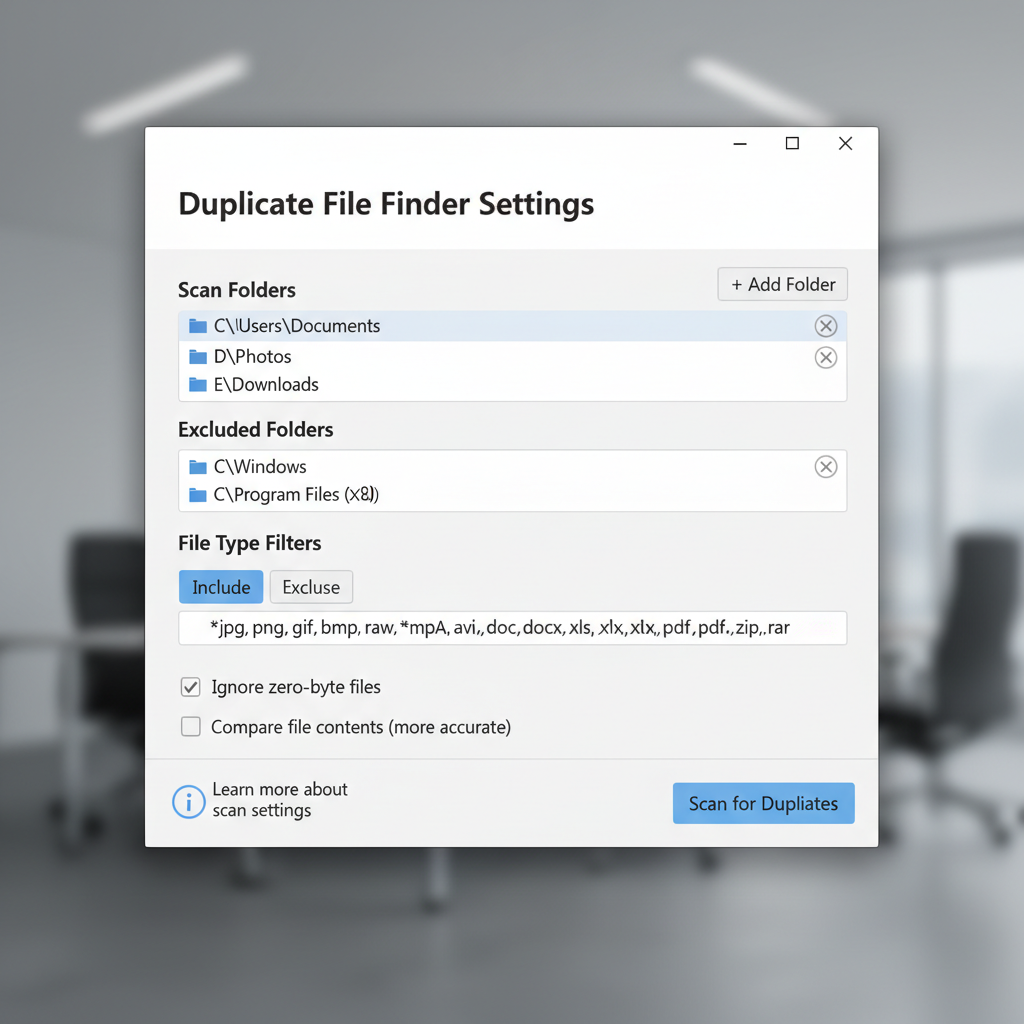
If you’re unsure, start with a tool that supports preview + quarantine/backup behavior, even if it scans slower. Speed is rarely the real bottleneck, confidence is.
A safe self-checklist before you delete anything
This is the part most guides skip, then people delete first and regret later. Run through this list before you remove duplicates.
- Do you have a current backup? If not, consider pausing. Even a basic external drive copy reduces stress.
- Are you scanning system folders? Avoid Windows, Program Files, and AppData unless you really know what you’re doing.
- Do duplicates live in cloud sync folders? OneDrive/Dropbox conflict files might represent different versions.
- Are you dealing with project folders? “Duplicate” assets can be linked in workflows, especially in video editing or CAD.
- Can you preview before deletion? For photos and docs, preview is non-negotiable.
According to Apple Support guidance on iCloud and Photos libraries, libraries can include sidecar files and related components; in practice, that means deleting “duplicates” in synced photo ecosystems can have unexpected results. If you store photos across Windows + iPhone exports, review carefully.
Step-by-step: a practical workflow that works with most tools
Different apps look different, but the safest workflow stays consistent. Use this sequence and you’ll avoid most self-inflicted problems.
1) Pick the right folders, then exclude aggressively
Scan user folders first: Documents, Desktop, Downloads, Pictures, Videos, plus any external drive media libraries. Exclude system directories and software install paths.
2) Start with content matching for documents and media
For a true cleanup, content hashing finds the “same file renamed” pattern. For very large collections, you can start with size+name, then re-scan suspicious areas with hashes.
3) Sort by groups, then use previews
Most tools show duplicates in groups. Open previews and check locations. A common safe habit: keep the copy in your “primary” folder (for example, Pictures\2025) and delete strays in Downloads or Temp exports.
4) Move to a quarantine folder instead of permanent deletion
If your tool supports it, move duplicates to a review folder. If it doesn’t, you can manually choose “Move to…” rather than “Delete,” then empty later after a few days.
5) Re-scan and confirm space recovered
After the first pass, re-run the scan on the same scope. You’ll often find second-order duplicates you missed, especially when you excluded too little early on.
Tip that saves time: For media libraries, focus on large file sizes first. Clearing ten 2GB video duplicates beats clearing 800 tiny thumbnails.
Common mistakes (and how to avoid them)
- Deleting from “Program Files” to gain space: this can break apps. If storage is tight, uninstall software via Windows Settings instead.
- Trusting filename matches alone: “IMG_0001.jpg” repeats across cameras and imports, but content can differ.
- Cleaning cloud folders without checking sync status: you might remove the only local copy or trigger a sync cascade.
- Assuming duplicates are useless: sometimes one copy is the original, the other is an edited export, especially for photos and PDFs.
- Running multiple cleaners back-to-back: it complicates undo and review, stick to one tool per cleanup session.

If you want one rule that covers most cases: delete only when you understand why that copy exists. If you can’t explain it, quarantine it.
When it makes sense to get professional help
Most home users can handle duplicates safely, but a few scenarios deserve extra caution. Consider consulting an IT professional or a data recovery specialist if:
- You suspect a drive is failing (odd noises, frequent errors, files turning unreadable).
- You’re cleaning a business laptop with compliance requirements or sensitive client data.
- You have only one copy of important family photos or legal documents and no backup.
- The duplicates are inside application data for creative tools and you depend on those projects.
According to NIST (National Institute of Standards and Technology) publications on data security, maintaining reliable backups and controlled deletion processes reduces risk. In plain English, don’t treat a duplicate cleanup as your backup strategy.
Conclusion: the cleanest win is a careful first pass
Using top free duplicate file finders for pc is less about finding duplicates, and more about removing them without breaking workflows or losing the “one version you actually needed.” Pick a tool with previews, scan user folders first, quarantine before deleting, and keep cloud sync folders on a shorter leash.
If you want an easy next step, run a scan on Downloads and your photo exports folder, then remove only the biggest, most obvious matches. That alone often frees meaningful space without drama.
FAQ
What is the safest way to remove duplicates on Windows?
The safest approach is scanning only user folders, using content-based matching, previewing results, and moving duplicates to a quarantine folder before permanent deletion.
Are free duplicate file finders accurate enough?
Many are accurate for true duplicates, especially with hashing. Accuracy issues usually come from user choices, like scanning system folders or relying only on filenames.
Can duplicate file removers delete the “original” by mistake?
Yes, if you auto-select without reviewing groups. Prefer tools that let you keep files based on location rules, and always preview photos and documents.
Do I need to scan my whole C: drive?
Usually no. Scanning the entire drive increases noise and risk, especially in Windows and application directories. Start with Documents, Downloads, Pictures, and external media drives.
How do I find duplicate photos that have different filenames?
Use a tool that supports content hashing or image similarity modes. Hashing catches identical files with different names; similarity modes can catch resized copies but may require more review.
Is it safe to clean duplicates in OneDrive folders?
It can be, but review carefully. Sync conflict copies and version differences are common. If you’re unsure, quarantine first and confirm the correct version exists in the cloud.
Why do duplicates keep coming back after I delete them?
Common causes include multiple import workflows (phone + camera), app backups, and cloud sync re-downloading. Tighten your import process and avoid saving new files to both Downloads and a library folder.
If you’re dealing with repeated “low storage” warnings and you’d rather not babysit every scan result, look for a duplicate finder that supports clear previews, folder-based rules, and a quarantine workflow so cleanup stays fast but still feels safe.